
Ecommerce content is not made from finished videos alone. A product page needs clear listing images and multiple views. A fashion campaign may need a model, an outfit variation, an on-foot shoe image, and a moving try-on shot. A social video may need a presenter, product details, and b-roll before those pieces can become one story.
Hilight AI Studio gives that asset layer a dedicated home. Instead of treating image generation, product photo editing, model production, presenter content, and product video clips as unrelated jobs, it brings them into one workspace organized around what ecommerce teams need to create.
That structure is what makes it different from a single-purpose generator. Teams can explore a direction, produce a task-specific asset, improve the result, reuse it in another channel, and use approved assets in a complete video workflow without confusing an individual asset with the finished campaign.
Key Takeaways
- Hilight AI Studio is the asset-production layer inside Hilight: it creates and processes the images and short clips used across product pages, social content, ads, and complete marketing videos.
- Video Creation and Image Creation help teams explore an open visual direction; the tools below them are designed for specific ecommerce jobs.
- The workspace currently displays eight video tools and ten image tools for products, models, virtual try-on, presenters, supporting footage, and enhancement; four are marked Coming Soon in the current UI.
- Individual assets can be used on their own or saved as source material for Hilight Smart Video when a campaign needs a complete script, scene sequence, and marketing video.
The Role of Hilight AI Studio in Ecommerce Content Production
Hilight AI Studio sits between source materials and finished marketing content.
The source may be a product photo, garment image, model image, portrait, script, or existing video. AI Studio turns that source into a usable asset: a new product scene, an on-model image, a virtual try-on result, a product detail clip, an AI spokesperson segment, or enhanced media.
Those outputs can support several destinations:
- Product listing pages and storefront visuals
- Social posts, covers, and short-form content
- Product advertising and campaign creative
- Presenter-led explanations and localized content
- Source footage for a complete marketing video
This is broader than an AI product image builder and more focused than a general media playground. The workspace is built around creative asset production for ecommerce: product accuracy, human presentation, selling-point visibility, reusable footage, and a clear route from one asset to a larger content workflow.
Four ideas define the module:
- Images and videos belong in the same asset workflow. A campaign often needs both, and the best next step depends on the required output.
- Exploration and execution need different entry points. Open-ended creation is useful before the direction is clear; a specific tool is better once the job is known.
- Ecommerce tasks need structured inputs. A product, garment, model, presenter, or script should enter a workflow designed for that task.
- Assets should remain useful beyond one generation. The same approved product or model material can support listings, social content, campaign variants, and complete videos.
How Hilight AI Studio Is Organized
The current workspace has three visible layers.
For the wider product map beyond AI Studio, see the Hilight features overview, which separates asset creation from complete-video, avatar, TikTok, and workflow modules.
This structure creates a simple progression:
Explore the direction → choose a task-specific tool → review or enhance the asset → reuse it directly or save it for a complete video.
The tools do not have to be used in a fixed order. Their relationship is based on the content job. One team may only need Product Background Swap for a product listing. Another may establish a model identity, create several on-model visuals, generate a try-on clip, and then combine the approved materials into a campaign video.
Video Creation and Image Creation: Explore a Direction First
The two large cards at the top of AI Studio are the flexible entry points.
Video Creation
Video Creation works as a general AI video clip generator. Start here when you want to test a description, animate a reference image, explore camera movement, or compare visual styles before deciding whether the final task is a product close-up, try-on, presenter segment, or showcase.
Typical starting points include a text description or reference image. The result is a short exploratory clip rather than a complete marketing video with a full script and scene structure.
Image Creation
Image Creation is the open image-making entry. It is useful for testing a product scene, campaign composition, social cover, or visual style before selecting a structured image workflow.
If the required result is already clear—such as a background replacement, clothing try-on, or multi-angle product set—move directly to the matching Image Tool. The task-specific page will organize the relevant inputs more clearly than a long general prompt.
The distinction is practical: quick creation explores; specific tools produce.
Video Tools: Eight Product and Presenter Workflows
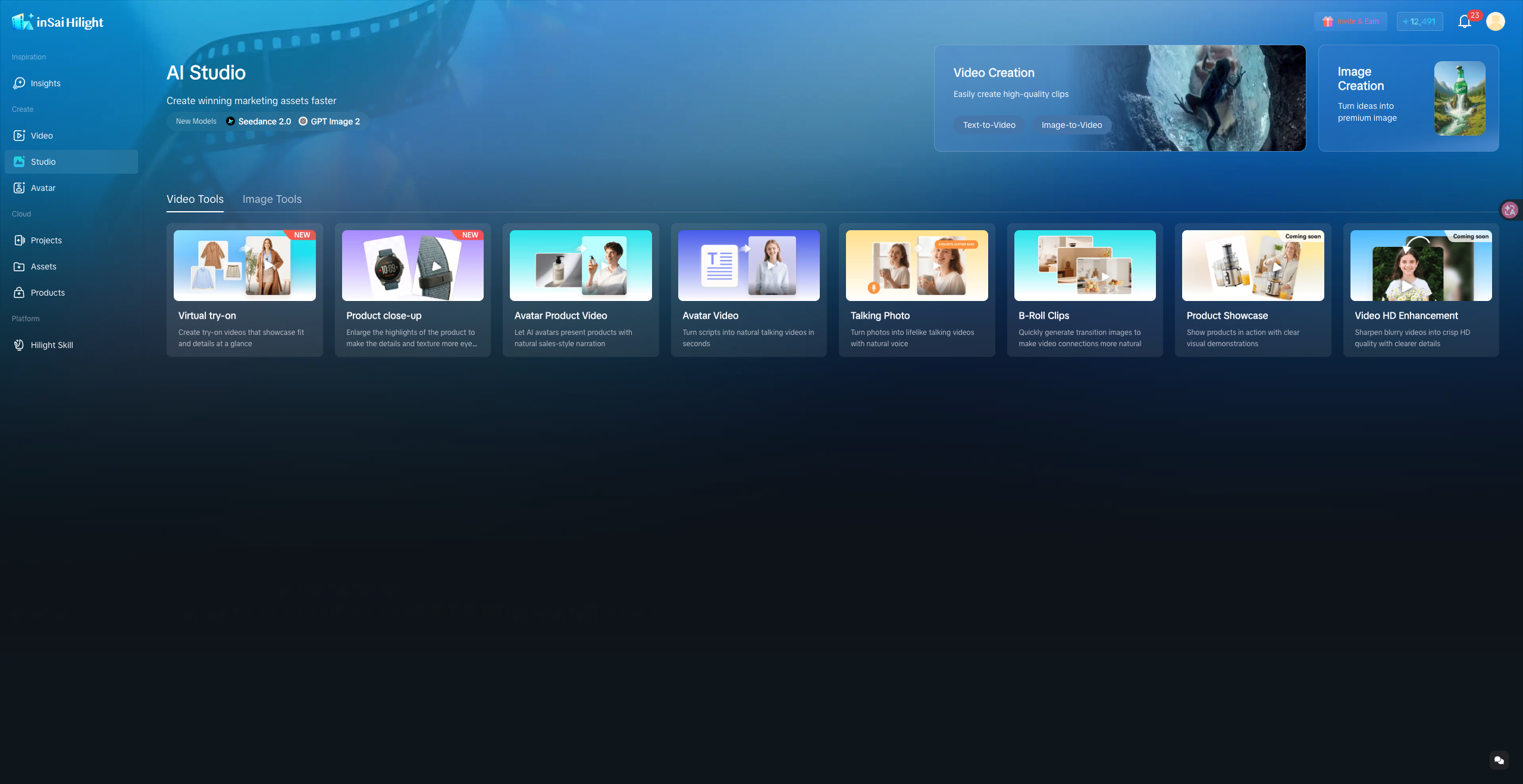
Video Tools create focused clips. Each one answers a different question: should the product be worn, examined, demonstrated, explained by a person, supported with atmosphere, or improved from an existing source?
The presenter tools are related but not interchangeable. Avatar Product Video is for a person showing or explaining a product. Avatar Video is for script-led presenter content. Talking Photo is for turning a still portrait into a speaking asset.
Teams searching for a product avatar usually need the first workflow: the person and product must appear as one explanation format. Teams searching for an AI spokesperson may only need a presenter to deliver a message, in which case Avatar Video or Talking Photo may be the more direct route.
Likewise, Product close-up, Product Showcase, and B-Roll Clips play different editorial roles. Close-ups establish product detail, showcase clips communicate appearance or use, and b-roll connects the main shots with context and rhythm. Product Showcase and Video HD Enhancement are marked Coming Soon in the current interface, so this article describes their displayed role rather than an active workflow.
Image Tools: Ten Product, Model, and Try-On Workflows
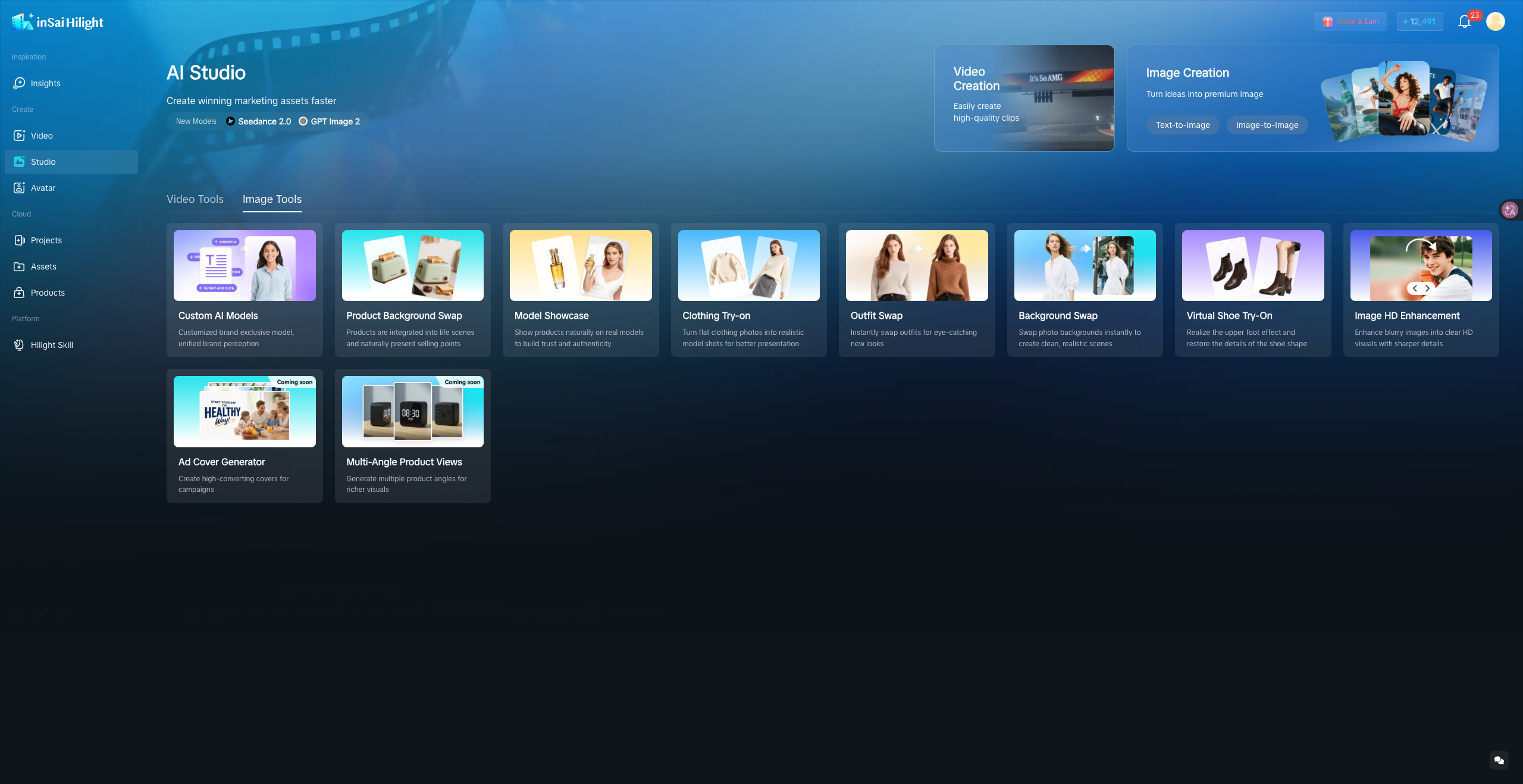
Image Tools cover product photo editing, model production, apparel visualization, footwear, campaign covers, multiple angles, and quality enhancement.
The model-related tools are easiest to separate by identifying what changes:
- If the reusable person is the priority, begin with Custom AI Models.
- If a product needs human context, use Model Showcase.
- If the garment should move onto a model, use Clothing Try-on.
- If the same person needs different clothing, use Outfit Swap.
- If the person stays but the setting changes, use Background Swap.
- If footwear needs an on-foot view, use Virtual Shoe Try-On.
For teams comparing a generic AI person generator, this structure is useful because the end goal is not merely to generate a face. It is to create a model asset that can participate in repeatable ecommerce visual work.
Product tools follow a similar logic. Product Background Swap changes the setting. Multi-Angle Product Views expands visual coverage. Ad Cover Generator creates a campaign-facing composition. Image HD Enhancement improves a source or result that is already conceptually correct. Ad Cover Generator and Multi-Angle Product Views are marked Coming Soon in the current interface; they are included here to explain the visible AI Studio structure, not as active step-by-step workflows.
How the AI Studio Tools Work Together
AI Studio is easier to understand as four content paths rather than a collection of isolated cards.
1. From an open idea to a defined production task
Video Creation or Image Creation → matching Video Tool or Image Tool
Use quick creation to explore style, composition, or motion. Once the target becomes specific, select the dedicated workflow. A promising fashion concept may lead to Clothing Try-on; a product-scene direction may lead to Product Background Swap; a presenter idea may lead to Avatar Product Video.
2. Build a reusable product-image set
Product image → Product Background Swap / upcoming multi-angle or ad-cover workflows → Image HD Enhancement → listing, social, or campaign use
These tools solve different parts of an image set. A single product may need neutral listing views, lifestyle scenes, a promotional cover, and channel-specific variants. Enhancement belongs at the point where the selected image needs more clarity—not as a replacement for choosing the right composition.
3. Move from model identity to static and moving try-on assets
Custom AI Models → Model Showcase / Clothing Try-on / Outfit Swap / Background Swap / Virtual Shoe Try-On; add Virtual try-on when motion is required
This path connects human identity, product placement, styling, environment, and motion. It is a content-production relationship, not a claim that every tool automatically passes its output to the next. Use only the steps required for the campaign.
If the team needs to virtually try on clothes, first decide whether the channel needs a static product image, a styling variation, or a moving try-on clip. That decision determines whether to begin with Clothing Try-on, Outfit Swap, or Virtual try-on.
4. Assemble product footage and presenter content
Product close-up / B-Roll Clips / upcoming Product Showcase + Avatar Product Video / Avatar Video / Talking Photo → approved source assets for Smart Video
Product shots show the item. Presenter content explains it. B-roll adds context and rhythm. Enhancement improves an existing clip. Smart Video becomes relevant when these pieces need to follow a hook, script, scene order, selling-point sequence, and call to action.
From AI Studio Assets to a Complete Marketing Video
AI Studio and Smart Video solve different levels of the content job.
The modules are complementary. AI Studio expands the asset library; Smart Video turns selected assets and product information into a complete marketing sequence. A product image can become a scene image, an on-model visual, a close-up clip, or presenter footage. Teams can save the approved results and select the relevant files as source material for a finished video.
A Practical First Workflow and Quality Checklist
The best first step is not to try every tool. It is to choose one useful output.
Name the deliverable.
Decide whether the campaign needs an image, a short clip, or a complete video.
Choose exploration or execution.
Use quick creation for an open direction and a specific tool for a defined task.
Prepare a clear source.
Select the product, garment, model, portrait, script, or video that best matches the workflow.
Generate a small first set.
Confirm the subject and direction before producing campaign variants.
Review the result at product level.
Check the details that affect customer trust and channel fit.
Save the approved asset for reuse.
Use it directly, create related variants, or select it as source material when building a video in Smart Video.
Before using an asset, review:
- Product shape, color, material, packaging, logo, and visible text
- Garment structure, model pose, hands, feet, and edges
- Background scale, shadows, lighting direction, and subject separation
- Product-presenter interaction and visual continuity in video
- Aspect ratio, caption space, thumbnail readability, and channel requirements
Channel rules should shape the final review. The official Google Merchant Center product image guidelines explain listing-image requirements, while Shopify's product photography guidance covers consistent source photography and image preparation. Use the relevant channel standard alongside the checks above before publishing an AI-generated or edited asset.
The goal is a reusable content system, not one isolated generation. A strong source image or approved model visual can support several listings, covers, social formats, and product videos.
Frequently Asked Questions
Why does Hilight AI Studio include both image and video tools?
Ecommerce campaigns usually need an asset set rather than one format. Images support listings, covers, and static ads; short clips support demonstrations, presenters, social posts, and complete videos. Keeping both formats in one workspace makes it easier to build related assets around the same product and campaign direction.
Should I start with Video Creation, Image Creation, or a specific tool?
Use Video Creation or Image Creation when the direction is still open. Use a specific tool when the required result is already clear, such as an AI product background, clothing try-on image, talking photo, product demo, or enhanced source.
What is the difference between Model Showcase, Clothing Try-on, and Outfit Swap?
Model Showcase adds human context to a product. Clothing Try-on places a garment on a model. Outfit Swap changes what an existing person is wearing. Choose according to the element that needs to change.
What is the difference between Avatar Product Video, Avatar Video, and Talking Photo?
Avatar Product Video is for a presenter showing or explaining a product. Avatar Video is for script-led presenter delivery. Talking Photo animates a still portrait with speech. Product interaction determines whether the product-presenter workflow is necessary.
How do AI Studio assets work with Smart Video?
Use AI Studio to create or improve individual images and clips. Use Smart Video when the content needs a complete hook, script, scene order, selling-point structure, and CTA. Save the approved AI Studio outputs, then select the relevant files as source materials for the larger video.
Explore Hilight AI Studio
Hilight AI Studio is different because it does not treat product images, model visuals, presenter content, and short video footage as separate creative islands. It organizes them as connected ecommerce assets that can be created for one channel, reused across campaigns, or assembled into a complete marketing video.
Start with the output you need now, then build the next asset around it.

