Quick Answer
GPT Image 2.6 is coming soon to Image Creation and seven specialist image tools in Hilight’s AI Studio. Sunburst focuses on detailed visual work and consistency across edits; Flare focuses on fast generation and iteration. Both generate images from text and edit with references. Hilight will offer the same image settings and credit rates for both, with Sunburst selected by default.
A product image may already have the right composition and only need a winter setting. A campaign visual might need a clearer headline without losing its people or atmosphere. The demanding part often starts after the first image: changing what needs work while keeping the details that made the idea useful.
GPT Image 2.6 addresses faster exploration and more controlled refinement. Its appeal extends beyond the first result to how an existing image can develop into a visual suited to a particular brief.
What Is GPT Image 2.6, and What Has Changed?
GPT Image 2.6 is OpenAI’s image-generation and editing family, available as GPT Image 2.6 Sunburst and GPT Image 2.6 Flare. The November 4 announcement emphasizes generation speed and preservation of characters, products and brand details during edits.
The two versions serve different priorities. Flare improves layouts for posters, product imagery and professional visuals. At medium and high quality, Sunburst improves image quality and consistency across editing rounds. Either can begin with a written brief or use existing images to guide a composition.
OpenAI also expanded GIF, SVG and API creation controls. Those are model and API developments; the Hilight launch discussed here concerns the confirmed still-image generation and reference-editing paths.
Flare: Explore Compositions and Campaign Layouts Faster
1. See several directions before developing one
Early campaign work often involves composition choices: a centered or offset product, a lifestyle scene or studio setting, more room for copy or a closer crop. Flare is designed for fast iteration, making it a natural starting point when seeing alternatives helps you decide.
For a fragrance bottle, you might explore morning light by a window, a dark stone surface and a bathroom display. Keep the product reference and aspect ratio fixed, changing the setting description. Once a direction feels right, concentrate on light, subject size and headline space.
OpenAI reports that Flare can generate in as little as about six seconds at low quality. That figure has a specific quality condition. Hilight’s planned configuration uses high quality for both versions, so six seconds is not a Hilight turnaround promise.
2. Give the headline a place in the composition
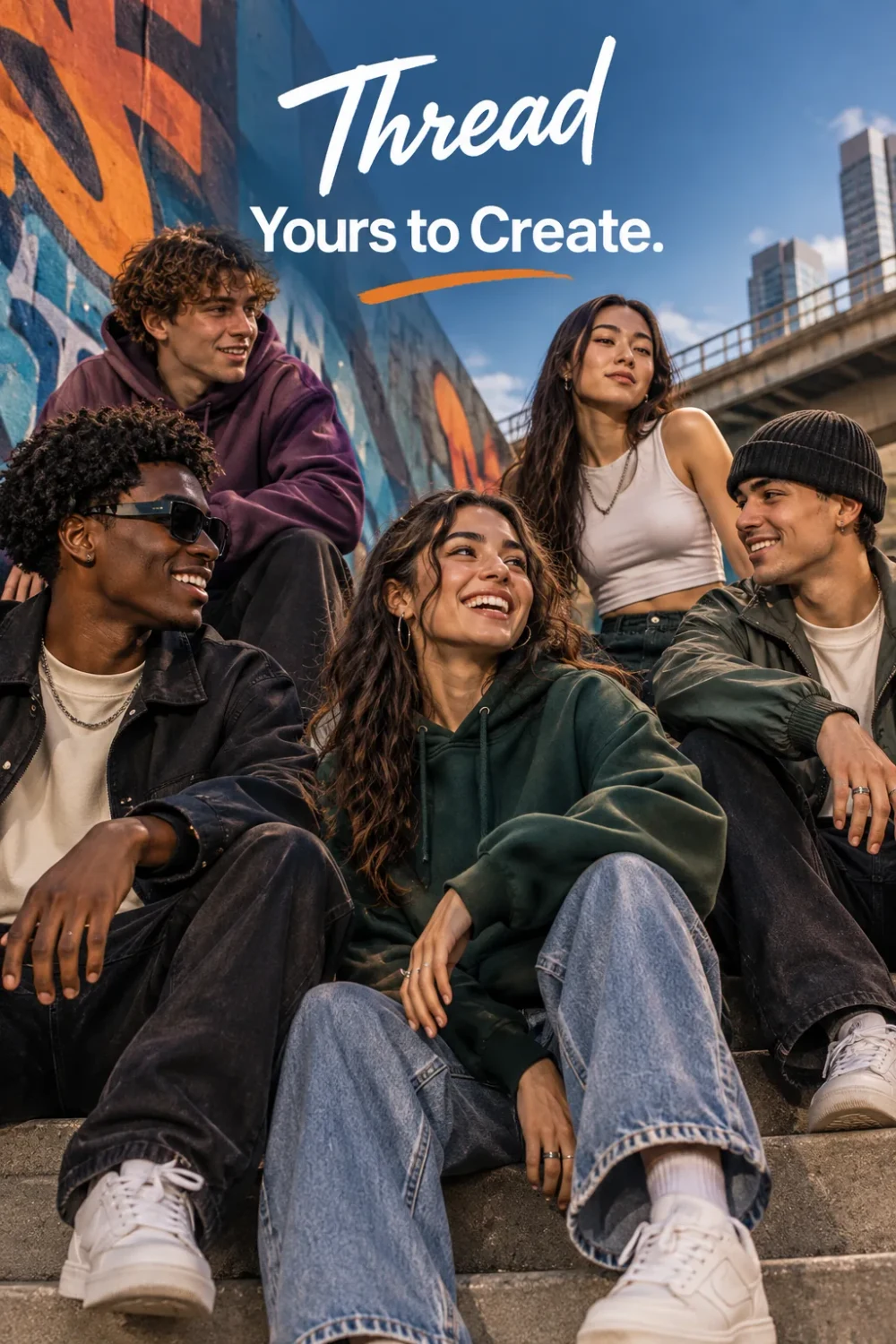
OpenAI’s official streetwear campaign example arranges a group of people, an urban backdrop and a short headline in one portrait image. It provides a useful way to look at hierarchy: the space given to the headline, the depth between people and the background’s contribution to the atmosphere.
For your own campaign, decide which short line actually belongs in the picture, then describe its position and priority. A product could occupy the left side while a headline area remains open at the upper right. The creative decision is what a viewer should notice first, rather than how many selling points can fit.
3. Develop a seasonal version from an existing image
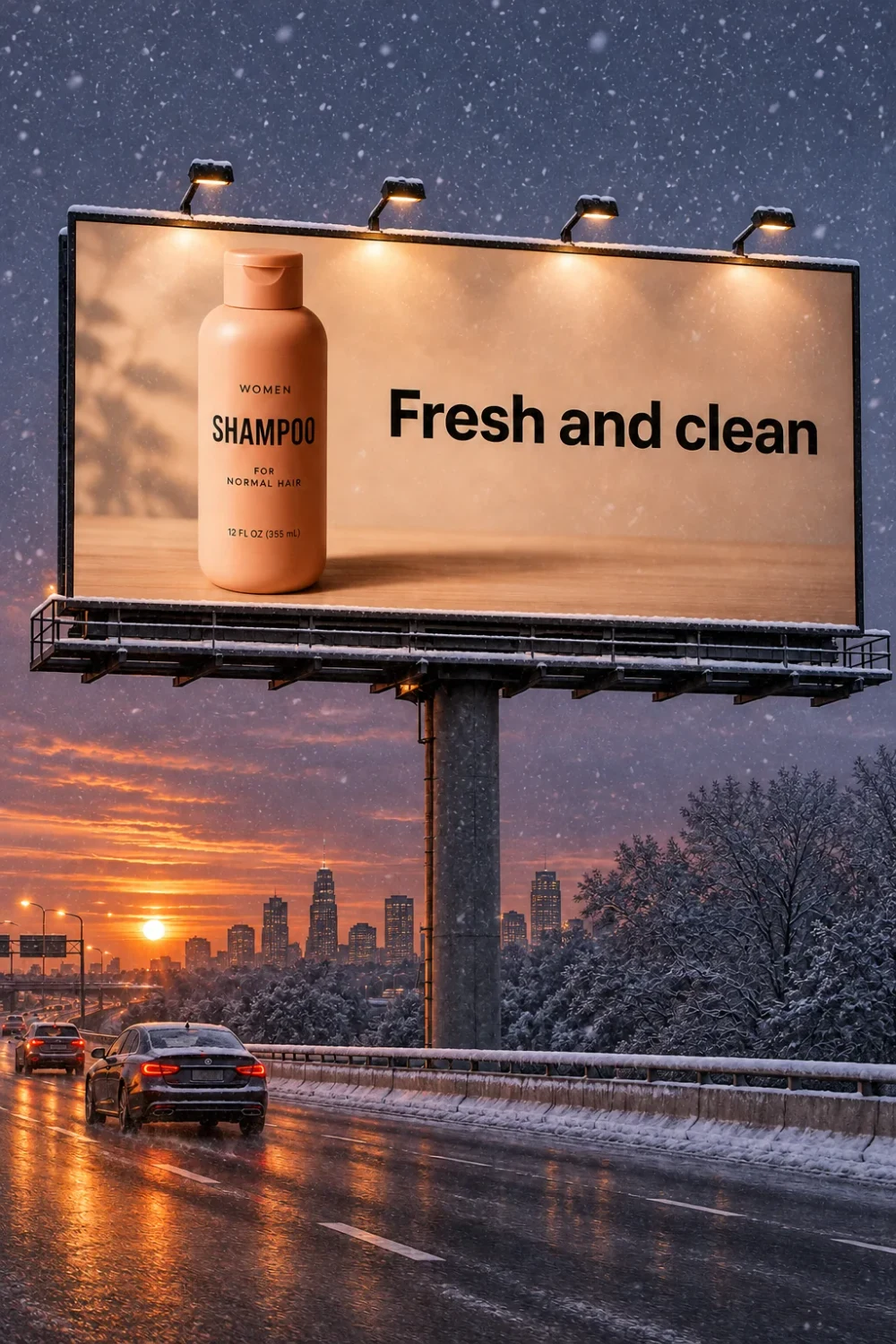
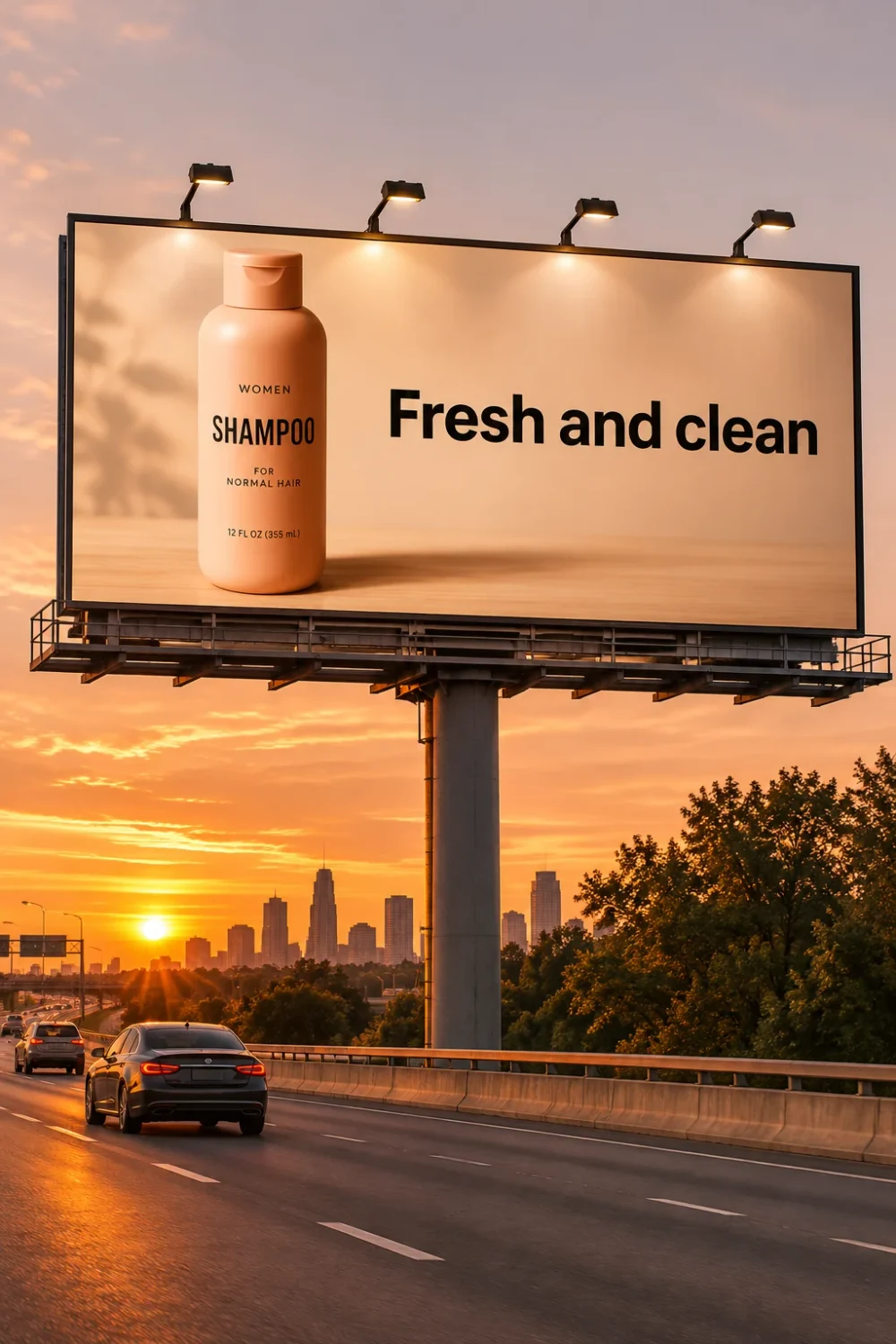
In the official prompting examples, a shampoo billboard beside a highway becomes the input for a snowy winter-evening edit. Flare’s example pair retains a visible bottle and short headline while the road, surroundings and light take on a winter treatment. The examples use medium quality.
This is relevant when a product and message are already established and the environment needs another treatment. Focus the request on weather, materials or light, and identify the product and copy to retain. Starting from an existing result makes it easier to communicate which parts already work.
Sunburst: Preserve Subject Details Across Edits
1. Define the change clearly
Sunburst targets detailed visual work and editing. It is worth considering when an image contains many details to retain, such as a person’s appearance, packaging structure or an established setting. Describe the requested change alongside what should stay.
“Give this product a more premium background” leaves many decisions open. A more useful brief might preserve a cup’s outline, handle, lid and label while changing the surface to pale stone and the wall to warm gray. That sets a recognizable goal for the edit and makes unwanted subject changes easier to spot.
2. Understand focused editing through the chair example
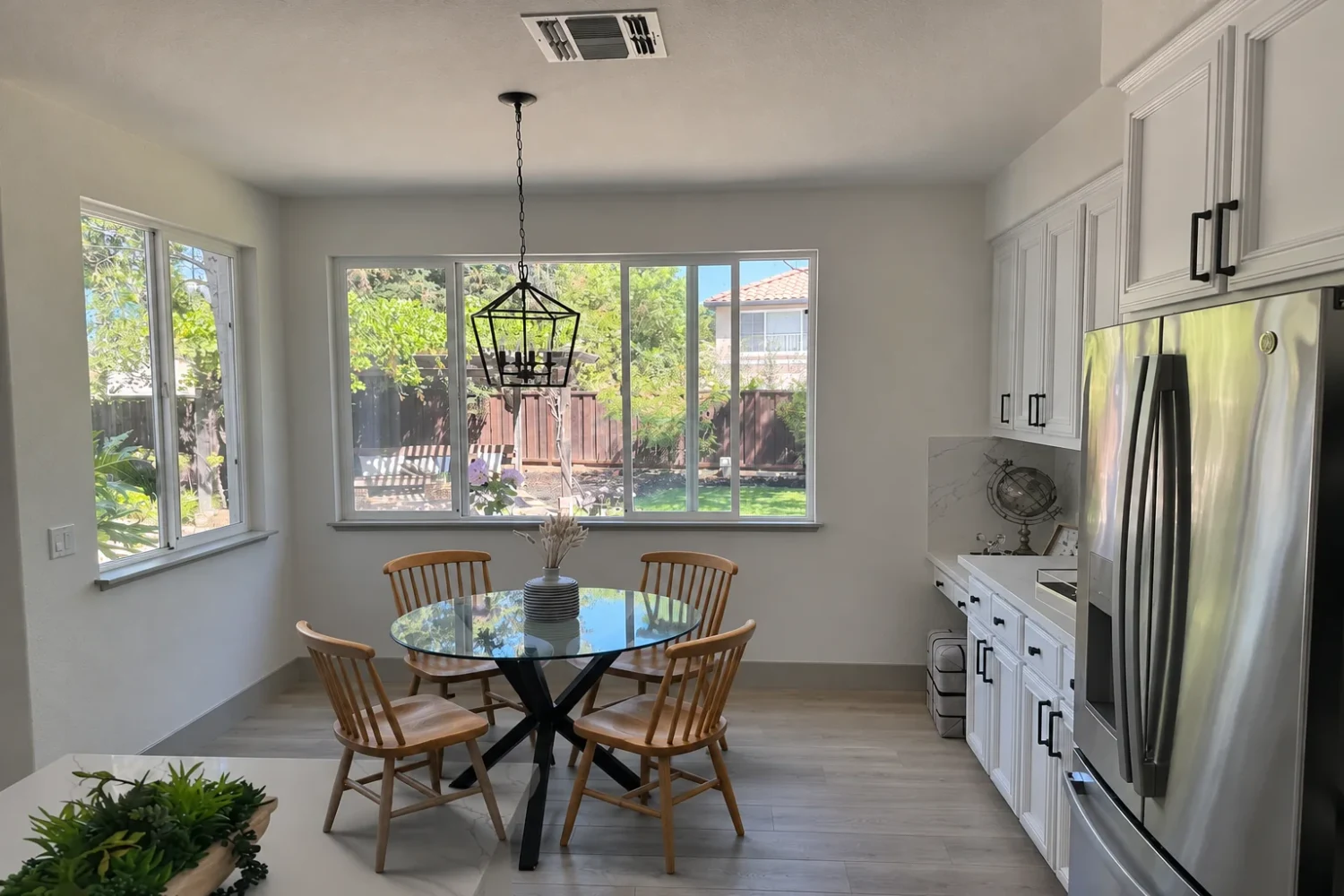
OpenAI’s room-editing example asks for white chairs to become wooden chairs while retaining the camera angle, room lighting and surrounding objects. Sunburst’s output places wooden chairs around the existing round table; the windows, kitchen and main spatial arrangement remain recognizable. The example uses 1536 × 1024 at medium quality.
It illustrates a practical editing task: retain the overall space while changing one class of objects. A furniture visual can explore chairs, lamps or accessories in the same room. A product display can keep its composition while changing a specified surface or background. Naming the object to change gives the request more direction than asking for a completely different style.
The official example shows a response to that particular brief. For a real product, compare the result with the source, especially labels, small text and outlines. A precise request still leaves product details worth reviewing.
Sunburst vs Flare: Which Should You Choose?
Both versions generate and edit images. Choose according to your priority: careful refinement and detail preservation, or faster exploration of different ideas.
Where Will GPT Image 2.6 Fit in Hilight?
Both versions are coming to Image Creation at the top of AI Studio. Start there when you want to describe a complete image or combine references for a product scene. The AI Studio overview introduces the area for creating image and video assets.
For a defined image task, the seven specialist tools cover:
- People and clothing: custom model creation, outfit changes, model background changes and clothing try-on.
- Products and styling: product background changes, shoe try-on and products worn by a model.
Both new models support up to 16 references and default to 2K. Give each reference a clear job, such as product appearance, setting or composition, instead of adding several near-identical images.
Start with a Product Image: Specify What Changes and What Stays
For your first task, try placing an existing fragrance-bottle image in morning light while retaining its appearance. When writing GPT Image 2.6 prompts, separate the subject, requested change and intended use. Adapt this example to your product:
“Use the fragrance bottle in the reference as the subject. Preserve the bottle proportions, cap shape, glass color, brand name and label wording. Place it on a pale beige stone surface against a simple warm-gray wall. Add soft morning light from the left, natural reflections along the bottle edges and a contact shadow at the base. Show the complete product slightly left of center, leaving headline space at the upper right. Use realistic still-life photography. Add no other products, flowers or new text. The image will introduce the fragrance’s appearance and everyday atmosphere.”
For another version, change only the morning light to softer overcast light. Compare the lighting before replacing the composition.
If you are new to the family, the GPT Image 2 product-image guide provides background on organizing a visual request around product materials.
Frequently Asked Questions
The planned 4K options are 9:16, 16:9, 1:2, 2:1, 9:21 and 21:9. Choose 1K or 2K for other supported ratios. Resolution and quality are separate settings; both models use fixed high quality.
Official Sources

