

Choose Sunburst or Flare
In Image Quick Create, keep GPT Image 2.6 Sunburst for detailed work or choose Flare for faster iterations.
GPT Image 2.6 combines faster rendering with stronger layout and more precise edits that can preserve defining product, character, and brand details. Choose Sunburst for demanding layouts and consistent edits across versions. Flare is designed to get you to the next poster or product visual faster.
GPT Image 2.6 combines faster generation, tighter control over layout and local edits, and stronger consistency of products, characters, and brand details across revisions. Sunburst emphasizes detail and precision. Flare emphasizes quicker visual iteration.
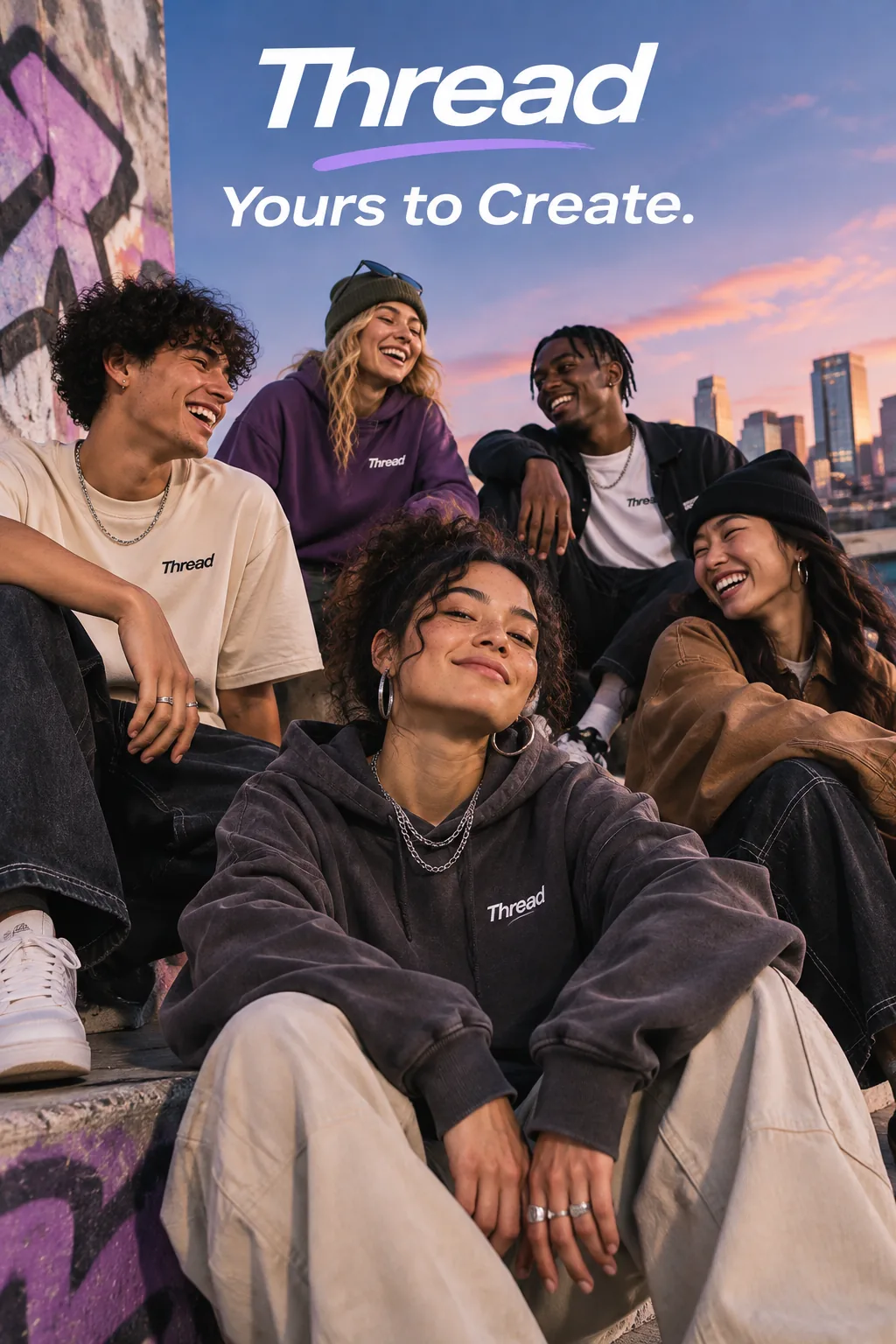
01 · Layout and typography
In the official Thread campaign example, Sunburst fits the brand name and separate headline above a group portrait. The text hierarchy and photography are composed together, so you can judge whether the poster works as a whole.
02 · Structured visuals
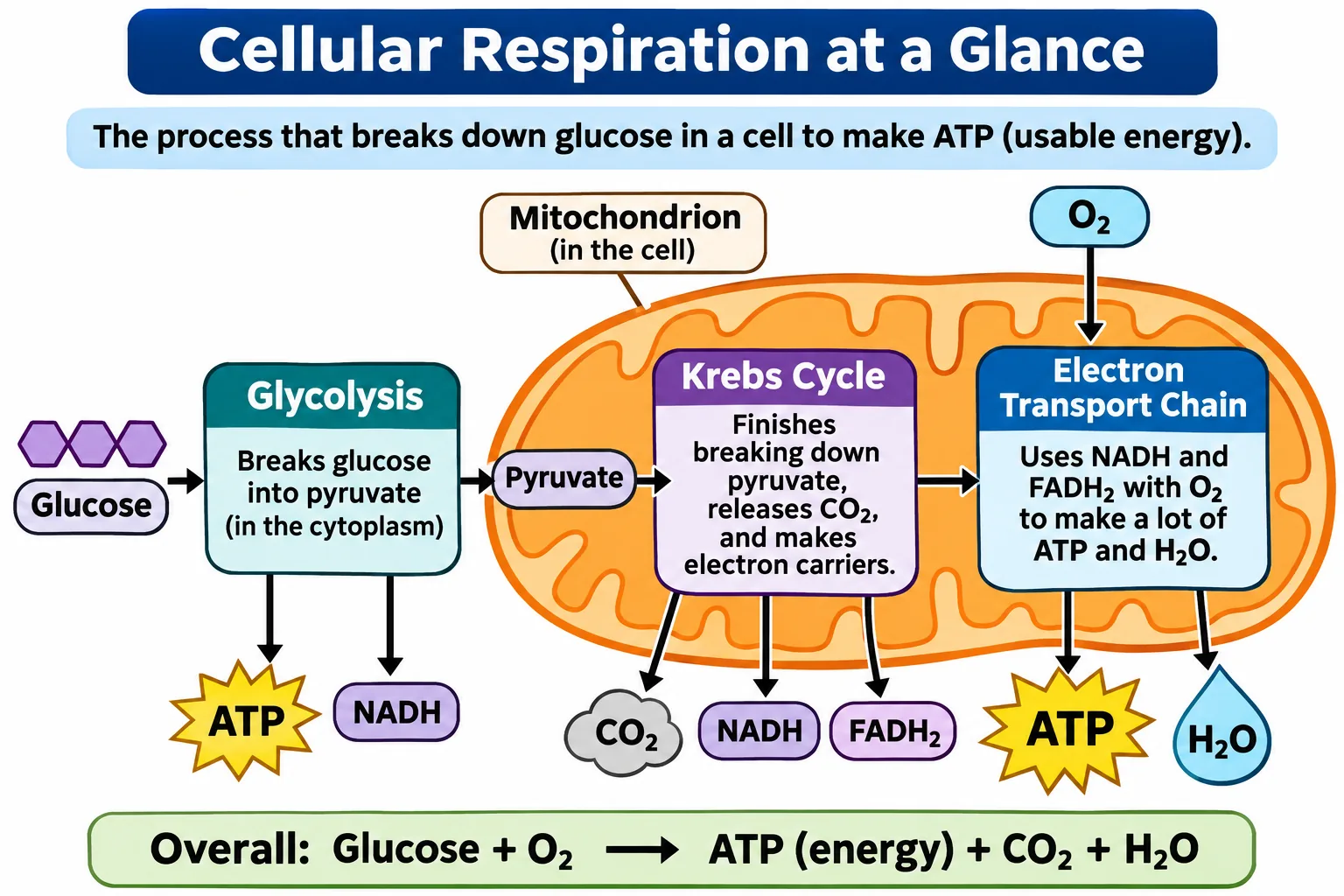
The official Sunburst example arranges a cell process into stages, labels, and directional links. It shows how layout can explain relationships between elements. Verify any scientific claims or labels before sharing the visual.

03 · Logo design
In OpenAI’s official example, Sunburst combines a loaf, wheat sprigs, and the Field & Flour wordmark into a bakery logo. The transparent background makes it easy to place the same design on packaging, labels, or signage mockups.
04 · Local edits
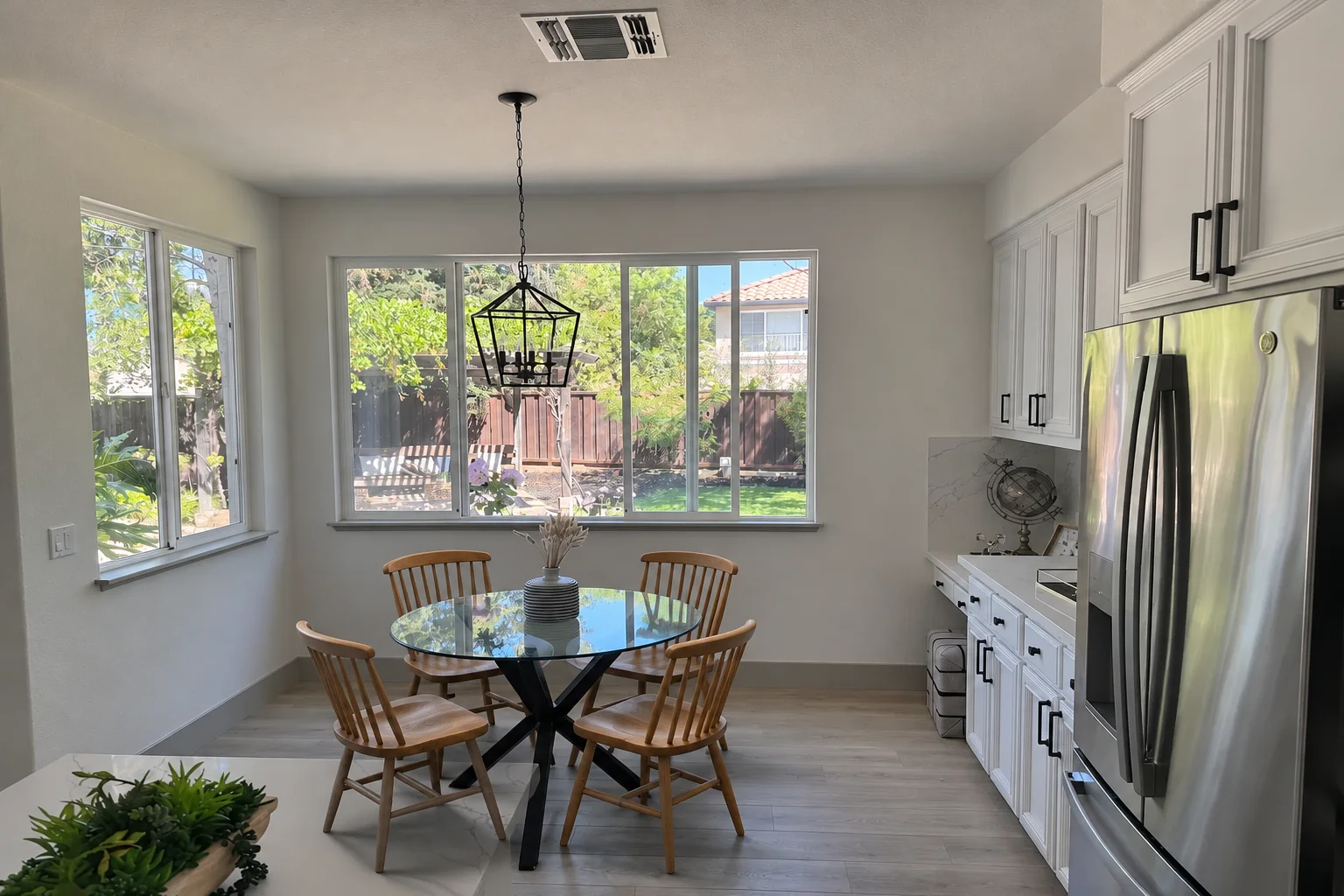
In the official kitchen sample, Sunburst swaps the chairs around the table while keeping the kitchen and composition recognizable. The example shows the difference between specifying a local change and asking for an entirely new room.
05 · Sketch-guided rendering
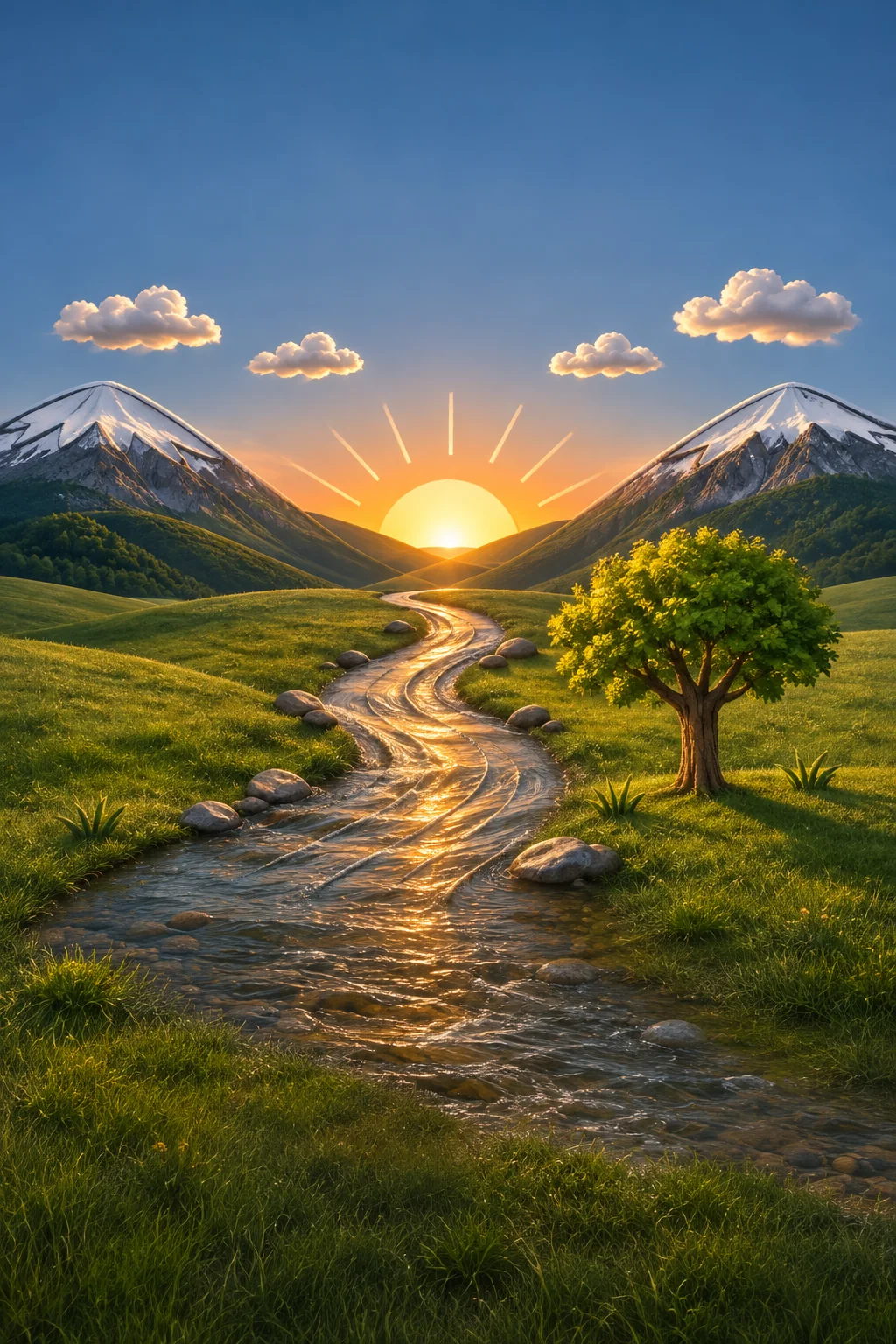
The official landscape example develops a rough view of the sky, mountains, and river into a detailed image. The sketch establishes the scene geometry, while the render adds texture, depth, and light.
Explore ways to create product visuals with the Hilight image tools shown below.
01 · Image Quick Create
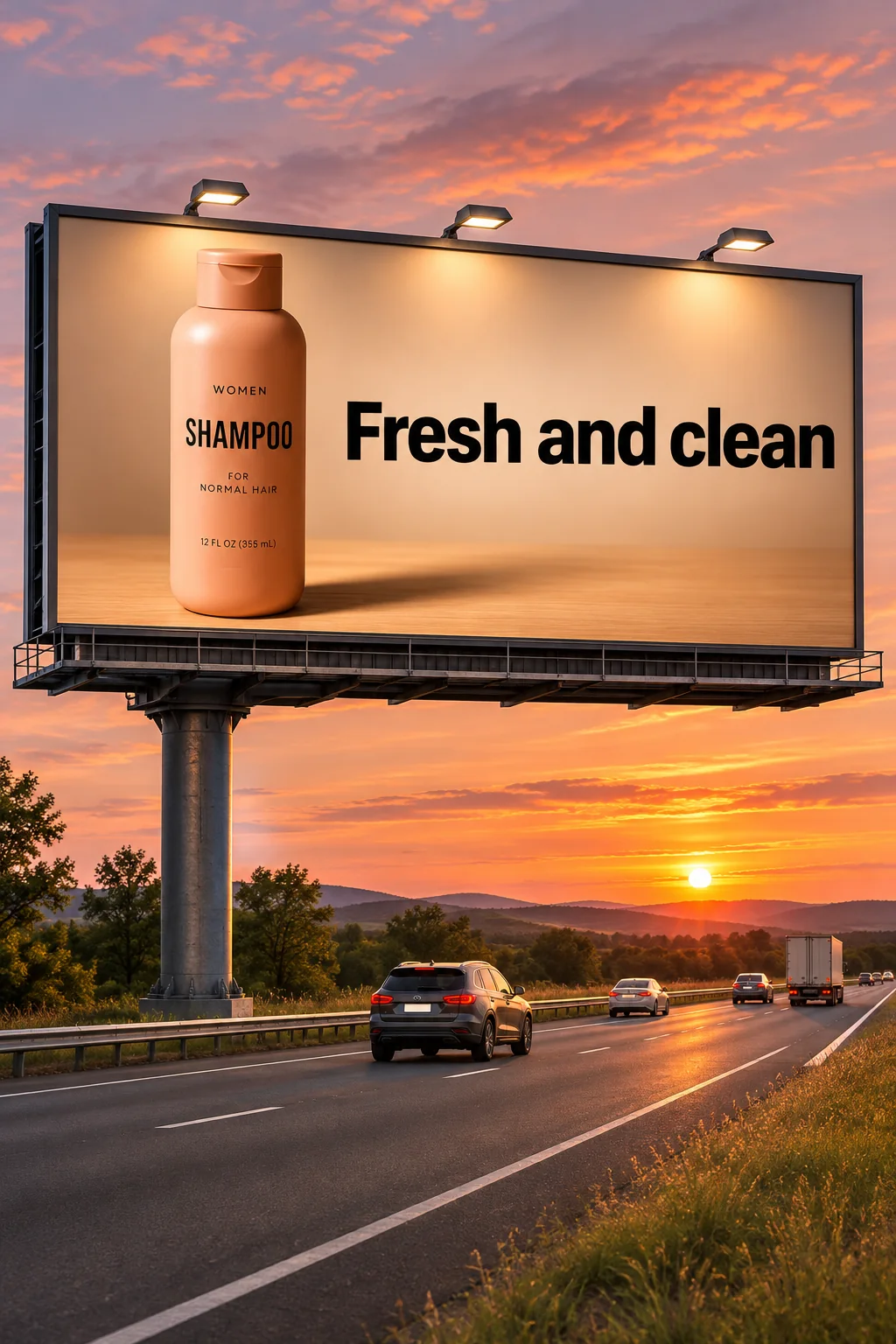
In Image Quick Create, describe the product, lighting, and composition to draft a campaign image. Try a clean product silhouette and a short headline for an outdoor campaign layout.
02 · Clothing Try-On
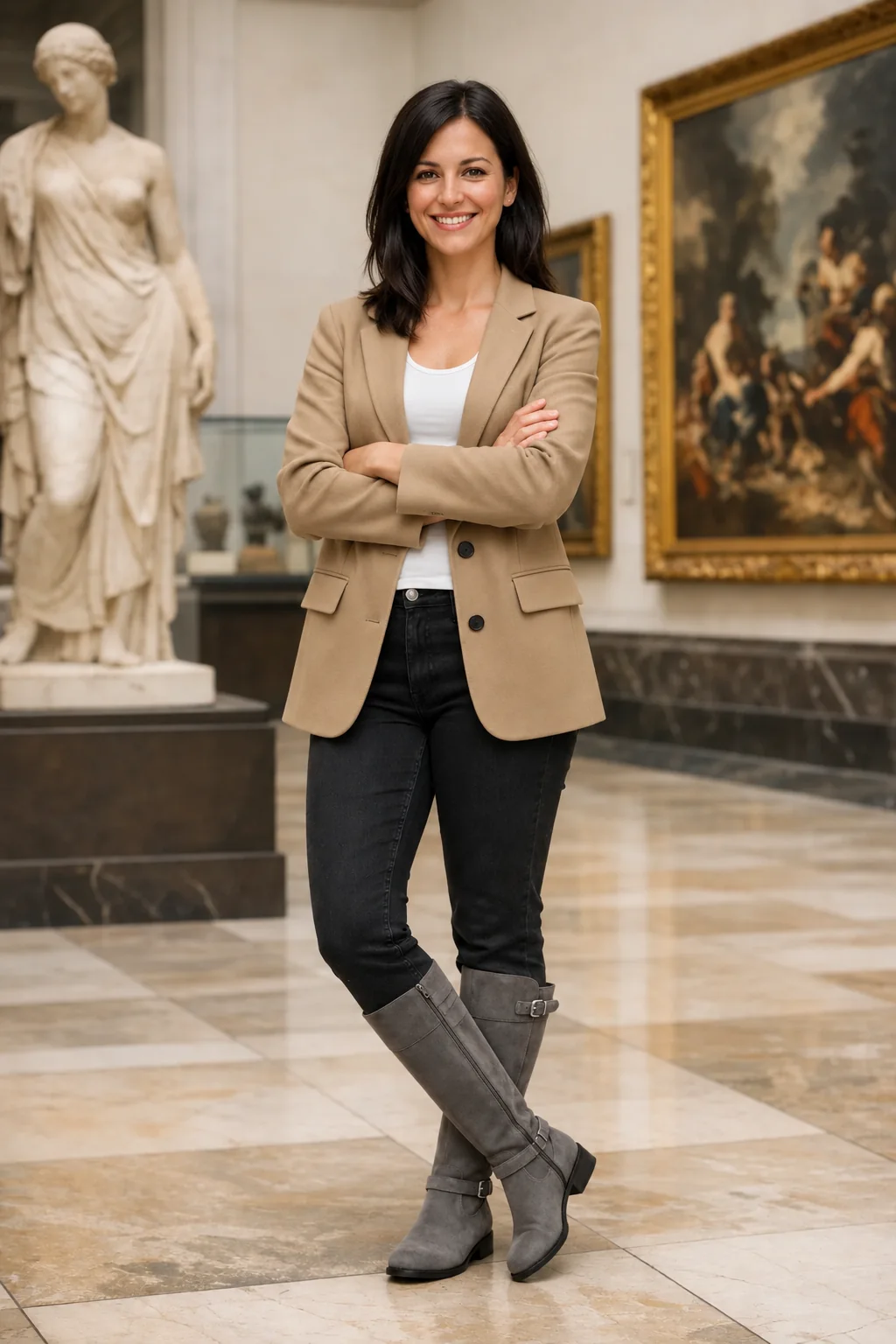
Use Clothing Try-On to show a garment on a model. Explore how the jacket shape and proportions read in a catalogue composition.
03 · Product Background Change
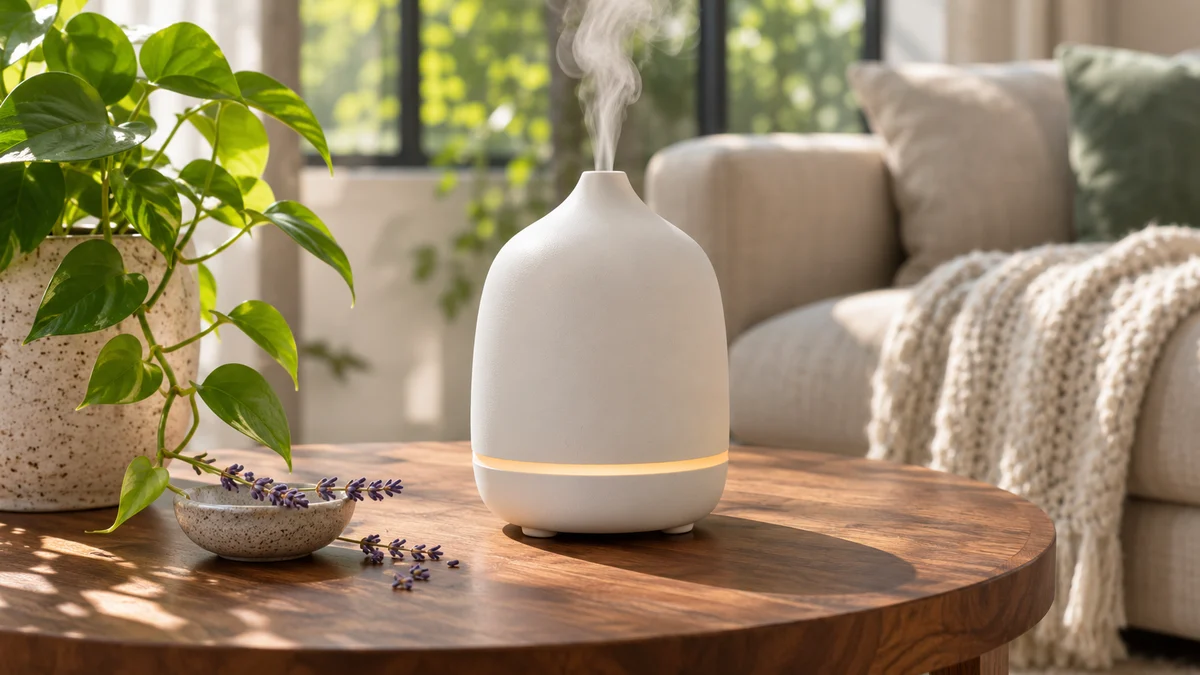
Use Product Background Change to place a product in a different setting. Try a sunny living room for a ceramic diffuser, then check that the shadows and lighting fit the scene.
04 · Shoe Try-On
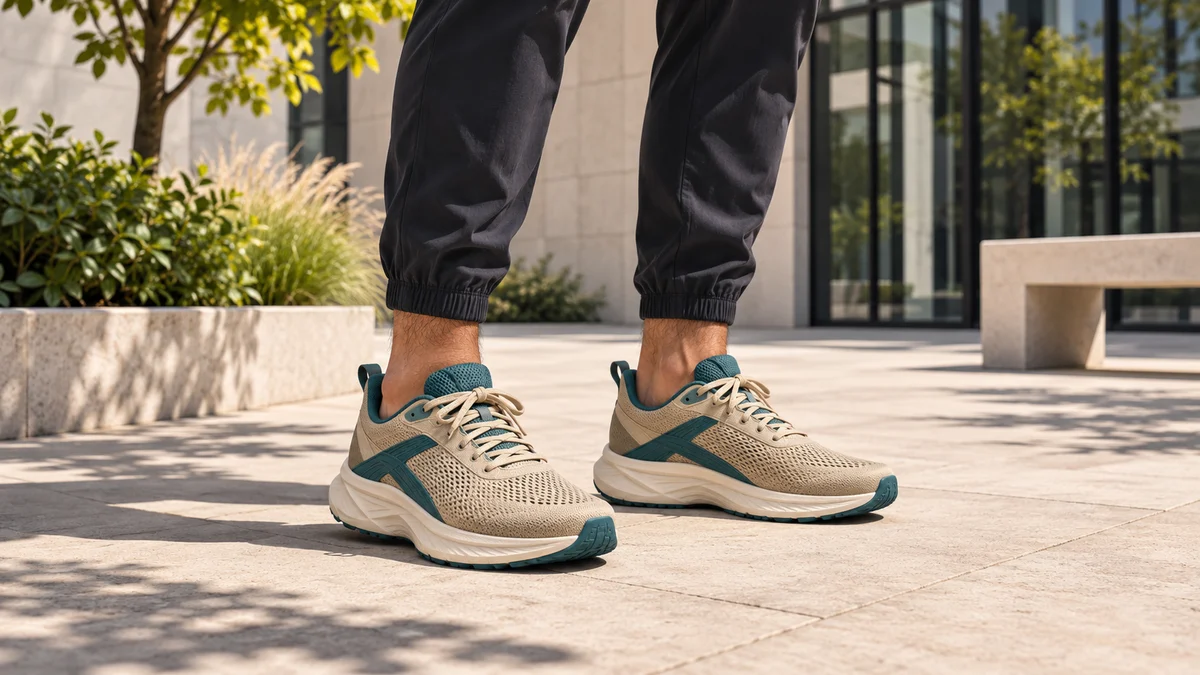
Use Shoe Try-On to show footwear worn in a scene. A closer view can make the shoe profile, colors, and material easier to inspect.
Choose a model, add references and direction, then generate and export your image.
In Image Quick Create, keep GPT Image 2.6 Sunburst for detailed work or choose Flare for faster iterations.
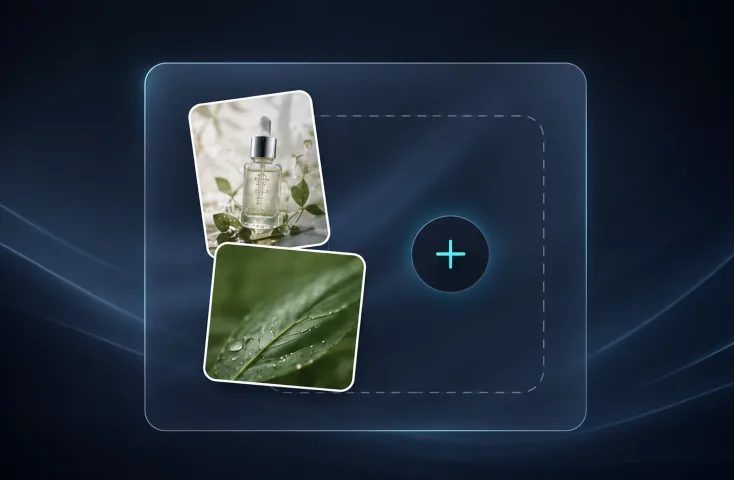
Describe the subject, composition and details to keep or change. Add up to 16 reference images when editing.
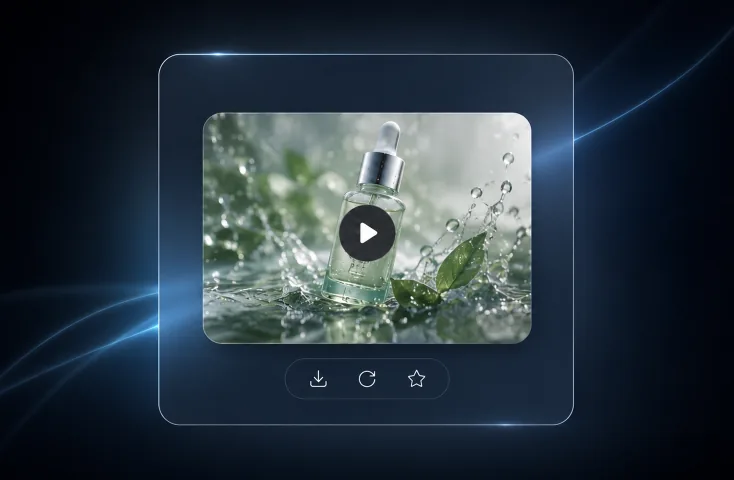
Choose 1K, 2K or 4K. The default is 2K. At 4K, pick a supported aspect ratio. Generate, review and download your image.
Compare turnaround time, fine detail and layout, and consistency across edits.
| Capability | Sunburst | Flare |
|---|---|---|
| Turnaround time | Choose Sunburst when you can spend more time on a detailed result | Choose Flare when response time matters most or you need to test several concepts quickly |
| Detail and layout | Suited to complex layouts and visuals with demanding detail requirements | Suited to quickly trying different layouts for posters and product imagery |
| Consistency across edits | Better at preserving key product, character, or brand details across edits at medium or high quality | Suited to short edit cycles when getting the next version quickly matters most |
Answers about availability, supported Hilight workflows, image settings, input boundaries, and model selection.
Explore image and video models for product ads, social content, and creative work.
Test product video concepts with the faster Seedance 2.5 variant.
Generate and edit still images with Standard or Highspeed.
Explore cinematic movement and visual ideas.
Try creative video concepts for social channels.
Explore stylized scenes and visual directions.
Develop polished video scenes.
Choose Sunburst or Flare in Hilight and turn your brief into a new visual direction.
Create with GPT Image 2.6