


Choose Seedance 2.5 Flash
Open Video Quick Create and select Flash in the Seedance model group. You can also choose it in B-roll Assets, Virtual Try-On Clips and Product Close-Up Clips.
Seedance 2.5 Flash brings faster iteration to the Seedance 2.5 family while retaining video generation up to 30 seconds, native audio, and multimodal reference support at the model level. Its 480p and 720p outputs are suited to testing camera moves, product reveals, and different ad openings before settling on a final shot.
Flash combines faster generation, clips up to 30 seconds, multimodal reference guidance, and native audio in a model focused on 480p and 720p video.
01 · Generation speed
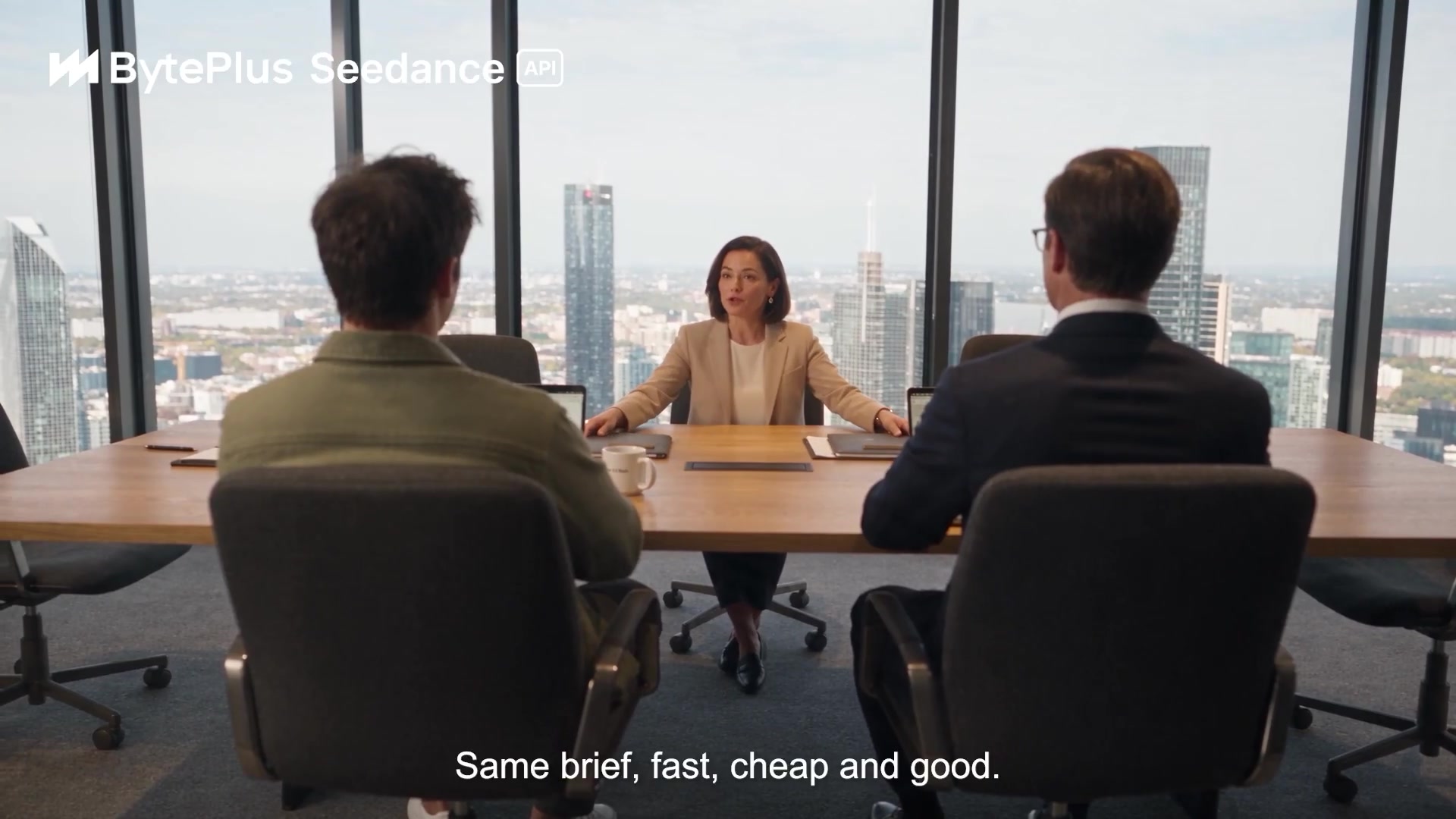
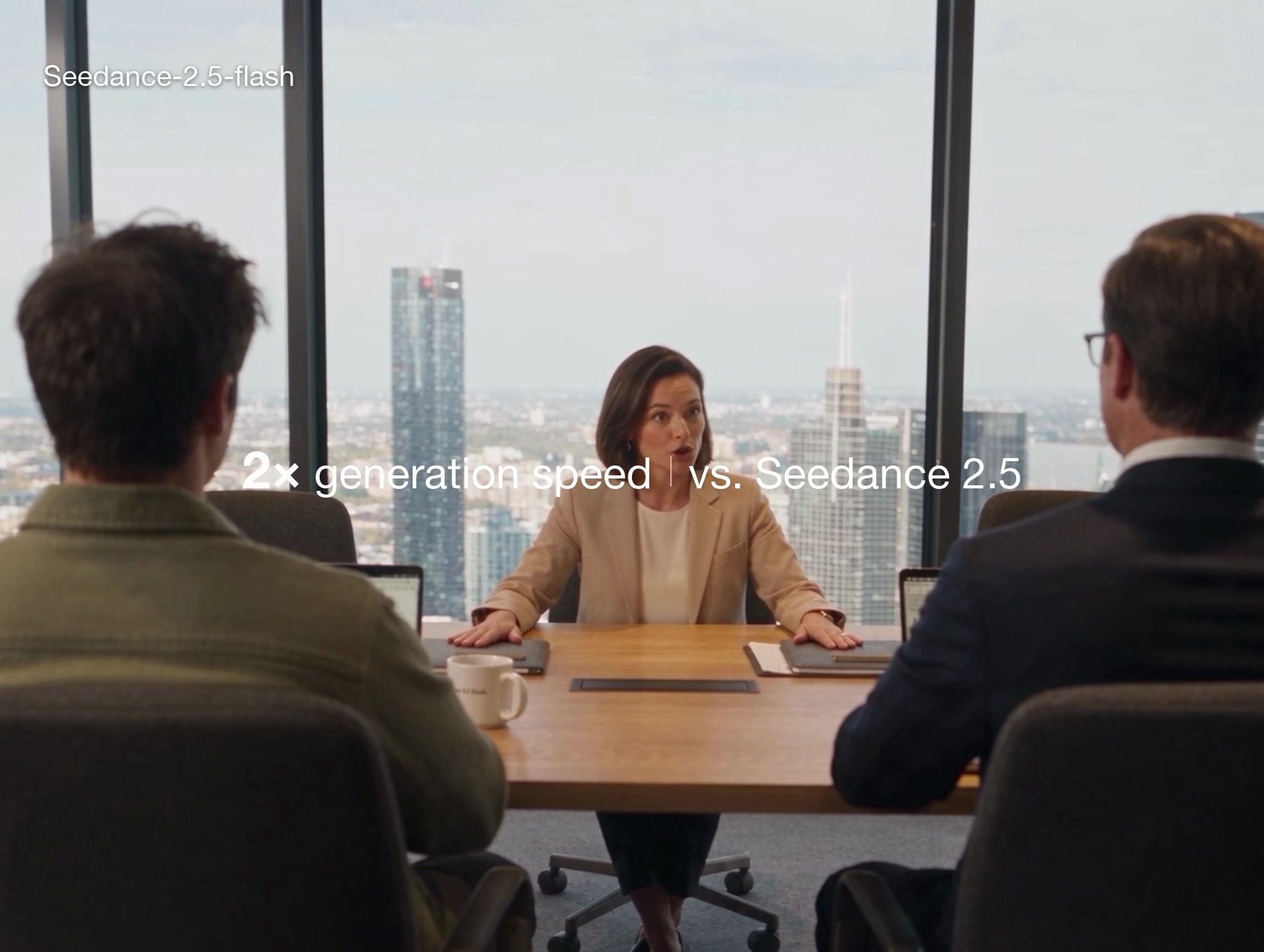
BytePlus reports twice the generation speed of standard Seedance 2.5 in its launch comparison. The accompanying office scene gives a concrete preview task: compare where people look, how a line lands, and whether the reaction cut reads.
02 · Video resolution
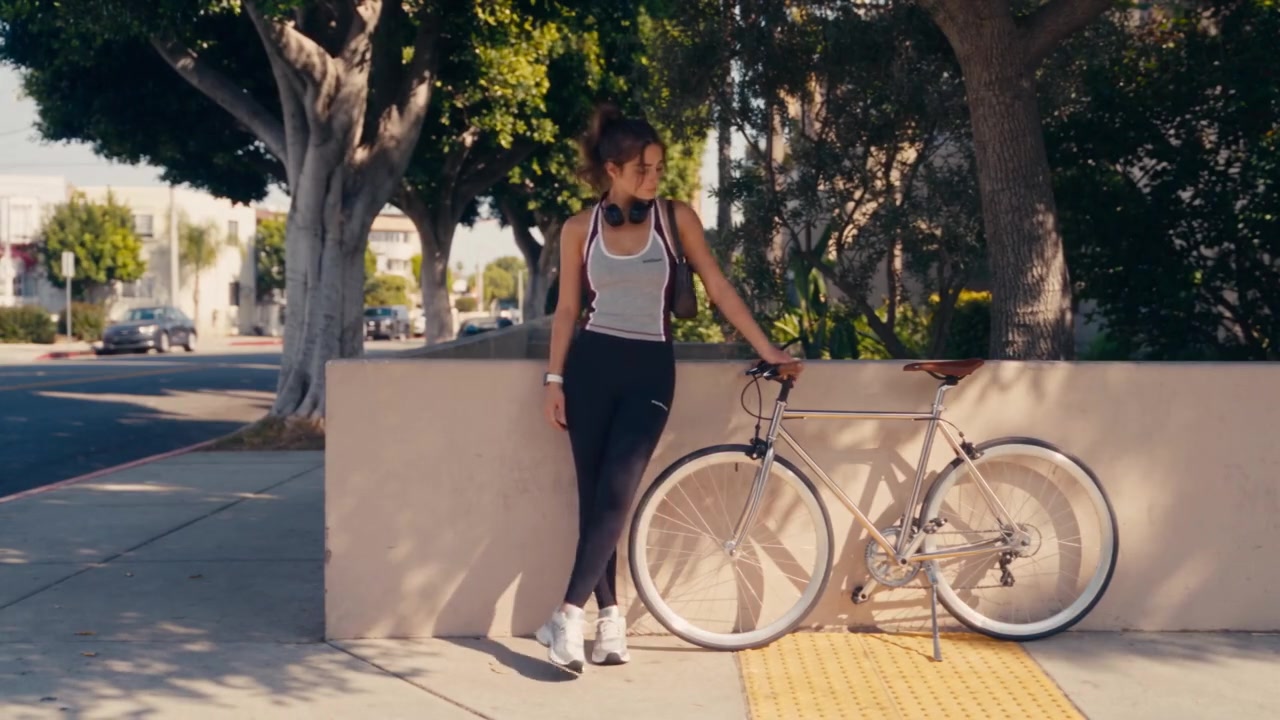
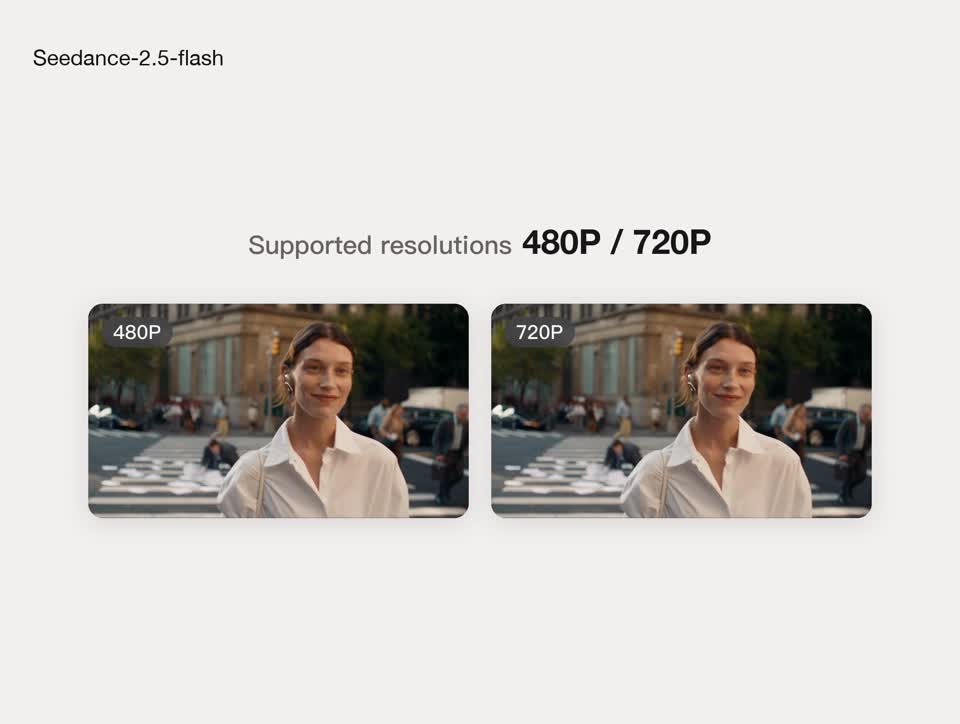
The official comparison shows the same outdoor scene at both resolutions. At 480p you can review the shot and timing. At 720p you have more pixels to check the face and background detail.
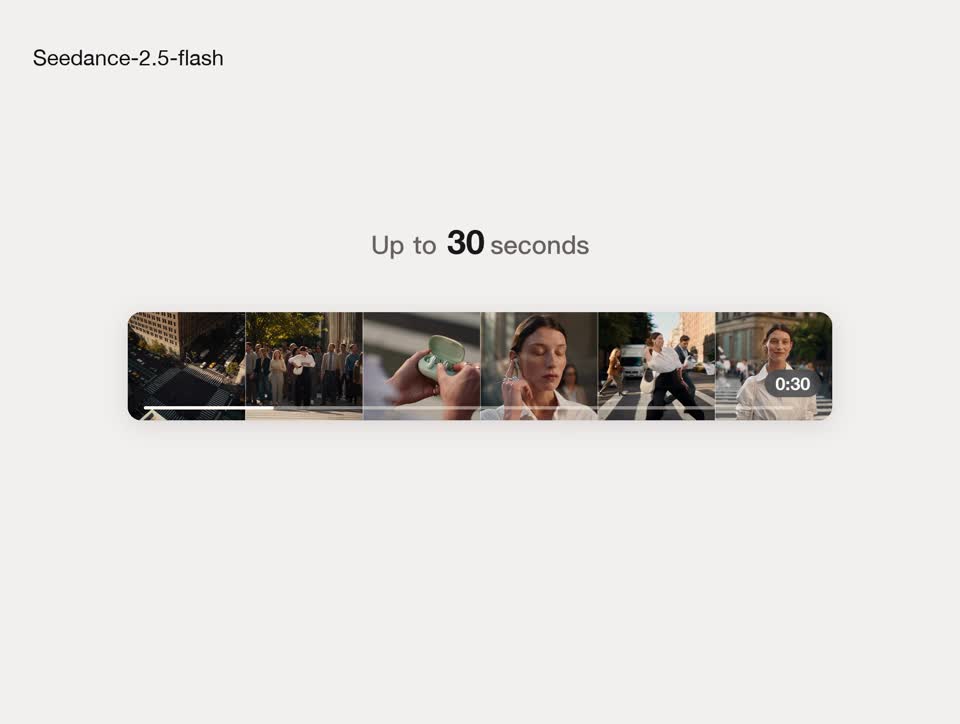
03 · Native duration
Flash can generate up to 30 seconds in a single run. The official timeline illustrates that duration. It gives an ad concept room for a product entrance, a demonstration, and a closing beat.
04 · Motion and sound
Flash can generate audio alongside the picture. Describe the moment an action starts and when its sound should arrive, such as adding footsteps as a performer crosses a stage.
05 · Multimodal references
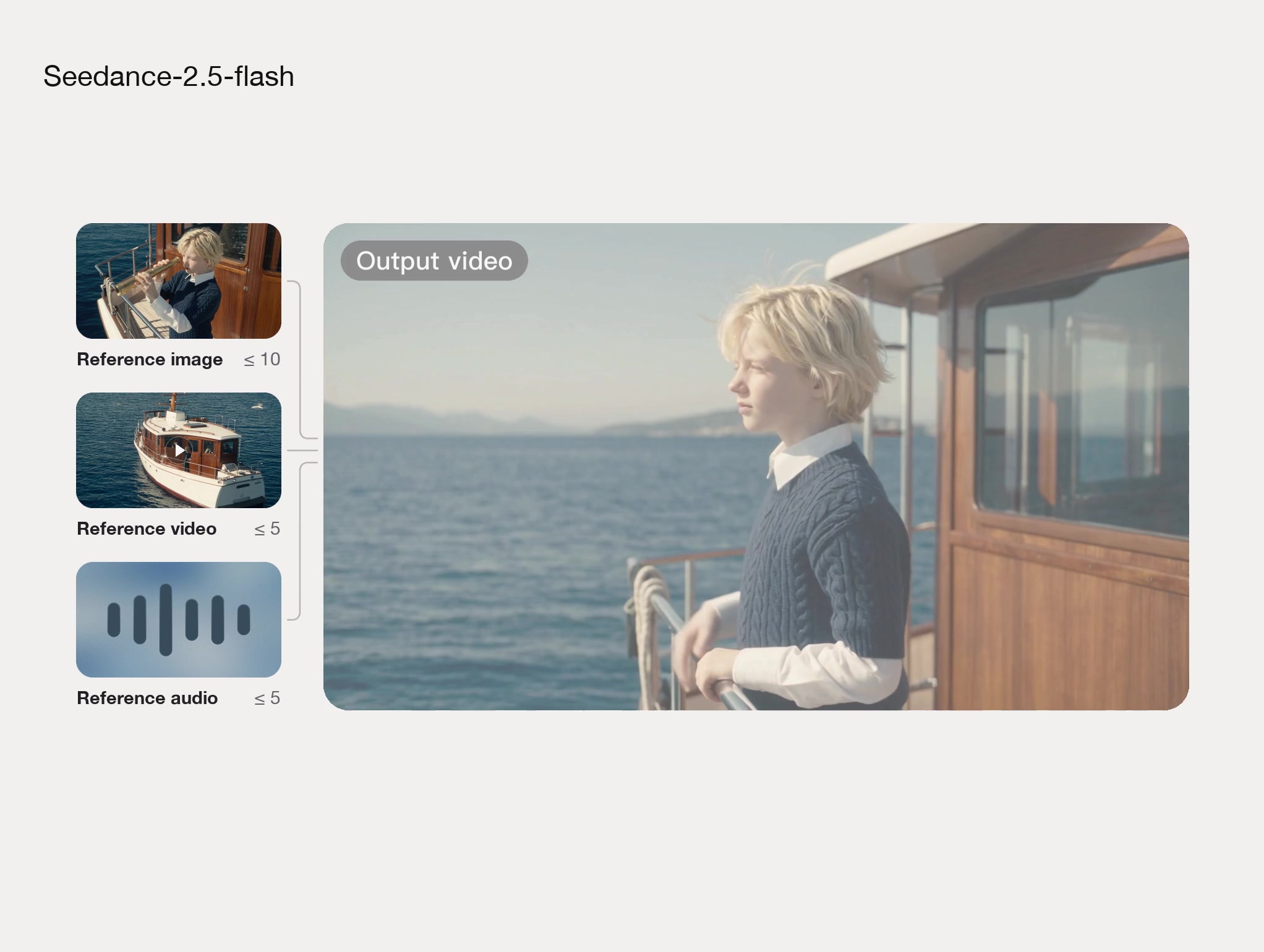
A still can guide a character’s appearance, a clip can guide movement, and audio can guide timing. Flash supports up to 10 images, 5 videos and 5 audio clips at the model level. In Hilight Video Quick Create, you can add up to 9 image references.
See how Flash advertising examples translate into workflows in Hilight Video Quick Create and the workshop tools.
01 · Video Quick Create
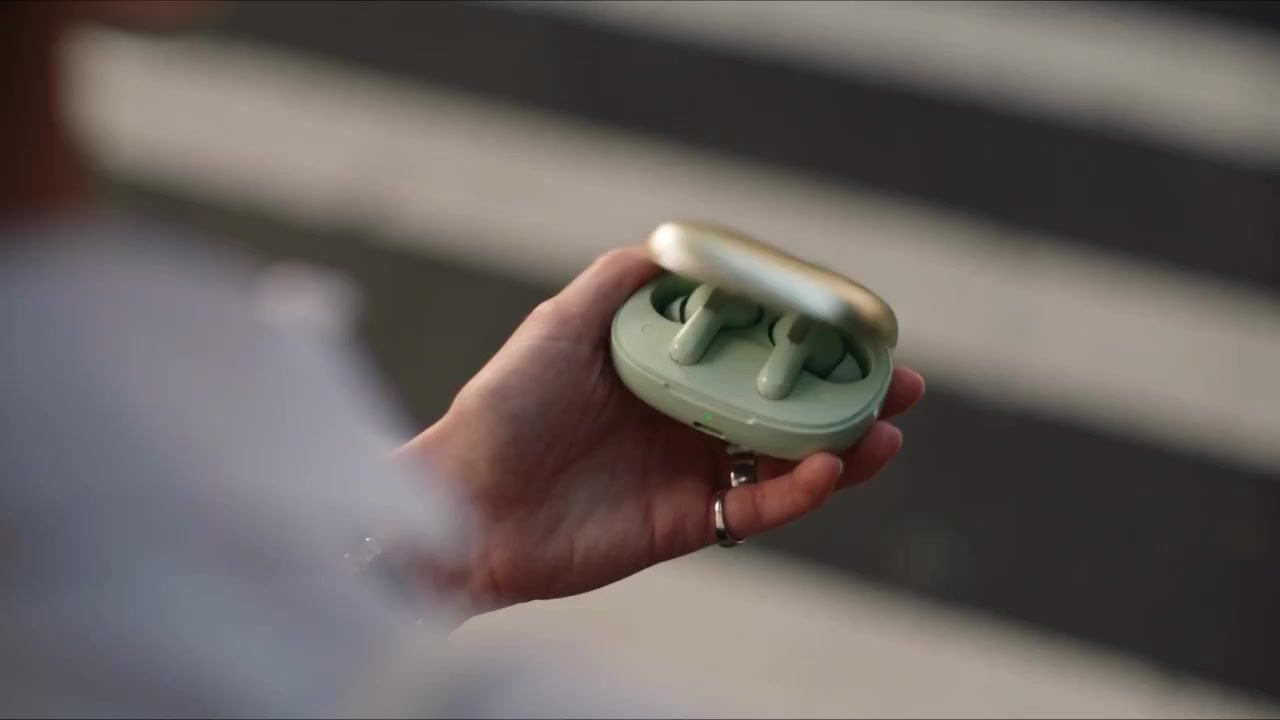
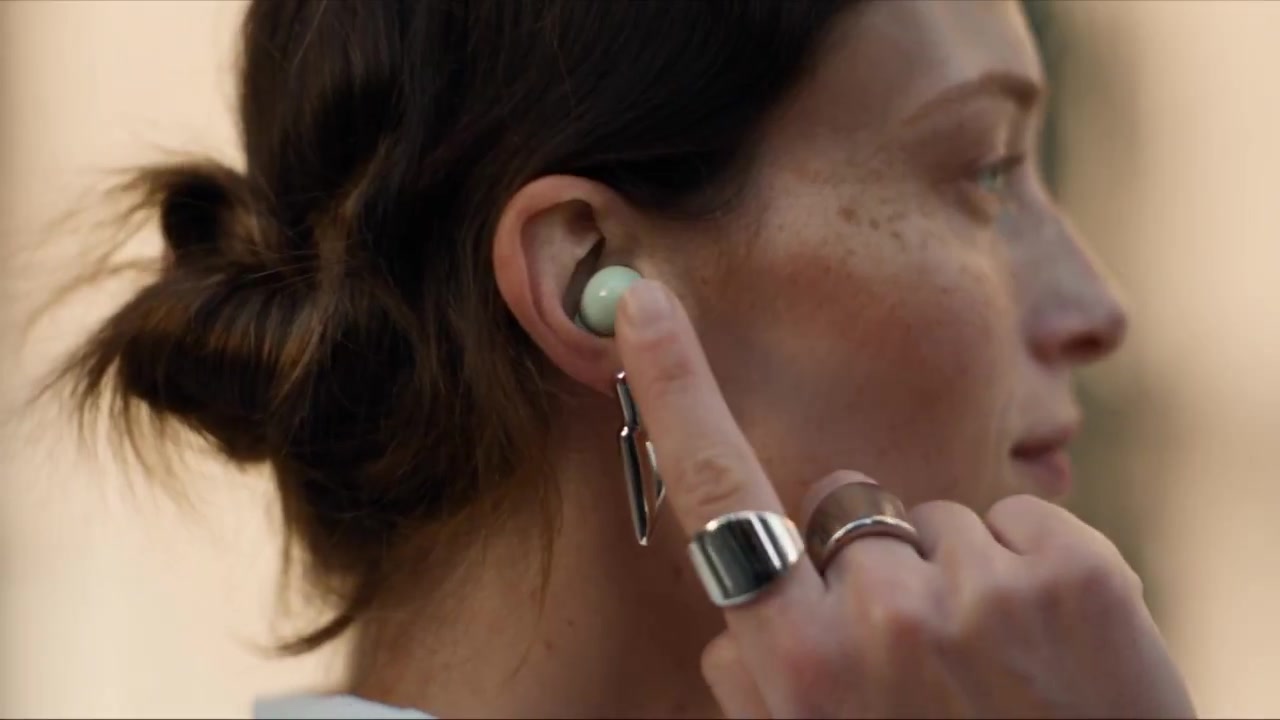
In the official earbud ad, a commuter puts on the product and the busy street turns into a dance sequence. In Hilight Video Quick Create, use a product photo and describe a similar sequence, from the reveal to the moment the benefit becomes visible.
02 · B-roll Assets
In the official summer sale example, lemon slices float around the bottle while the headline stays in place. In Hilight’s B-roll tool, start with a product visual and describe which elements should move to create a short promotional insert.
03 · Virtual Try-On Clips
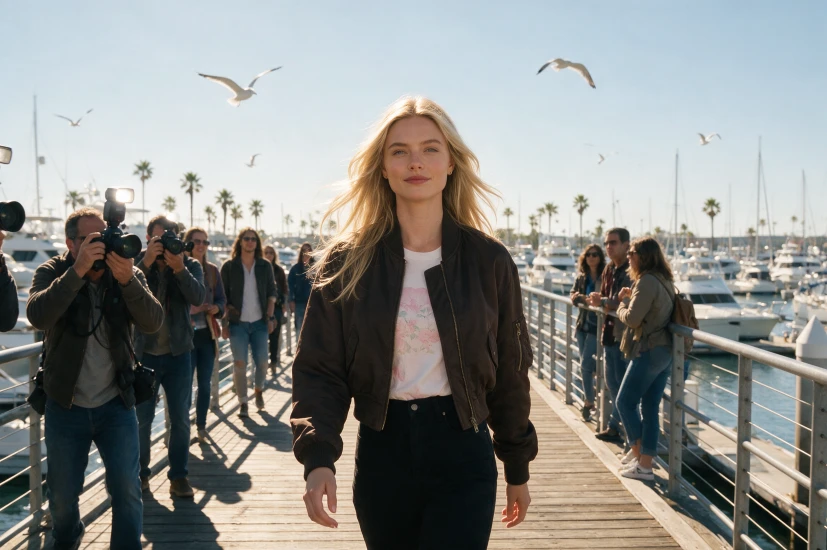
Volcengine’s apparel ad cuts between a model walking in activewear and details of the outfit. Use an apparel image in Hilight’s Virtual Try-On Clips tool to plan a walking shot and inspect how the fit and silhouette look in motion.
04 · Product Close-Up Clips
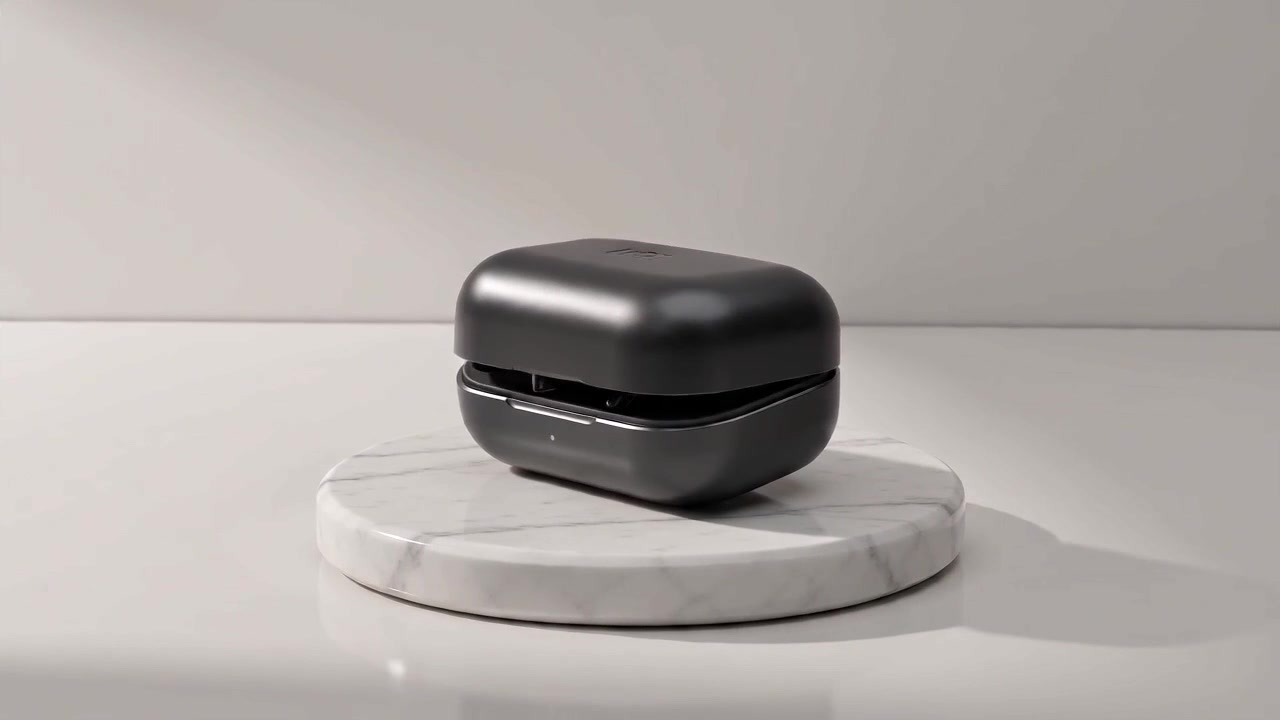
In the official example, a black wireless earbud case turns on a marble stand and opens to reveal the earbuds. In Hilight’s Product Close-Up Clips tool, start with a product image and specify the movement and the detail you want to reveal.
Choose a model, add references and direction, then generate and export your video.
Open Video Quick Create and select Flash in the Seedance model group. You can also choose it in B-roll Assets, Virtual Try-On Clips and Product Close-Up Clips.
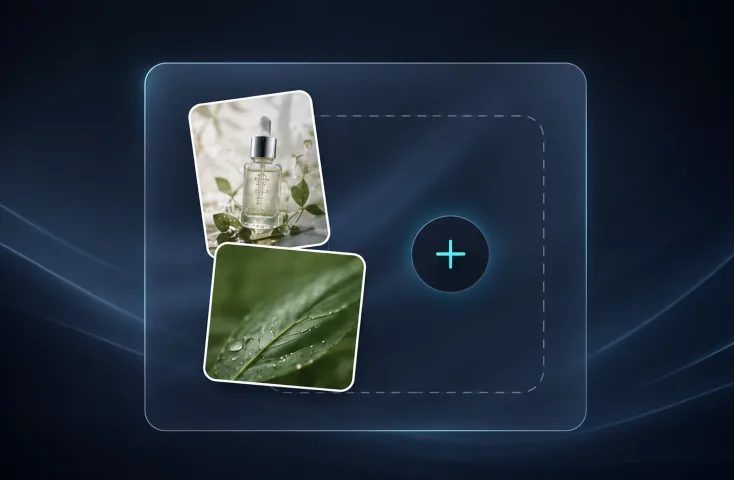
Describe the subject, action and camera movement. Add up to nine reference images in Image to Video, or one image in a workshop tool.
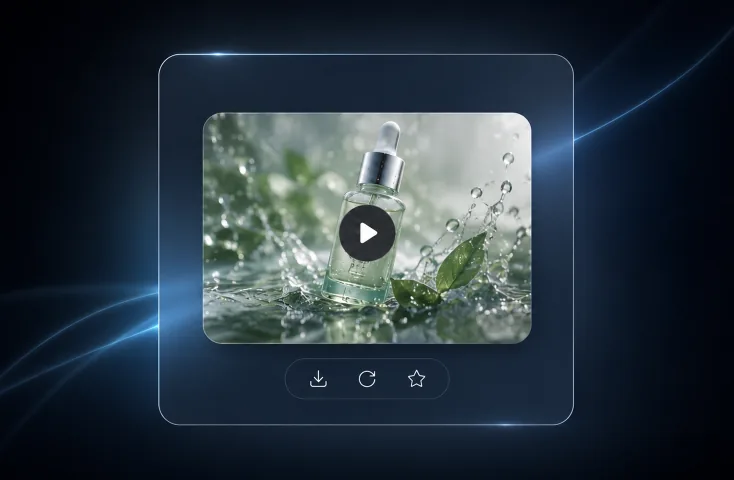
Choose 4–30 seconds and 720p or 480p. The defaults are 5 seconds and 720p. Generate, review and export your video.
Compare generation speed, maximum resolution, reference capacity, and the Draft workflow.
| Capability | Seedance 2.5 Flash | Seedance 2.5 |
|---|---|---|
| Generation speed | About twice as fast as standard Seedance 2.5 in BytePlus’s launch comparison | The baseline for BytePlus’s speed comparison |
| Maximum resolution | Up to 720p | Up to 4K, with 1080p also available |
| Reference capacity | Up to 10 images, 5 video clips and 5 audio clips | Up to 30 images, 10 video clips and 10 audio clips |
| Draft workflow | Generate the clip directly | Preview a 480p Draft, then render the final clip at 1080p or 4K |
Answers about availability, supported Hilight workflows, video settings, input boundaries, native audio, and model selection.
Explore image and video models for product ads, social content, and creative work.
Generate and edit still images with Standard or Highspeed.
Create and edit images with Sunburst or Flare.
Explore cinematic movement and visual ideas.
Try creative video concepts for social channels.
Explore stylized scenes and visual directions.
Develop polished video scenes.
Open Hilight, select Seedance 2.5 Flash and start with your creative brief.
Create with Seedance 2.5 Flash