

Choose MiniMax H3 Image
Open Image Quick Create and select MiniMax H3 Image. Choose Highspeed when you need faster turnaround.
MiniMax H3 Image is an open-weight image model that brings faster native 4K generation, natural textures, and control over detailed prompts to one model. It handles text-to-image creation and edits with up to 16 references. The Highspeed API variant uses the same image settings and limits with a focus on faster turnaround.
MiniMax H3 Image combines fast native 4K generation, realistic texture detail, and close adherence to complex prompts with image editing guided by up to 16 references.
01 · Native 4K output
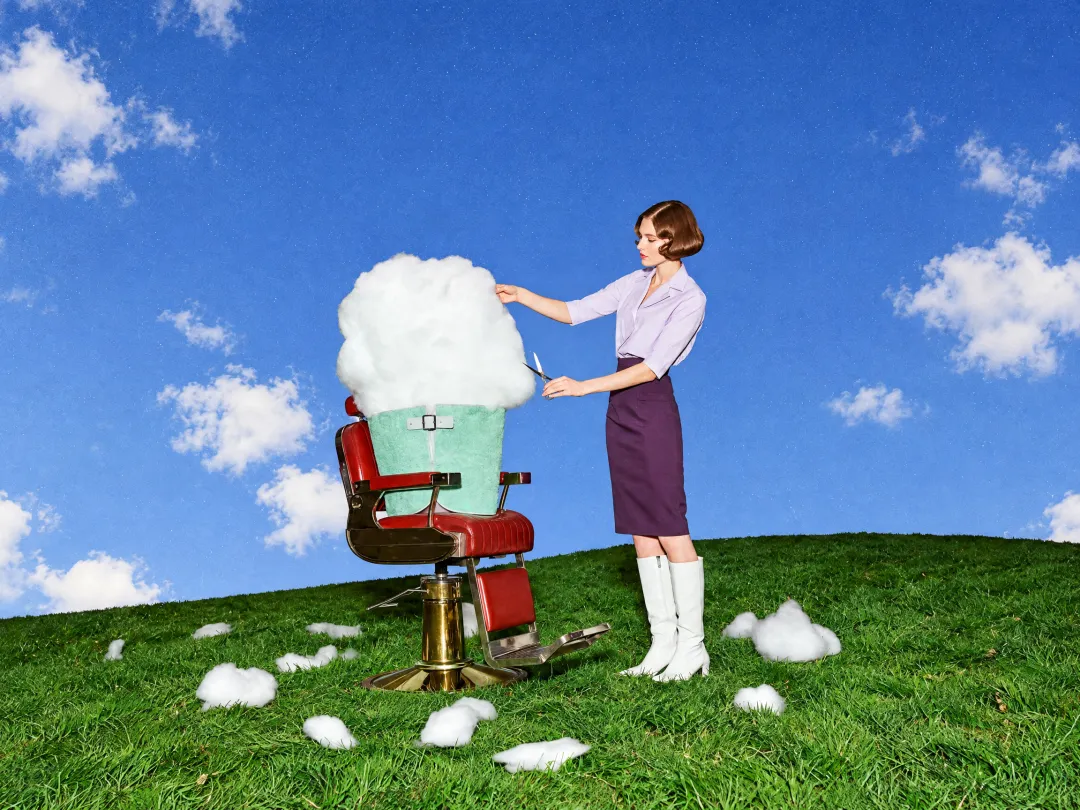
MiniMax presents native 4K as roughly 16 megapixels at a square aspect ratio. The cloud-styling example uses that visual detail to distinguish wispy cloud edges from fabric and hair. The model card describes the output capability. This sample does not establish its rendered dimensions.
02 · Reference composition
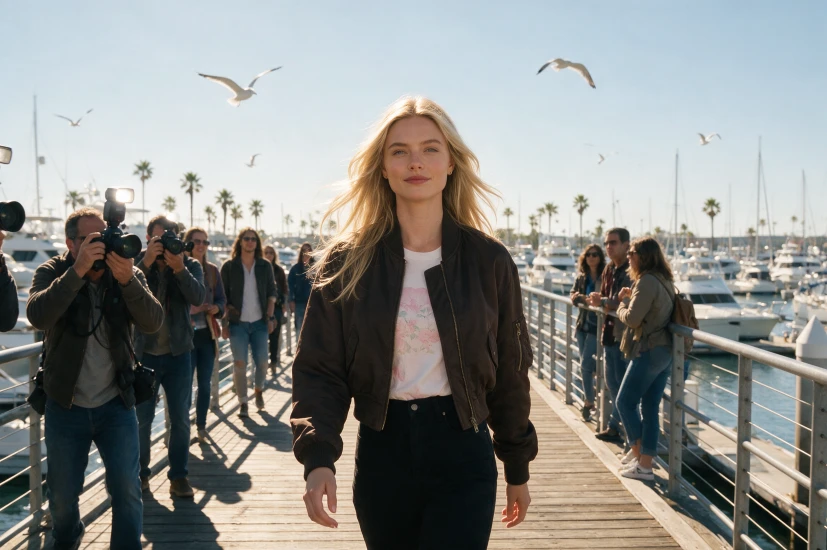
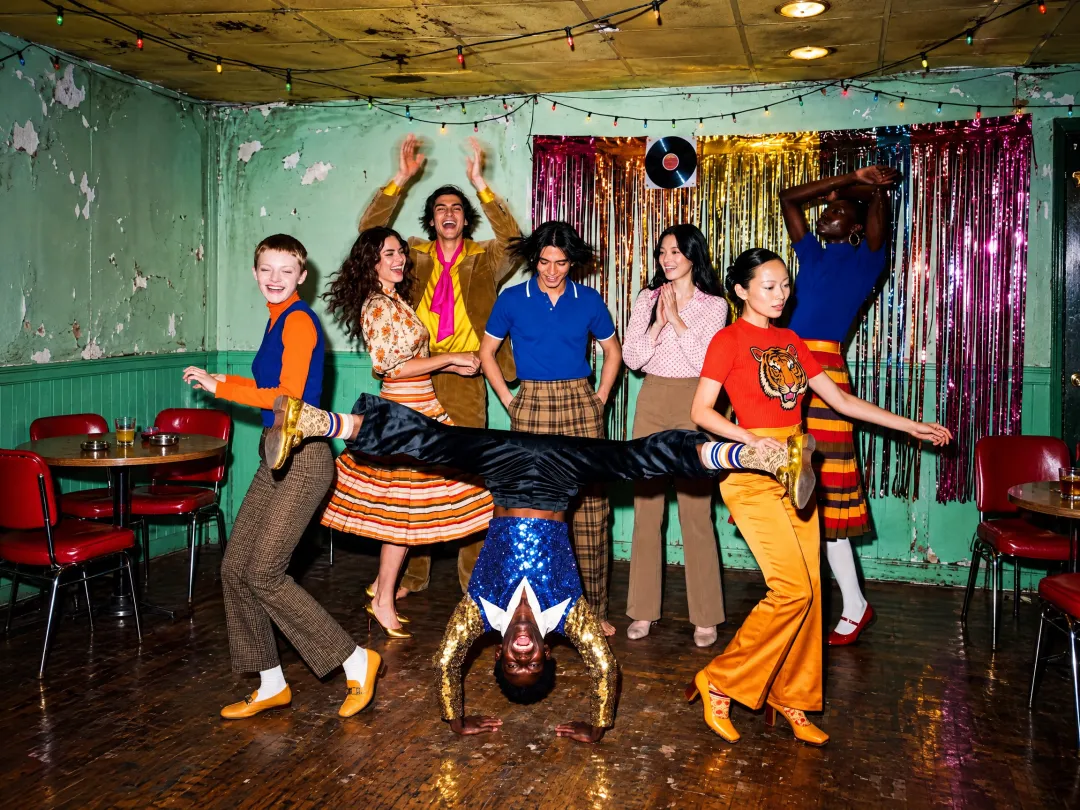
The official group scene shows several people, contrasting outfits and a central pose in one composition. For similar briefs, assign each reference a job such as identity, garment, pose or layout. The official edit endpoint accepts up to 16 reference images.

03 · Instruction following
The case-board sample organizes suspect statements and a verification table in one layout. It illustrates a brief that specifies both content and spatial relationships. Check any generated names and labels before publishing.
04 · Generation and editing
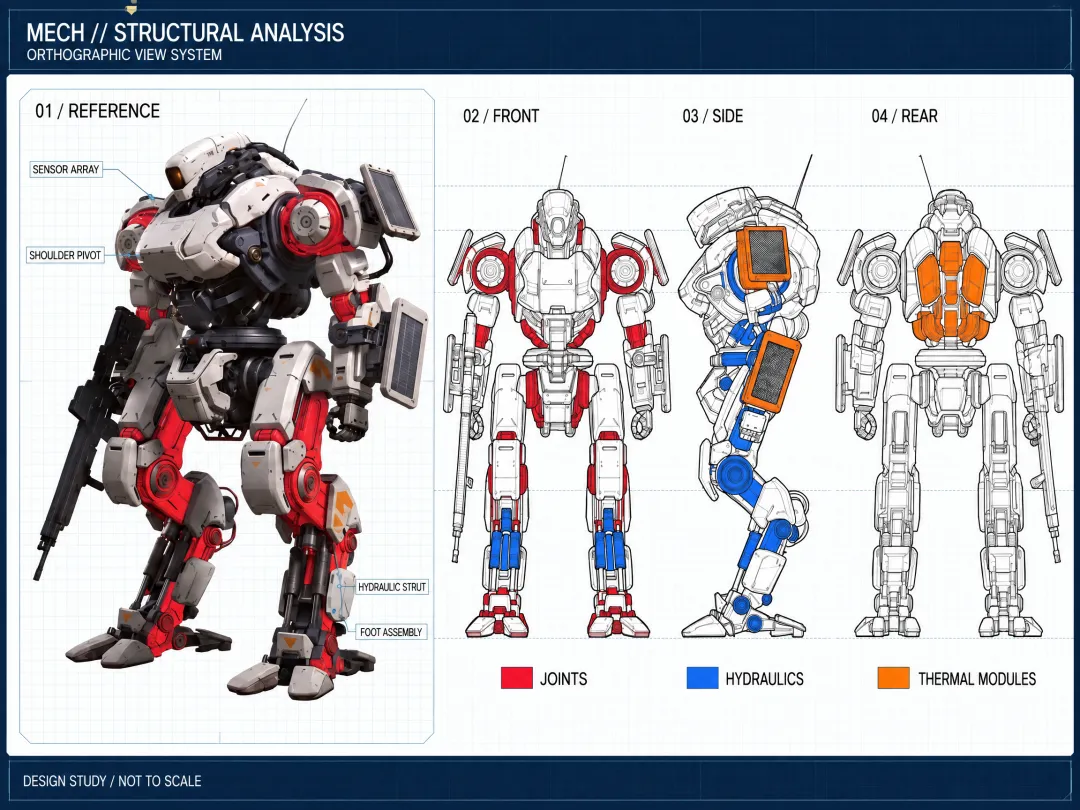
The official mech sheet places a rendered reference alongside multiple views. It shows why reference-driven editing and text-to-image matter together when a brief calls for a coherent design across views.
05 · Variant choice
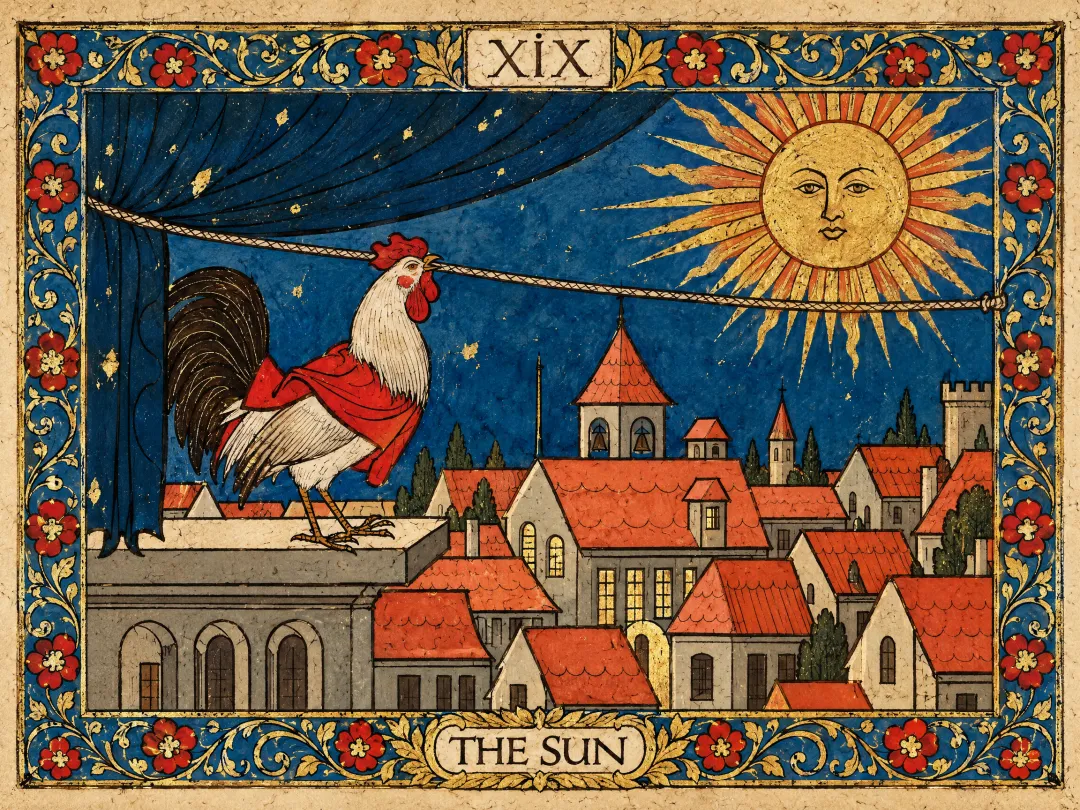
MiniMax positions Highspeed as the faster variant and documents the same API parameters and limits for both versions. The tarot card is an official H3 Image example. The provider did not identify its mode or timing.
Explore ways to create product visuals with the Hilight image tools shown below.
01 · Image Quick Create
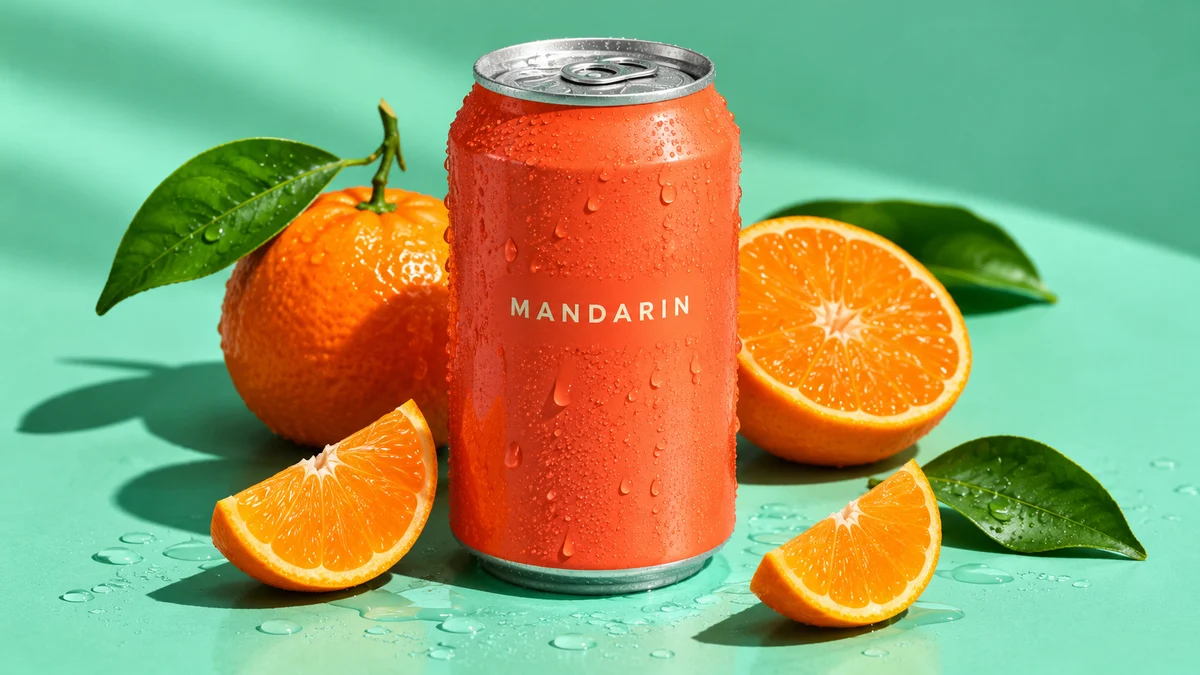
Describe a product still life in Image Quick Create. Set the backdrop, light, and supporting objects to explore an ad image for a product launch.
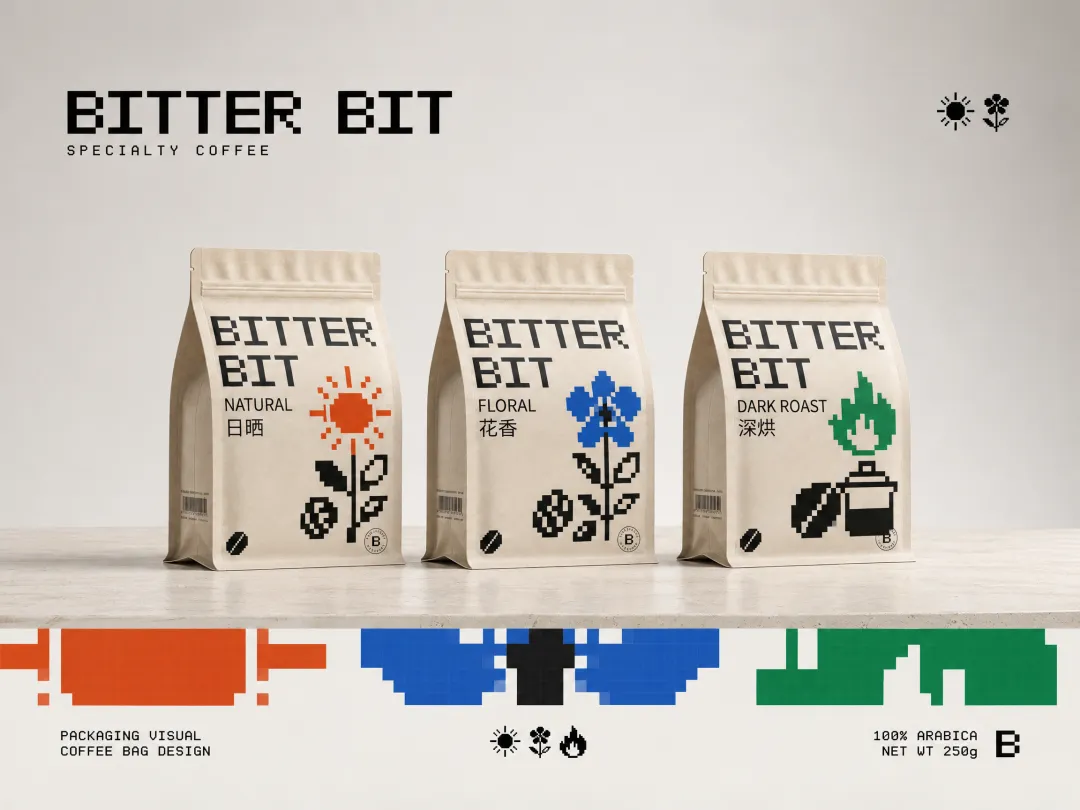
02 · Image Quick Create
Bring packaging references into Image Quick Create. Ask for a coordinated label and color direction across a few formats, then check the generated text before use.
03 · Image Quick Create
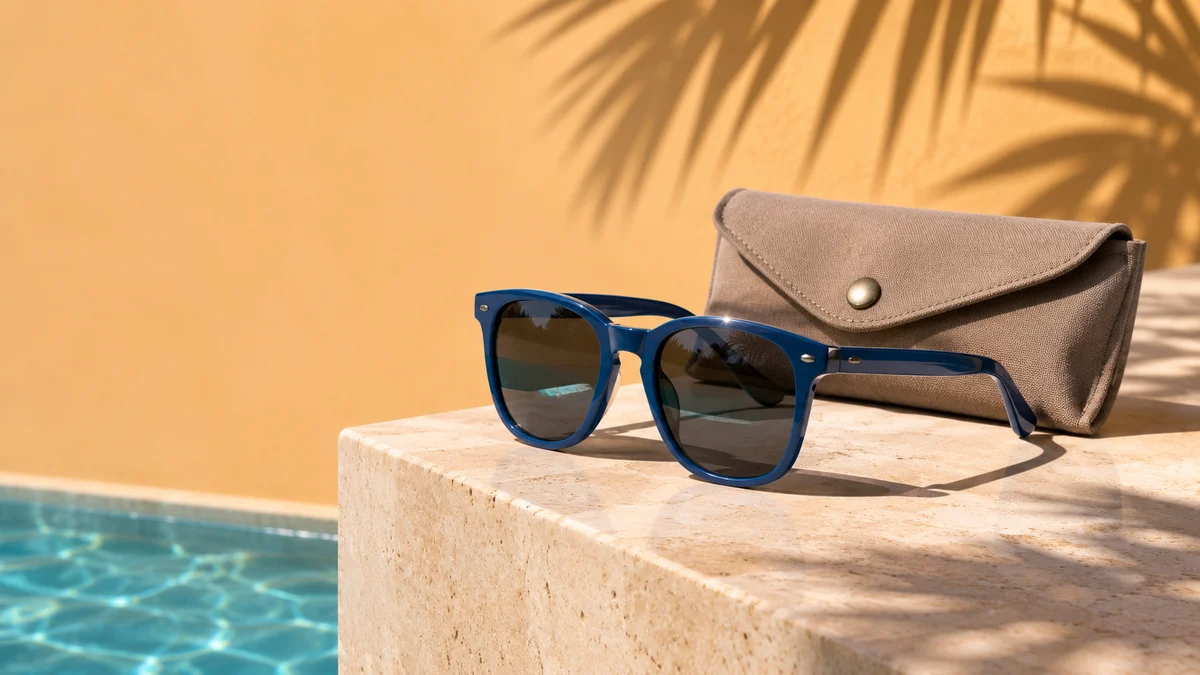
Describe an accessory, a setting, and a lighting style. Leave space in the composition for a headline that can be added during layout.
04 · Image Quick Create
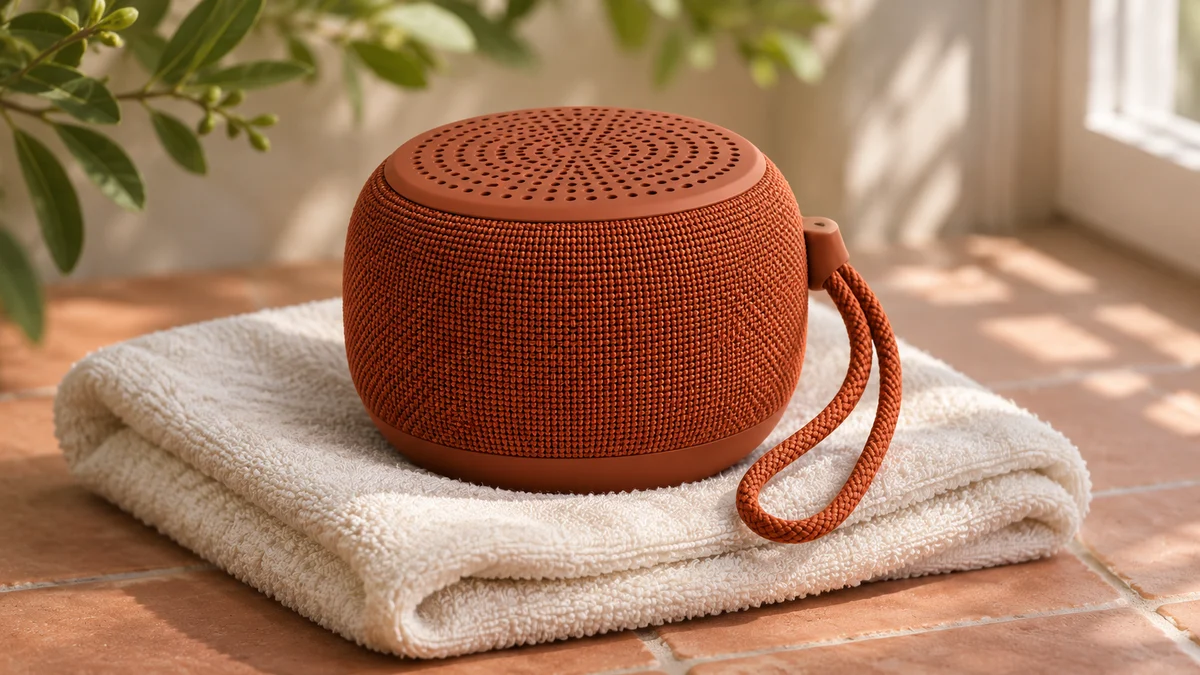
Upload a product reference in Image Quick Create and describe changes to the surface, light, or surrounding props. Specify which product details should be kept.
Choose a model, add references and direction, then generate and export your image.
Open Image Quick Create and select MiniMax H3 Image. Choose Highspeed when you need faster turnaround.
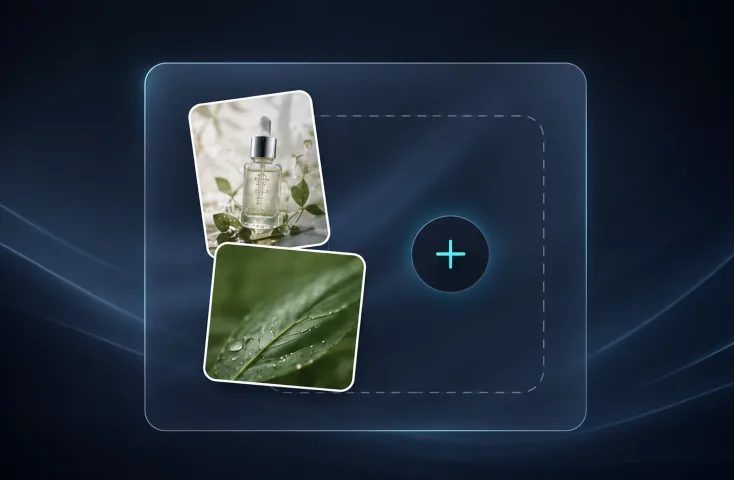
Describe the image you want or add up to 16 reference images. For an edit, specify what to change and what to keep.
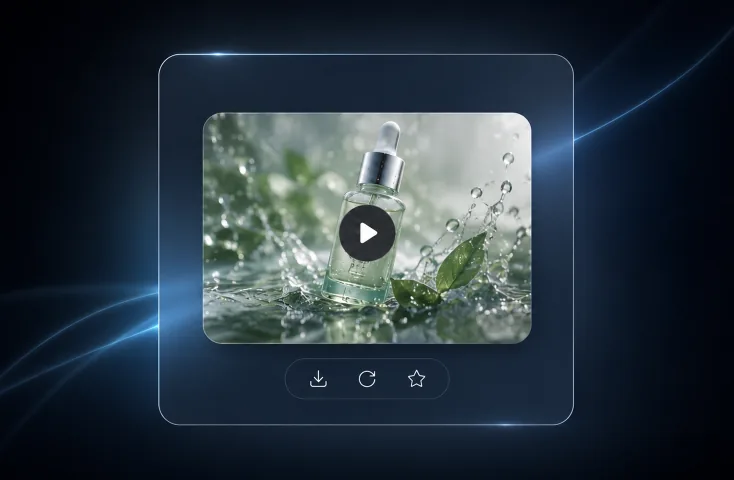
Choose 1K, 2K or 4K and set an aspect ratio. The default is 2K. Generate, review and download your image.
Compare generation speed using the mainstream alternatives in MiniMax’s launch comparison as the common baseline.
| Comparison | MiniMax H3 Image Standard | MiniMax H3 Image Highspeed |
|---|---|---|
| Generation speed | 1.5–2× the baseline speed. Suited to routine generation and editing. | 3–4× the baseline speed. Choose it when you need a shorter wait between iterations. |
| When to choose it | For batch product images or edits where cost per image matters most. | For live creative reviews or rounds of revisions where turnaround matters most. |
Answers about availability, supported Hilight workflows, image settings, input boundaries, and model selection.
Explore image and video models for product ads, social content, and creative work.
Test product video concepts with the faster Seedance 2.5 variant.
Create and edit images with Sunburst or Flare.
Explore cinematic movement and visual ideas.
Try creative video concepts for social channels.
Explore stylized scenes and visual directions.
Develop polished video scenes.
Open Image Quick Create in Hilight and select MiniMax H3 Image or Highspeed.
Create with MiniMax H3 Image