Quick Answer
One request to start, one checkpoint for essential information, and one connected workflow for marketing strategy, script, storyboard, shot generation, and complete product video delivery—that is the upgraded Hilight Smart Video experience.
Tell Hilight what you are selling, who the video is for, and what you want to create. You can also start with a product link, an approved script, or a creative brief. Smart Video organizes the product, audience, selling points, and video settings. After confirmation, it continues into the creative plan, visuals and audio, segmented shots, final assembly, and project delivery.
“From a single request” means a lower barrier to starting. Even without a finished script, storyboard, or editing plan, you can begin with the marketing assignment and move forward through a clear AI product video workflow.
One request to start, one checkpoint for essential information, and one connected workflow for marketing strategy, script, storyboard, shot generation, and complete product video delivery.
What Does the Major Upgrade Change?
Many product video projects do not lack generation tools. They lack a connected path between product information, marketing decisions, and production. Teams still copy information from listings, prioritize selling points, write scripts, plan shots, prepare media, and complete post-production across separate tools.
Hilight Smart Video organizes those activities as one continuous task:
A natural-language instruction, product link, approved script, or brief can become the entry point.
Product facts, audience, use context, selling points, and the awareness or conversion goal shape the creative plan together.
The marketing direction informs the script, storyboard, shots, captions, narration, BGM, pacing, and final edit.
Users can confirm important information, follow production progress, and preview or download the result in a creative project.
Smart Video Guide: From Product Link to Final Delivery
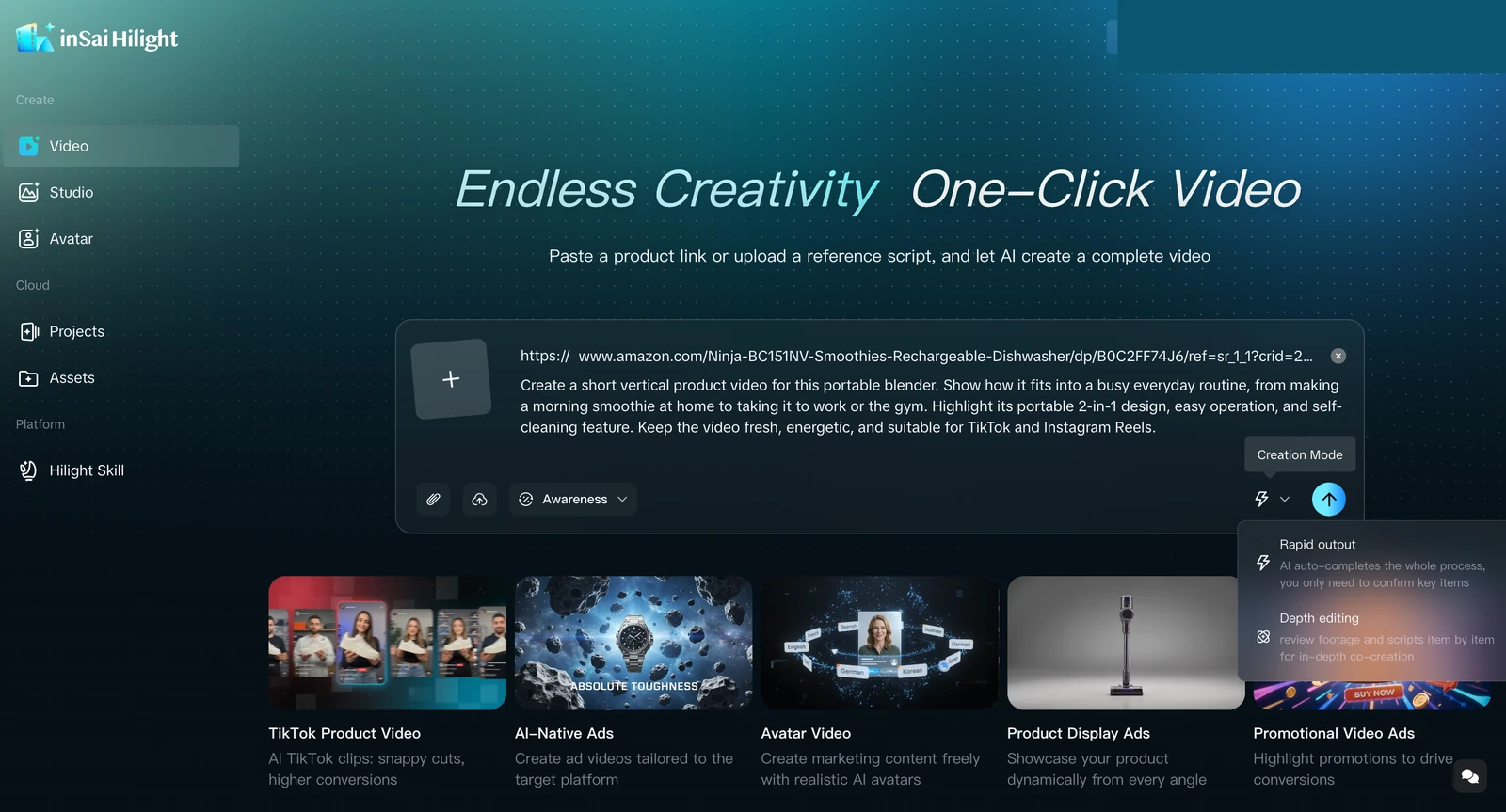
Smart Video is a marketing video production workflow completed through Agent collaboration. You can begin with a product link, reference script, product images, or a creative request. The system then continues through product understanding, essential information collection, creative and advertising media production, post-production, and final video delivery.
Choose Rapid Output when you want a complete first version quickly. Choose Deep Co-creation when you have more specific requirements for the creative direction, content details, or brand expression.
This section helps you decide whether Smart Video fits the current task and prepare enough input for the Agents to begin. You do not need to provide everything at once, but a clear primary product and creative goal reduce repeated information requests later.
1. When is Smart Video a good fit?
- You have a supported product link from TikTok, Amazon, eBay, or another available platform and want to create a product marketing video quickly.
- You have a reference script, product images, video assets, or a creative brief and want to organize the scattered information into one complete video.
- You want a first version for checking the selling points, visuals, language, and overall pacing.
- You need versions for different markets, languages, aspect ratios, or marketing goals.
Smart Video addresses the task of turning product information and creative requirements into a complete video. If the main issue is unclear product imagery, missing virtual try-on images, or missing detail footage, add those assets in Asset Workshop first, then return to Smart Video.
2. How do you create a task and choose the right generation mode?
Creating a task involves three actions: open the correct entry point, add the product and creative requirements, and select the appropriate generation mode. Smart Video then creates a creative project that you can continue to follow.
1. Where do you start?
Open Smart Video from the left navigation. The central input area supports product links, reference scripts, file attachments, and written requests.
2. How do you add product information and creative requirements?
- Start with a product link: Paste a link from a supported platform into the product-link field. Once recognized, the link and creative request are submitted together.
- Start with a reference script or assets: Use the attachment control below the input field to upload scripts, images, video, or other useful files.
- Add written requirements: Describe the video you want and important constraints such as platform, language, aspect ratio, market, style, or selling points.
If Smart Video cannot recognize the product link, do not repeatedly submit the same URL. Upload a product hero image instead, then add the product name, key selling points, and target audience in the input field.
If you are unsure how to structure the written request, use this format:
Request template: Create a [platform/use] video for [product name] in [9:16 or 16:9], using [language] for [market/audience]. Emphasize [key selling point] with a [style keyword] look and avoid [brand exclusions or unwanted content].
3. How do you choose between Rapid Output and Deep Co-creation?
After choosing the mode, select the send button to create the task. Choose Rapid Output when you mainly want to see a first version. Choose Deep Co-creation when the direction is still developing and you want to review and adjust it as the project progresses.
Keep one task focused on one primary product or clearly defined SKU. If the link or assets contain several products, identify which one the video should promote so the Agents can recognize the primary product accurately.
Before submitting, check that the product link or attachments appear in the input area, the creative request matches the product, and the correct generation mode is selected. Other details can be added during generation.
Portable Blender Example: How Does One Request Become a Complete Video?
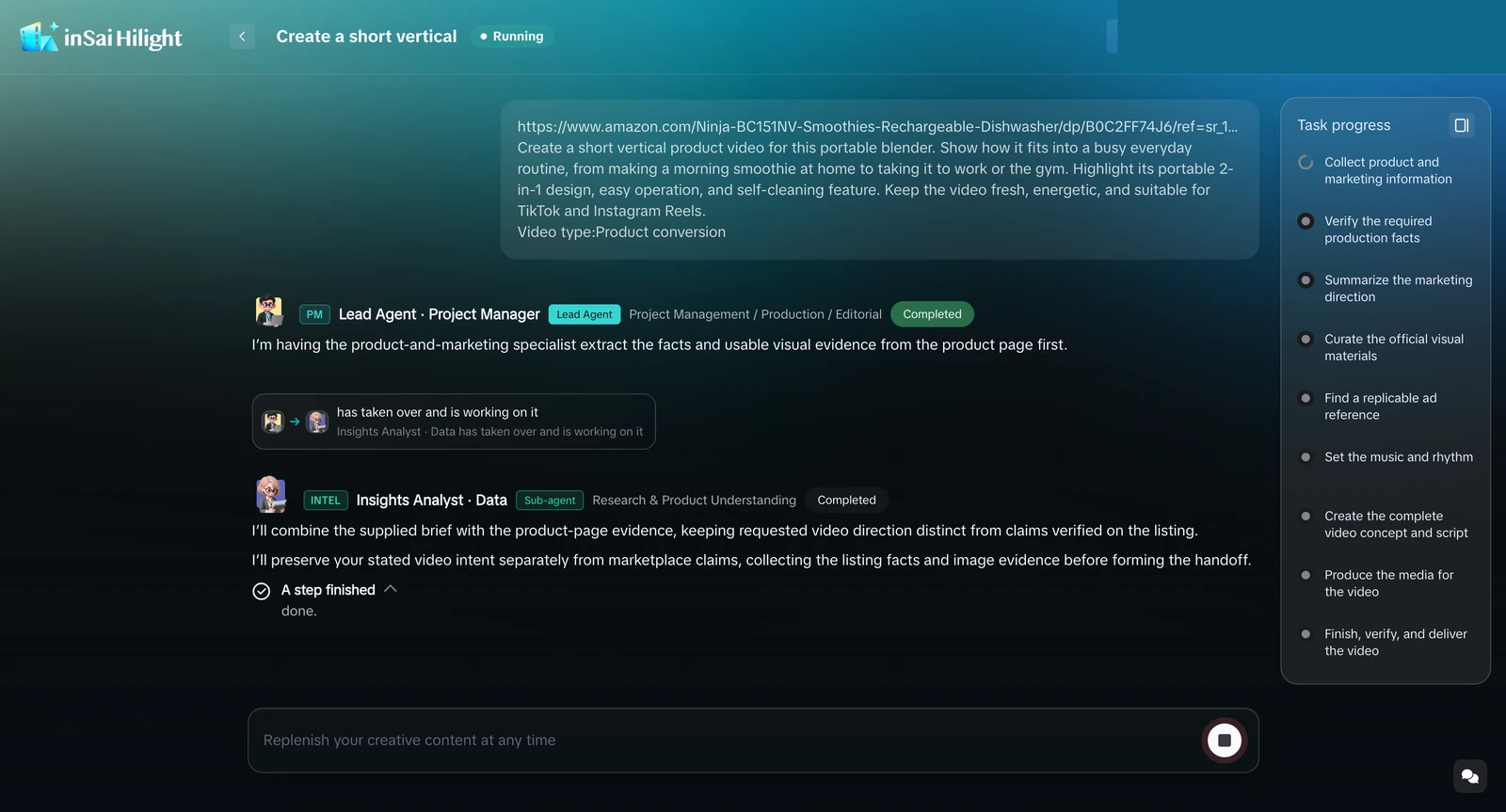
Imagine that a cross-border ecommerce team needs a short video for a portable blender. It has a product link, approved product images, and one straightforward request:
Example request: Use this product link to create a 30-second English vertical product video for commuters and gym-goers. Emphasize portability, simple operation, and easy cleaning, then invite viewers to see the product details.
Smart Video moves the task through the complete workflow:
Collect product and marketing information → Confirm product and video settings → Summarize the marketing strategy and information → Organize approved product assets → Research relevant advertising references → Set the BGM and pacing → Build the complete creative plan → Generate the media required for production → Create and check each shot → Move automatically into final assembly → Synthesize, verify, and deliver the video
1. Confirm what the product is and how the video should work
Smart Video organizes the product name, appearance, functions, audience, selling points, target language, aspect ratio, and duration. The user confirms the essential facts and settings. For the blender, its color, cup structure, operation, and cleaning information should follow approved source material.
2. Turn the marketing goal into a content structure
For commuters and gym-goers, Smart Video plans how the opening should earn attention, how the three selling points should be ordered, which use scenes fit, and how the ending supports the marketing goal. The creative direction then becomes a practical product video script and storyboard.
For example, the video might open with a busy-morning drink routine, then show carrying, operating, and cleaning the blender while captions, narration, BGM, and cuts follow a consistent rhythm. The final content reflects the confirmed information and creative plan for the task.
3. Generate the shots and audio in segments
Smart Video organizes approved product assets and generates or arranges close-ups, use scenes, digital presenter or product-only visuals, narration, captions, and BGM. Each segment moves through shot generation and checking before the complete edit.
4. Assemble the video and create a project
When the shots are ready, Smart Video continues through assembly, audio mixing, captions, and finishing. The video, storyboard descriptions, task status, and download action remain inside the creative project, where the team can preview the result and continue its content work.
Different Teams Can Reduce Repetitive Work at Different Stages
The Deliverable Is More Than a Video File
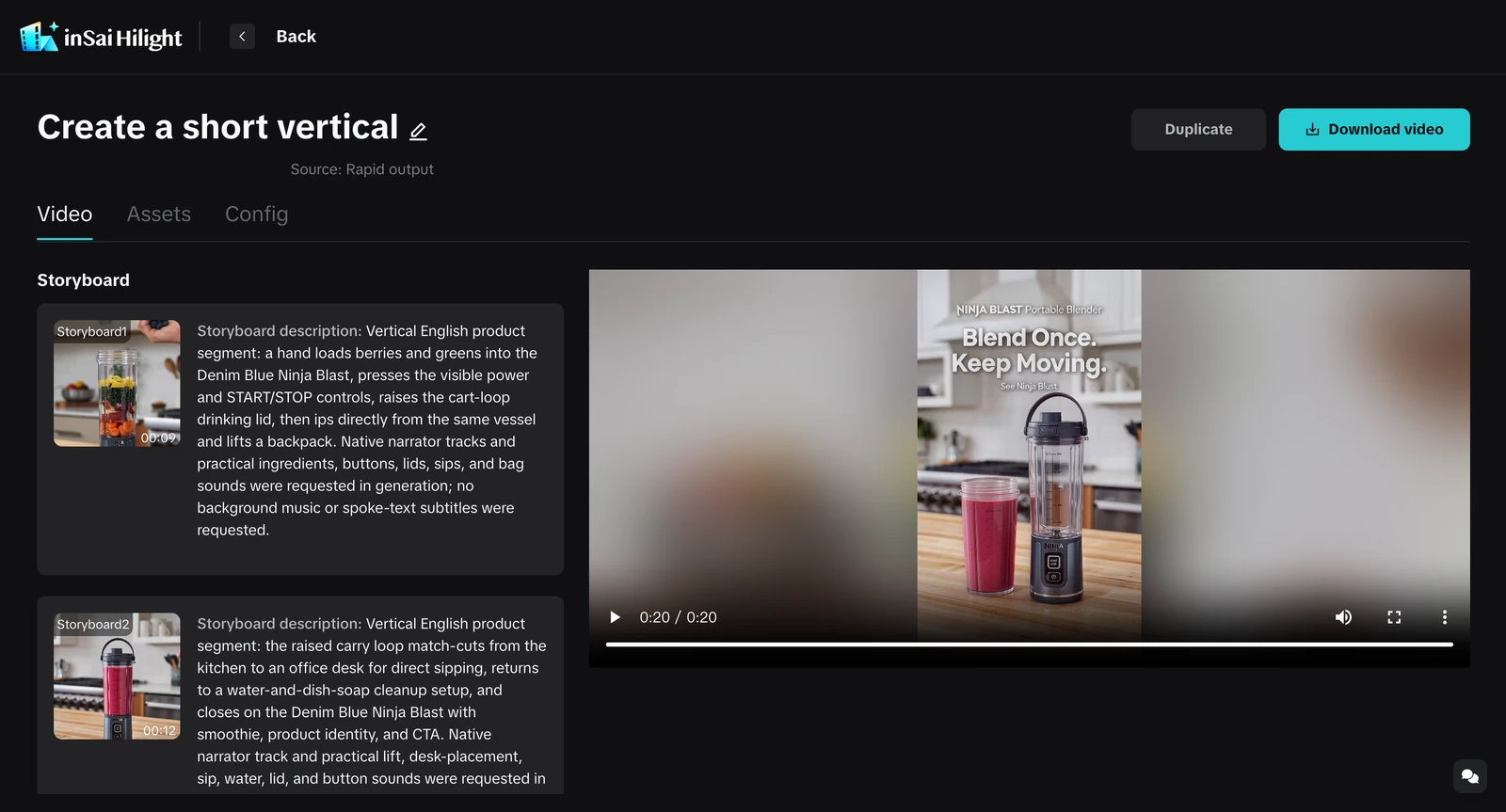
Smart Video turns one product video task into several connected outputs: product and requirement understanding, marketing and creative direction, script and storyboard, visuals and audio, a complete video, and a creative project containing its status, settings, and results.
Teams can see the finished video and understand how the content was structured, then preview or download the result from the project. Product understanding, marketing planning, and video production no longer arrive as separate pieces that must be assembled manually.
To keep the content aligned with the real product and publishing context, provide and confirm the product appearance, logo, packaging text, functions, specifications, campaign information, brand requirements, and asset usage conditions during creation and approval. For overseas markets, a localization check can also improve product names, selling points, and calls to action.
Turn a Product Request Into a Complete Video
Product video creation does not have to begin with a blank script, storyboard template, or editing timeline. Give Hilight a request, product link, script, or brief; add approved product assets and confirm the essential information; then let Smart Video continue through marketing and creative planning, shot and audio generation, final assembly, and project delivery.
Frequently Asked Questions
Can one sentence really start an AI product video?
Yes. Identify the product, audience, purpose, and key selling point to begin. Smart Video organizes the available information and presents essential product facts or settings for confirmation when needed. More complex tasks can include additional approved material.
Do I need a product link, script, and brief at the same time?
No. A product link supplies product context, an approved script can move directly toward visual production, and a brief carries broader marketing, specification, and brand requirements.
What should I do if the product link cannot be parsed?
First confirm that the link is a specific product detail page from a supported platform; if it is still loading or a network request times out, wait for loading to finish or try again later; if the link type is unsupported, parsing repeatedly fails, or the imported information is incomplete, replace the link or upload a product hero image and add the product name, key selling points, and target audience to continue creating the video.
Can I use a digital presenter or create a product-only video?
Yes. Depending on the creative goal and available assets, a video can use a digital presenter for product explanation or rely on product close-ups, use scenes, captions, and BGM without a presenter.
Can Smart Video create multilingual product videos?
You can set a target language so the script, narration, or captions follow that language. Include the intended audience and use context for a specific market so the expression stays connected to the real marketing assignment.

