How to Turn a Product URL into an Ecommerce Video Ad
A practical guide for ecommerce teams using HiLight to turn product links, product images, and short briefs into high-quality video ad drafts.
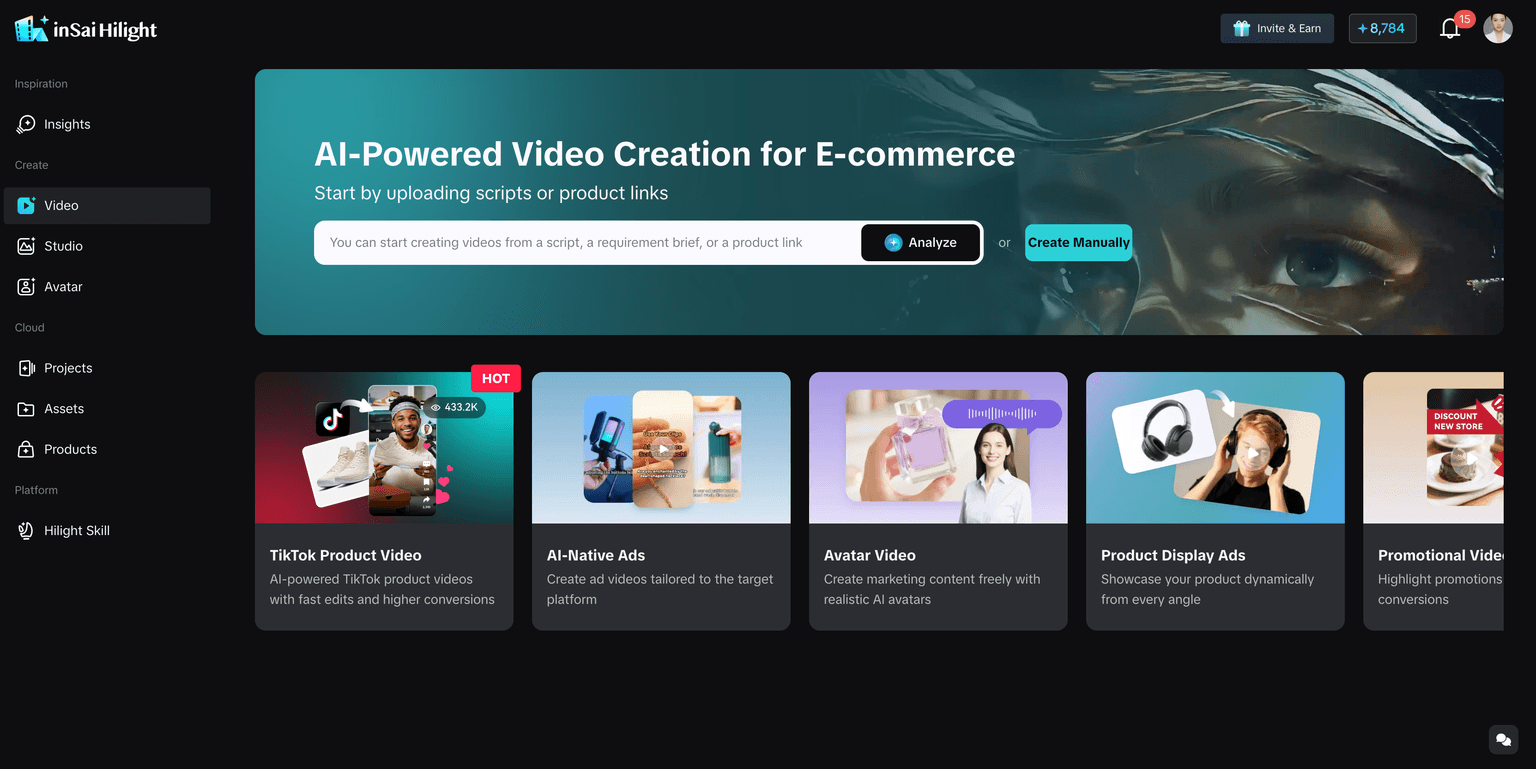
HiLight Smart Video entry page: paste a product URL, add a requirement brief, or upload supporting material to start a product video draft.
Yes, you can turn a product URL into an ecommerce video ad with AI. But the best results do not come from treating the URL as a magic button. They come from using the product page as a strong starting point, then adding a clear brief and reviewing the first draft carefully.
With HiLight Smart Video, you can paste a product link, let the system analyze product information and visuals, then generate a high-quality first video draft with script direction, scenes, captions, and video structure. From there, you can decide whether the video is ready for light refinement, needs a better brief, or should move into Fine-tune Mode.
Key Takeaways
- A product detail page is a useful starting point because it already contains product names, images, specs, and selling points.
- A clear brief helps HiLight understand the target audience, platform, video angle, and core selling point.
- The first generated video should be reviewed before publishing, then refined in Fine-tune Mode when the direction is right.
Why Product URLs Work Well for Ecommerce Video
Most ecommerce teams already have useful video material. It is usually sitting inside the product page: product name, images, features, specifications, use cases, and selling points.
The challenge is that a product page is not a video. A product page is made for browsing and comparison. A video ad needs a hook, pacing, visual focus, and a simple reason for the viewer to keep watching.
A product URL helps HiLight understand what the product is. Your brief helps HiLight understand what the video should do. When those two inputs work together, the first draft is usually much stronger than a generic text-to-video prompt.
A good product URL can help HiLight understand:
- what the product is
- what problem it solves
- what product images are available
- which features may become selling points
- what kind of ecommerce video direction may fit
This is why Product URL to Video is useful for ecommerce teams: it turns product information you already have into a review-ready creative starting point.
What Kind of Product Link Works Best?
The best input is a specific product detail page. It should focus on one product and include clear images and enough product information.
| Link type | Is it suitable? | Why |
|---|---|---|
| Product detail page | Yes | It gives HiLight one clear product to analyze |
| Store homepage | Not ideal | There are too many products and no single focus |
| Category or collection page | Not ideal | The system may not know which product to use |
| Search result page | Not ideal | Search pages are not structured for product video creation |
| Campaign landing page | Depends | It may work only if one product is clearly featured |
HiLight supports many ecommerce platforms, including Amazon, TikTok, eBay, Shein, AliExpress, Shopee, Temu, Taobao, Lazada, 1688, Mercado Libre, Walmart, Flipkart, Coupang, Rakuten, eMAG, Etsy, Ozon, and Allegro.
If the product link cannot be parsed or the extracted information is incomplete, you can still continue by adding product details manually or uploading clearer product images and supporting materials.
How to Turn a Product URL into a Video with HiLight
The fastest way to start is through HiLight Smart Video. Paste your product URL into the input area, then add a short requirement. It can be simple, but it should give the AI a clear creative direction.
For example: “Create a short TikTok-style product video for a portable blender. Focus on busy office workers who want quick smoothies in the morning. Highlight quiet blending and easy cleaning.”
The product link tells HiLight what the product is. The brief tells HiLight who the video is for and what the video should emphasize. After the link is analyzed, HiLight organizes the product information into a creation form. Before generating, check the product name, product description, main image, selling points, target audience, and video settings.
Paste a specific product detail page URL
Use a page for one product, not a homepage, category page, or search result page.
Add a short brief
Include audience, platform, language, video type, and the core selling point you want to emphasize.
Review the parsed product information
Check the product name, description, image, selling points, target audience, and video settings before generation.
Generate the first draft
Use One-click Video Creation to get a complete video draft with script direction, scenes, captions, and structure.
Review and decide the next step
If the direction is right, refine it. If the direction is wrong, adjust the input or brief before regenerating.
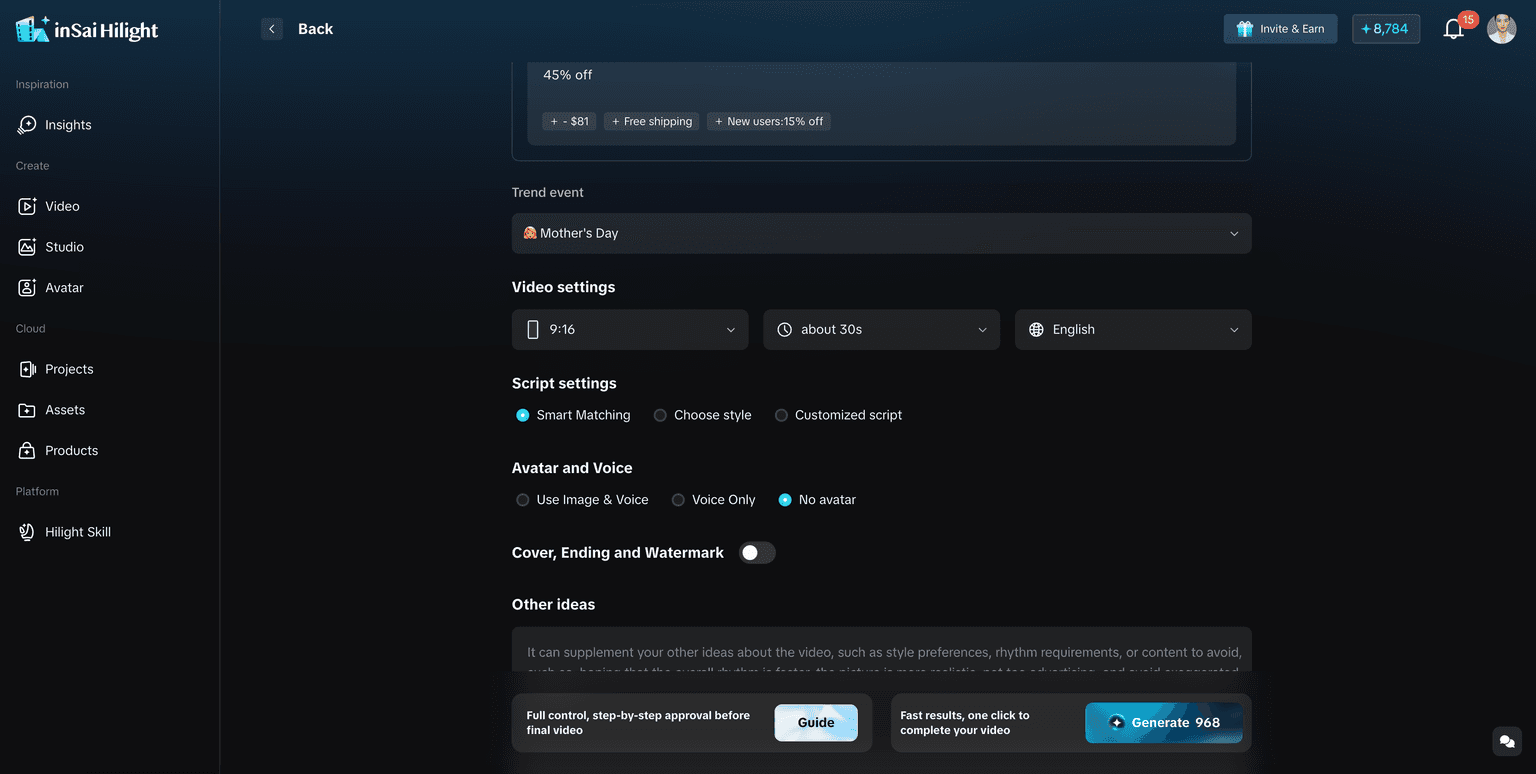
One-click Video or Fine-tune Mode?
Use One-click Video Creation when you need a complete first version quickly. This is the right choice when you have a product link, product images, or a simple brief, but have not yet decided the exact storyboard.
Use Fine-tune Mode when you already have a direction and know what needs to change. For example, you may want to adjust the opening hook, replace a scene, change a line of script, modify the visual style, or improve the order of selling points.
- One-click Video helps you get from zero to a complete draft.
- Fine-tune Mode helps you get from a draft to a more polished version.
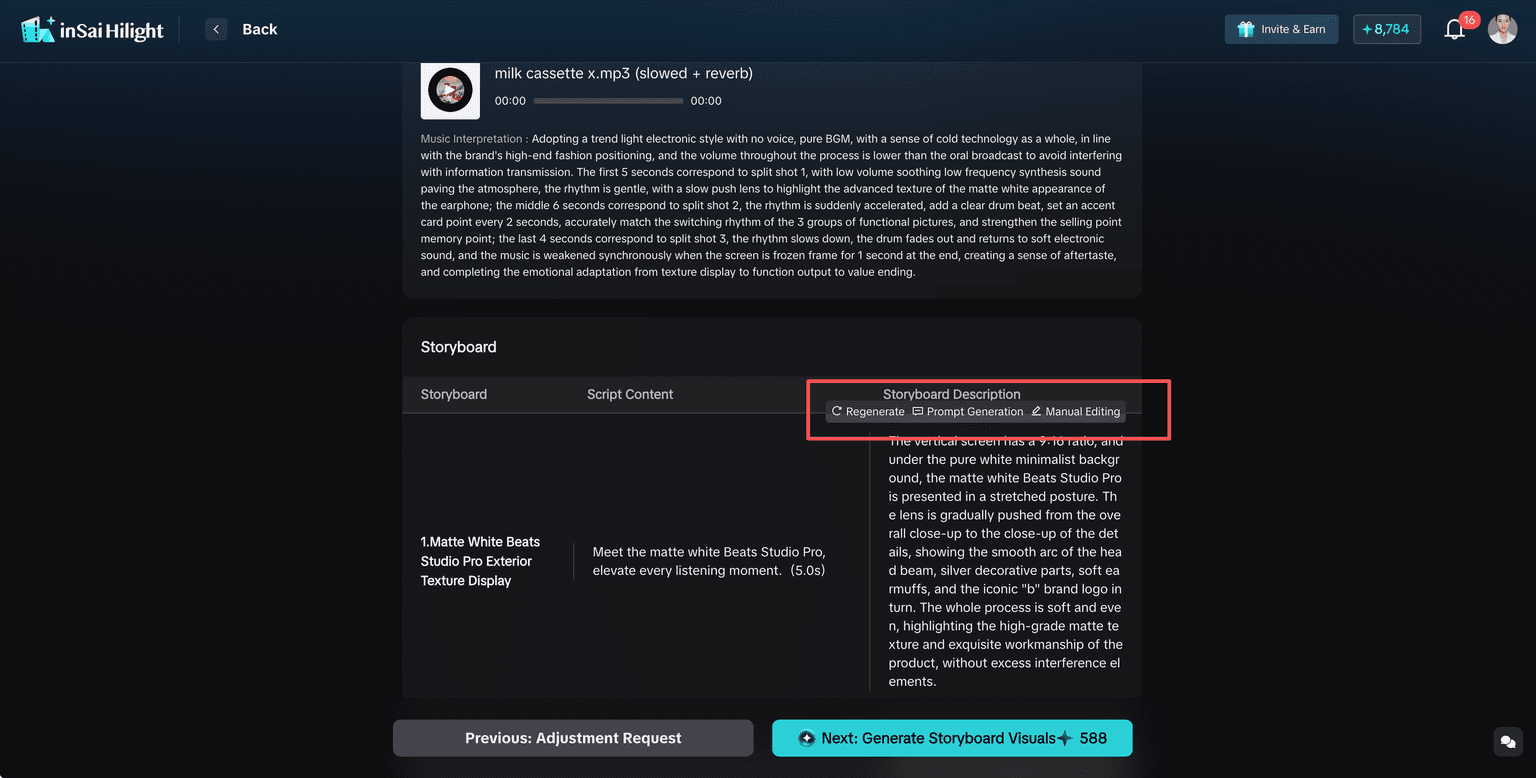
This is important because ecommerce video creation is rarely perfect in one step. A strong first draft gives you speed. Fine-tuning gives you control.
What If the Product Link Cannot Be Parsed?
Sometimes a link may fail to parse, or the extracted information may be incomplete. This does not mean the workflow is blocked.
First, check whether the link is a real product detail page. Avoid store homepages, search result pages, category pages, collection pages, or activity pages.
If the link is correct but the result is incomplete, add:
- product name
- product description
- 1 to 2 key selling points
- target audience
- use case or scenario
- product images or documents
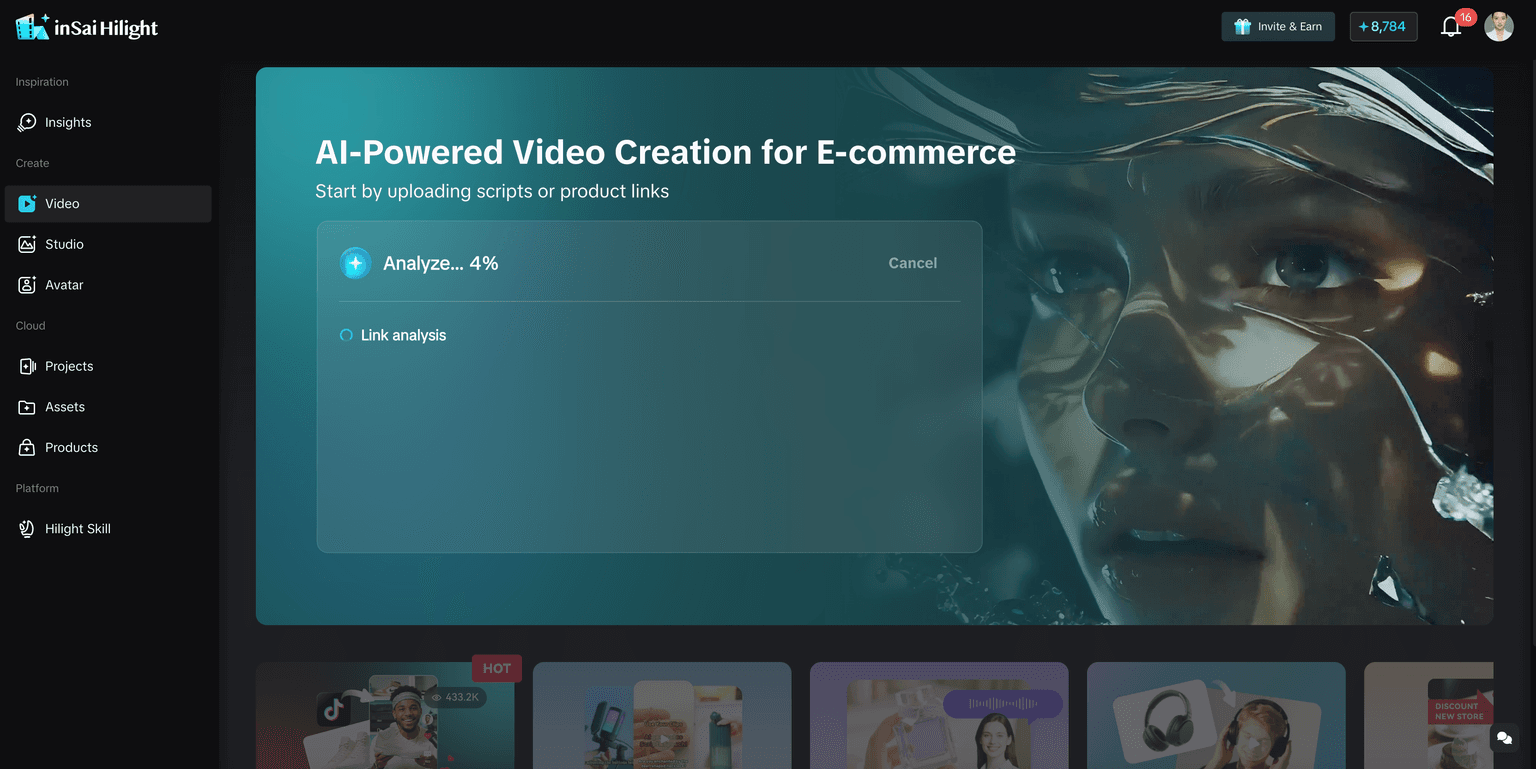
A product URL is a strong start, but it becomes much stronger when paired with a clear brief and clean product visuals.
How to Review the First Video Draft
Once the first video is generated, do not only ask, “Do I like it?” That question is too broad.
Review it like an ecommerce operator. Check whether the video explains the product clearly, whether the opening seconds are strong enough, whether the visuals match the selling points, and whether the script feels natural for the target audience.
Use this short checklist:
- Is the product visible early enough?
- Does the hook match the product’s real value?
- Are the key selling points easy to understand?
- Do the visuals support the message?
- Is the video style suitable for the intended platform?
- Are any product claims too strong or unverified?
- Does the final CTA feel natural?
If the overall direction is right, move into Fine-tune Mode and improve the details. If the direction feels wrong, return to the brief and adjust the input before generating another draft.
This is where HiLight’s output quality matters. A strong first version saves time because the team can react to something concrete instead of debating an abstract idea.
When This Workflow Is a Good Fit
Product URL to Video is a good fit when you need to create ecommerce videos quickly from existing product pages.
Cross-border sellers, TikTok Shop operators, DTC teams testing new products, ad creative teams, and agencies that need fast first drafts for client review.
Product pages with almost no visuals, products that require complex compliance review, or videos that depend on a highly specific brand story.
If the product images are weak, prepare better visuals in AI Studio first. If you want a presenter-led explanation, use HiLight’s AI Avatar workflow.
FAQ
Not every URL works equally well. A specific product detail page works better than a homepage, category page, search page, or campaign page.
No. You can start with a product URL and a short requirement. But a clear brief usually leads to a better first draft.
Add the target audience, platform, core selling point, and the kind of video you want, such as TikTok product video, product demo, spokesperson-style video, or short ad creative.
Check whether the URL is a supported product detail page. If the extracted information is incomplete, add product details manually or upload supporting materials.
Yes. If the direction is right, use Fine-tune Mode to adjust script, scenes, visuals, subtitles, avatar elements, or other details.
You should review the final video before publishing. Check product claims, platform rules, visual accuracy, music usage, and brand requirements.
Conclusion
A product URL is one of the fastest ways to start an ecommerce video, but the best results come from combining the link with a clear brief, a review step, and the right refinement workflow.
HiLight helps ecommerce teams turn existing product pages into high-quality video drafts that are close enough to evaluate and improve. Instead of starting every script and storyboard from scratch, your team can begin with product information you already have and spend more time improving the message.
For teams that need speed without giving up creative control, Product URL to Video is a practical first workflow to try.

