Quick answer
Upload your approved script or creative brief to Hilight Smart Video, add the product link or product assets that support its facts, and state the intended platform, market, language, aspect ratio, audience, and main selling point. Choose Rapid output for a complete first version with fewer decisions, or Depth editing when you want to confirm or adjust key content during production.
The first version is a reviewable production result. Check whether it says the right thing before spending time on individual visuals. Then correct local scene, asset, caption, or presenter problems at their source and generate the complete video after the full sequence is ready.
A capable AI script to video generator connects the message to product evidence and gives the operator a practical path for checking the complete result.
An approved product-marketing script solves only part of the production problem. The message may be ready, but the team still has to connect each line to the right product visual, keep claims accurate, arrange scenes, add voice and captions, and check whether the finished sequence works for the intended channel.
Hilight Smart Video keeps the script or brief, product source, creative request, and supporting assets in the same task. Start with accurate inputs, choose the creation mode, and check the result from story direction down to individual scenes before producing the complete video.
What should you prepare before turning a script into a video?
A script-to-video AI workflow needs two kinds of truth: the approved message and reliable product evidence. The script controls what the video should communicate. The product page, product images, detail images, existing clips, and approved product documents support what the video can accurately show or claim.
Prepare these inputs before opening the task:
- Approved script or creative brief: include the intended hook, selling-point order, CTA, and any wording that must remain unchanged.
- One main product: keep the task focused on a single product or clear SKU so scenes do not mix different items or variants.
- Reliable product facts: provide the product name, specifications, approved claims, restrictions, and any details that must be represented exactly.
- Usable visual assets: add a clear hero image, detail images, scene images, or existing clips that accurately show the product.
- Channel requirements: state the platform, market, language, aspect ratio, approximate duration, and audience.
- Brand boundaries: name required wording, prohibited claims, visual restrictions, and any content that must not appear.
If you have a product link, images, clips, and a script, submit them together. Each input has a different job: the script controls the message, the link provides product context, and the visual assets confirm appearance.
If the product page is your strongest source but the script direction is still open, the Product Link to Video guide shows how to turn product details into a focused brief before starting this workflow.
A concise request can look like this:
> Create a 9:16 English product video for [product] using the attached approved script. The video is for [platform] and [audience]. Keep the script's selling-point order, use the supplied product images as the visual reference, and avoid [prohibited claim or brand restriction].
This request gives an AI video generator from script enough context to preserve both the marketing direction and the product facts without prescribing every production detail.
How do you create a video from a script in Hilight Smart Video?
Step 1: Open Smart Video and add the source materials
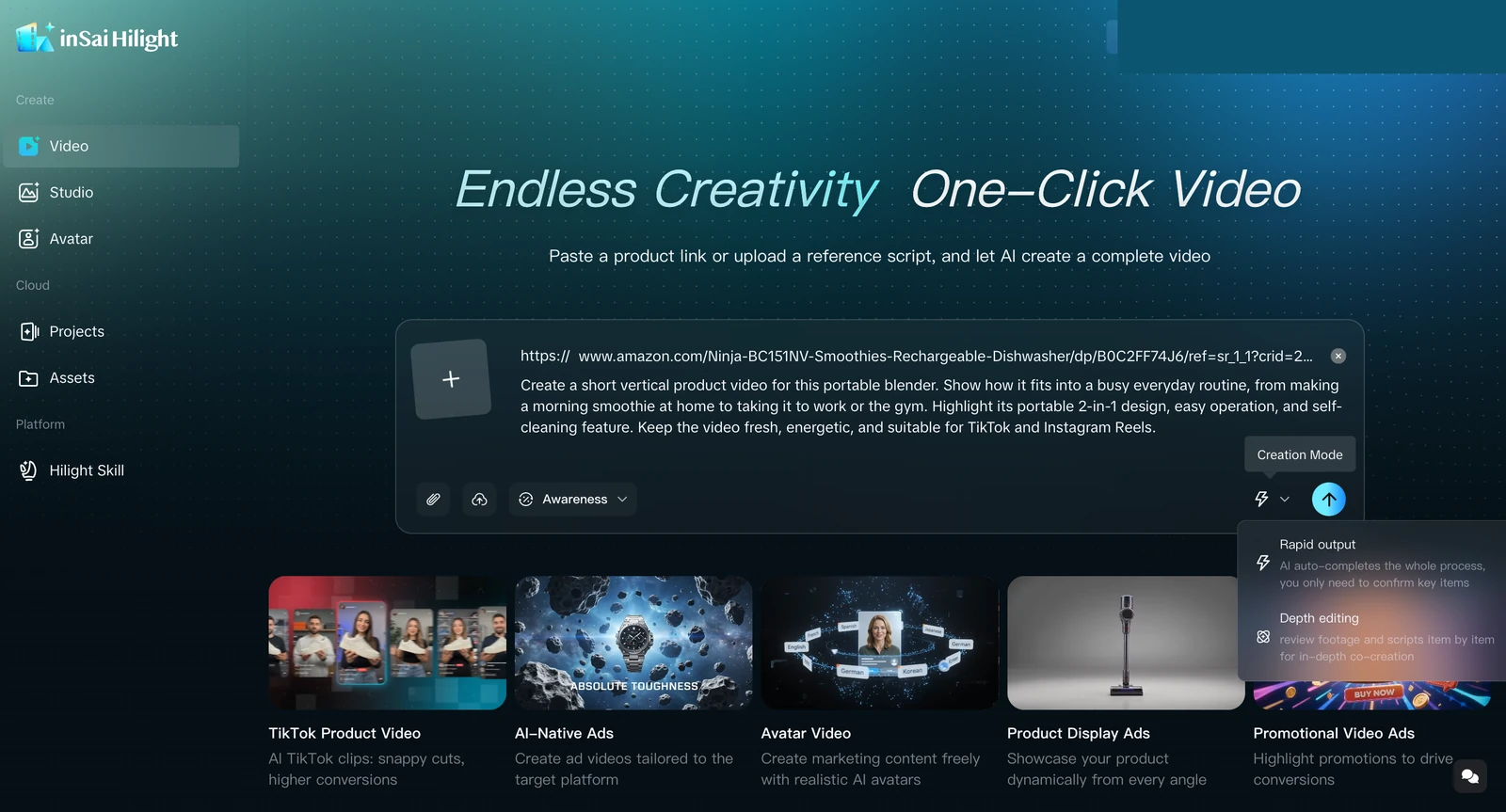
Open Hilight Smart Video. Use the attachment controls in the main input area to add the approved script, product images, existing clips, or other useful files. A supported product-detail-page link can be added when it contains reliable product information.
Write the creative request in the same input area. Name the output, channel, audience, language, format, key selling point, and non-negotiable brand rules. Confirm that the attachments and link belong to the same product before submitting.
Step 2: Choose Rapid output or Depth editing
Smart Video provides two current creation modes:
Rapid output is useful when seeing a complete first version will make the next decision easier. Depth editing fits a script that requires closer control over how the message becomes scenes. Both begin from the same discipline: one product, an accurate source, and a clear creative request.
Step 3: Wait for Smart Video to finish generating
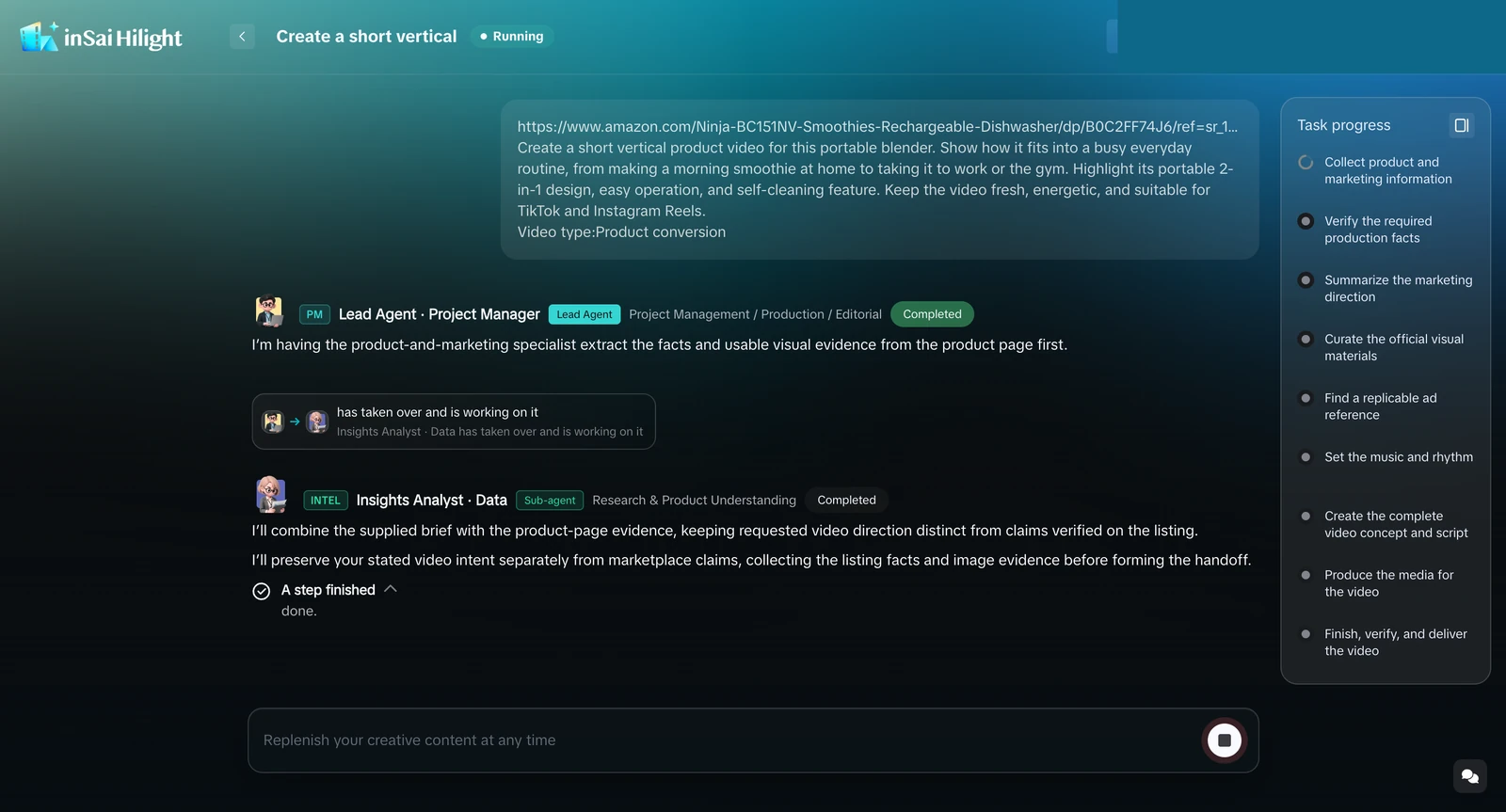
After submitting the task, follow the progress screen while Smart Video organizes the product information, creative direction, script, media, and final delivery. Keep the task open if the system requests essential information.
Generation time varies with the task and the supplied materials. Use the visible progress state instead of assuming a fixed wait time, and avoid submitting the same task again while the current run is active.
Step 4: Review the result, check the video, and download
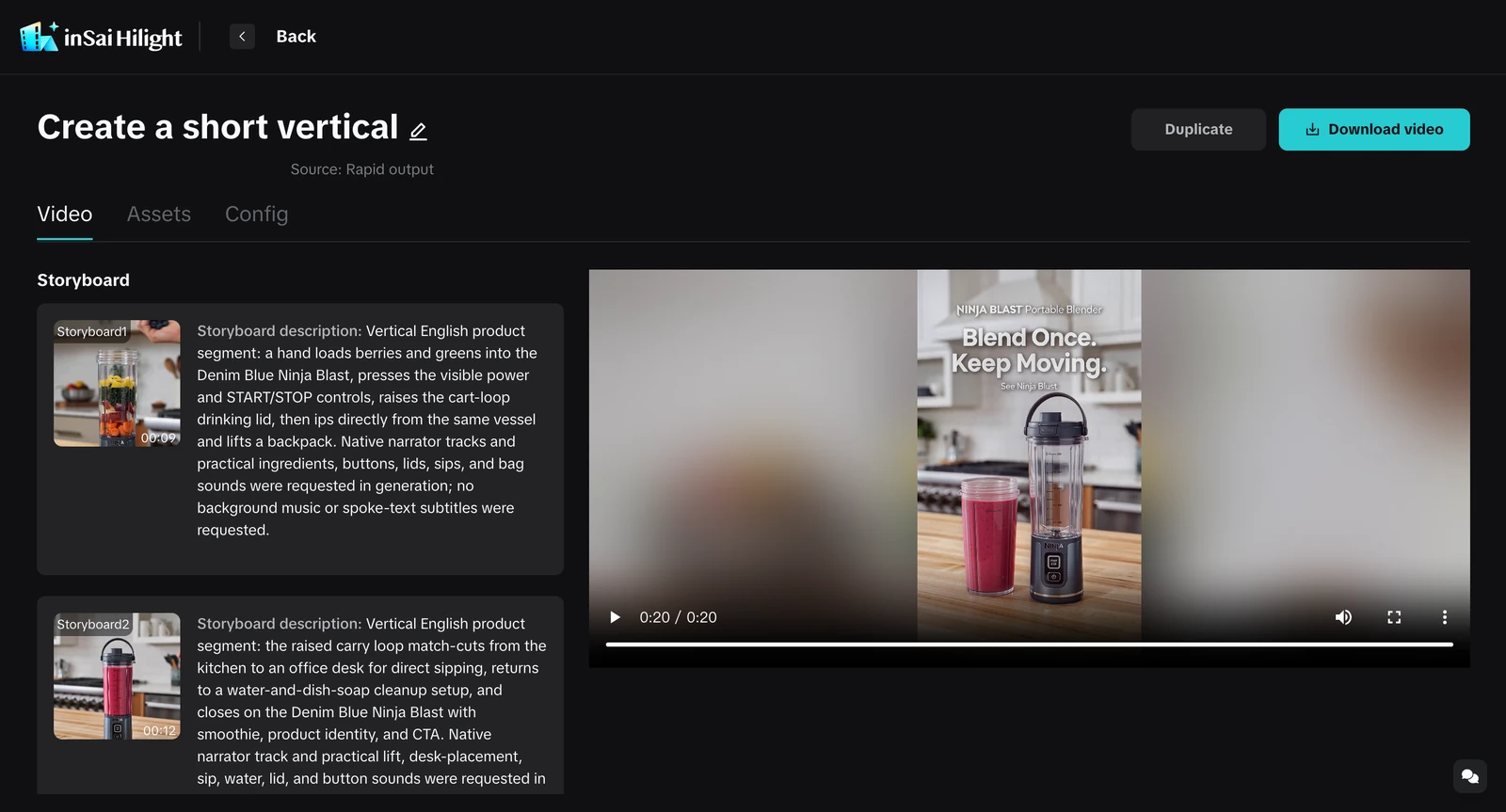
On the result page, review the storyboard descriptions, script content, and completed preview together. Play the video from beginning to end and check product facts, selling-point order, scene continuity, captions, voice, music, overlays, and the final CTA.
Correct the earliest source of any visible problem. Update the product information or script when the message is wrong; adjust or replace the affected scene when the problem is local. When the missing piece is a usable product shot, the Image to Video AI guide for ecommerce can help you prepare a supporting motion asset.
When the result meets the delivery requirements, select Download video to save the complete video.
How should you review the content before refining the visuals?
The most reliable review order moves from meaning to presentation. It prevents a team from polishing scenes that may later be removed because the message itself is wrong.
To see how product information and shot-level assets connect across a wider production system, continue with Inside Hilight's Multi-Agent Workflow.
This order is the practical difference between simply converting a script to video and producing a marketing video that remains faithful to the source. Fixing the earliest incorrect layer usually prevents repeated downstream changes.
It turns the instruction to convert script to video into a controlled production process with clear correction points.
What should you fix when the first video needs changes?
Start by naming the visible symptom, then trace it to the earliest source that can explain it.
Avoid restarting the entire task for every local problem. Equally, avoid polishing a local scene when the script or product source is wrong. The right correction level protects the work that is already usable.
Final video quality checklist
Before downloading or handing off the video, complete one full review with the intended publishing context in mind.
- Product accuracy: the product, variant, visible details, and claims match approved information.
- Message clarity: the opening hook, main selling point, supporting points, and CTA follow the approved script.
- Scene relevance: every scene supports the current line or helps the viewer understand the product.
- Visual continuity: the product remains recognizable across changes in framing, setting, and motion.
- Text and language: captions, on-screen text, spelling, pronunciation, and CTA fit the target market.
- Audio and overlays: voice, music, captions, and presenter elements do not compete with the key product information.
- Channel fit: aspect ratio, approximate duration, pacing, and opening suit the intended placement.
- Rights and claims: the team has permission to use the supplied materials, and product claims have received the required review.
A marketing video maker can assemble many elements, but delivery readiness still depends on whether those elements communicate the approved message accurately as one sequence.
FAQ
What format should my script use?
A clear document or text-based script is enough when it identifies the spoken or caption copy and its intended order. Add scene notes when a particular visual is essential. Also attach product sources and visual references rather than forcing all product evidence into the script itself.
Is script-to-video AI the same as a text-to-video generator?
They can overlap, but the tasks are different. A text-to-video generator often creates a clip from a short prompt. A script-to-video AI workflow organizes a longer message into scenes and combines product context, assets, voice, captions, music, and sequence-level review to produce a complete marketing video.
Can I generate video from script files and replace only one scene?
Yes. When the overall direction is correct and one scene is weak, use the available scene-level adjustment or replacement path. Upload an approved clip when you already have the right visual. Revise the script or requirements first when the scene problem is actually caused by an incorrect message.
Should I publish the first version immediately?
Treat it as a complete first version and run the quality checklist before delivery. Confirm product facts, the full message, scene continuity, text, audio, overlays, channel fit, rights, and any review required by the destination platform or campaign.

