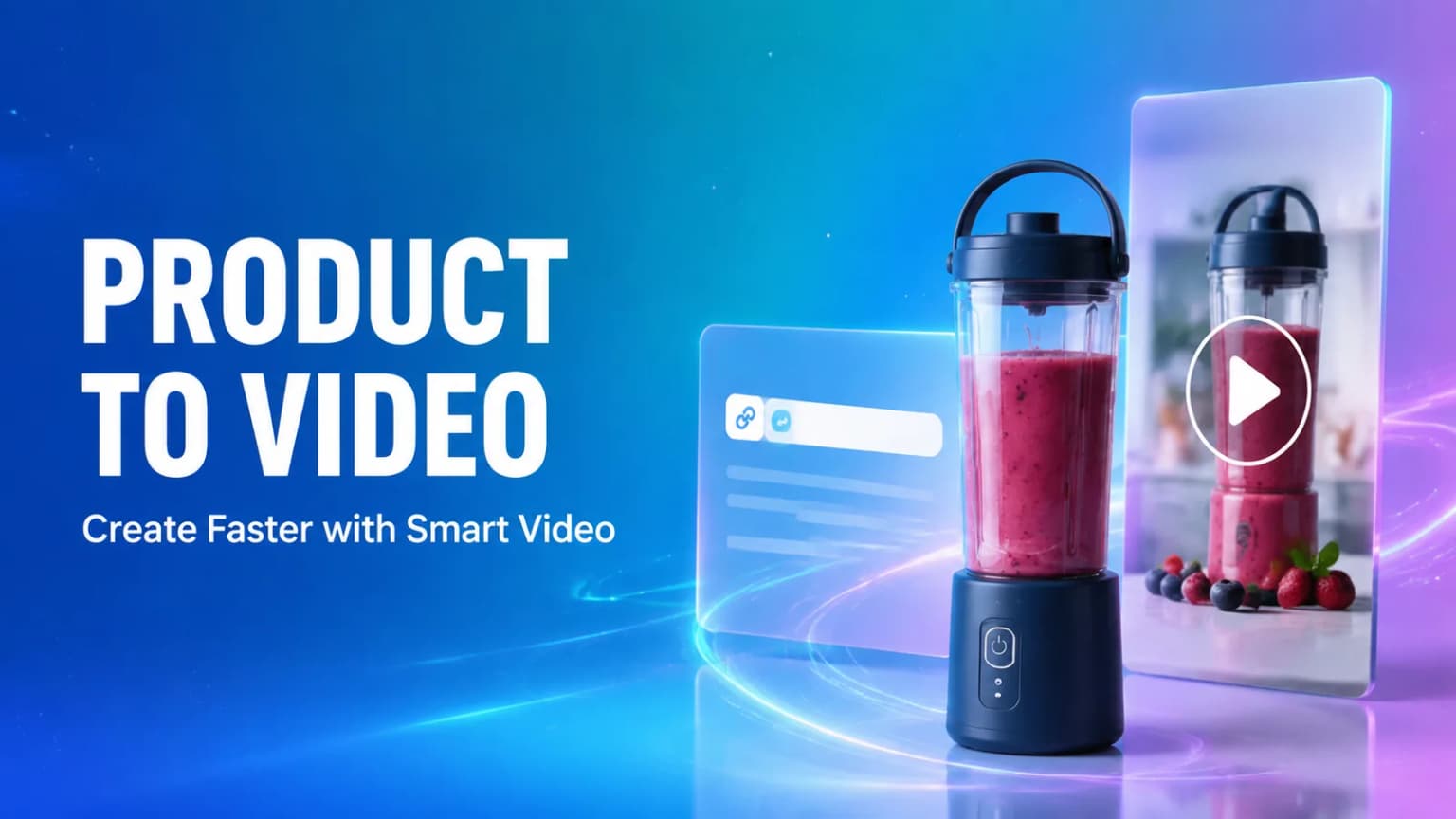
What Is Hilight Smart Video?
Traditional video editors usually start after you already have footage and a production plan. Hilight Smart Video starts earlier—with the product and the marketing task. It can use a product link, product images, clips, a script, or a creative brief to organize product information and selling points into the creative and production elements needed for a complete marketing video.
Smart Video currently offers two creation modes. Rapid output advances the main Agent-led workflow and asks for input when key information is missing. Depth editing corresponds to the more involved Deep Co-Creation workflow, where you review important creative and production choices more closely.
Choose Rapid output when you have a clear product and video goal but do not want to write the full script, build the storyboard, select every scene, and make every production choice before seeing a result. Choose Deep Co-Creation when brand requirements, campaign importance, or creative details need closer review during production.
You may already have a live product page, clear product images, or existing clips. The remaining challenge is turning that product information into a useful selling-point angle, script, storyboard, visual sequence, sound, and complete video without planning every shot yourself.
That is where Hilight Smart Video works as an AI product video generator. Give it a product link, product images, clips, a reference script, or a focused creative brief, and it can organize the product context and marketing task into a video direction, script, storyboard, asset plan, and complete product video. This tutorial uses Rapid output, the Smart Video mode for getting a complete first version with fewer decisions during production.
What You Need Before You Start
You do not need a finished script. Start with one clear product and at least one reliable source of product information.
- Product source: Add a supported product-detail-page link, clear product images, existing clips, or a useful product document.
- Video goal: State where the video will be used and what it should help the viewer understand or do.
- Key selling points: Focus on one to three points that should remain memorable after the video ends.
- Audience and market: Name the intended audience, language, or market when those details affect the message.
- Format requirements: Include the platform, aspect ratio, approximate duration, and any essential visual direction.
- Brand boundaries: Add claims, words, visuals, or styles that must be included or avoided.
If you have a product link, images, and a script or brief, submit them together. The link gives the Agent product context, the images and clips confirm appearance, and the brief directs the marketing angle. These inputs support different parts of the workflow.
A practical request can follow this structure:
> Create a [aspect ratio] [language] product video for [product] for [platform or use]. Target [market or audience], emphasize [one to three selling points], and use a [visual style] direction. Avoid [brand restrictions or prohibited content].
How to Create a Product Video with Hilight Smart Video
Step 1: Add Your Product Link or Upload Product Assets
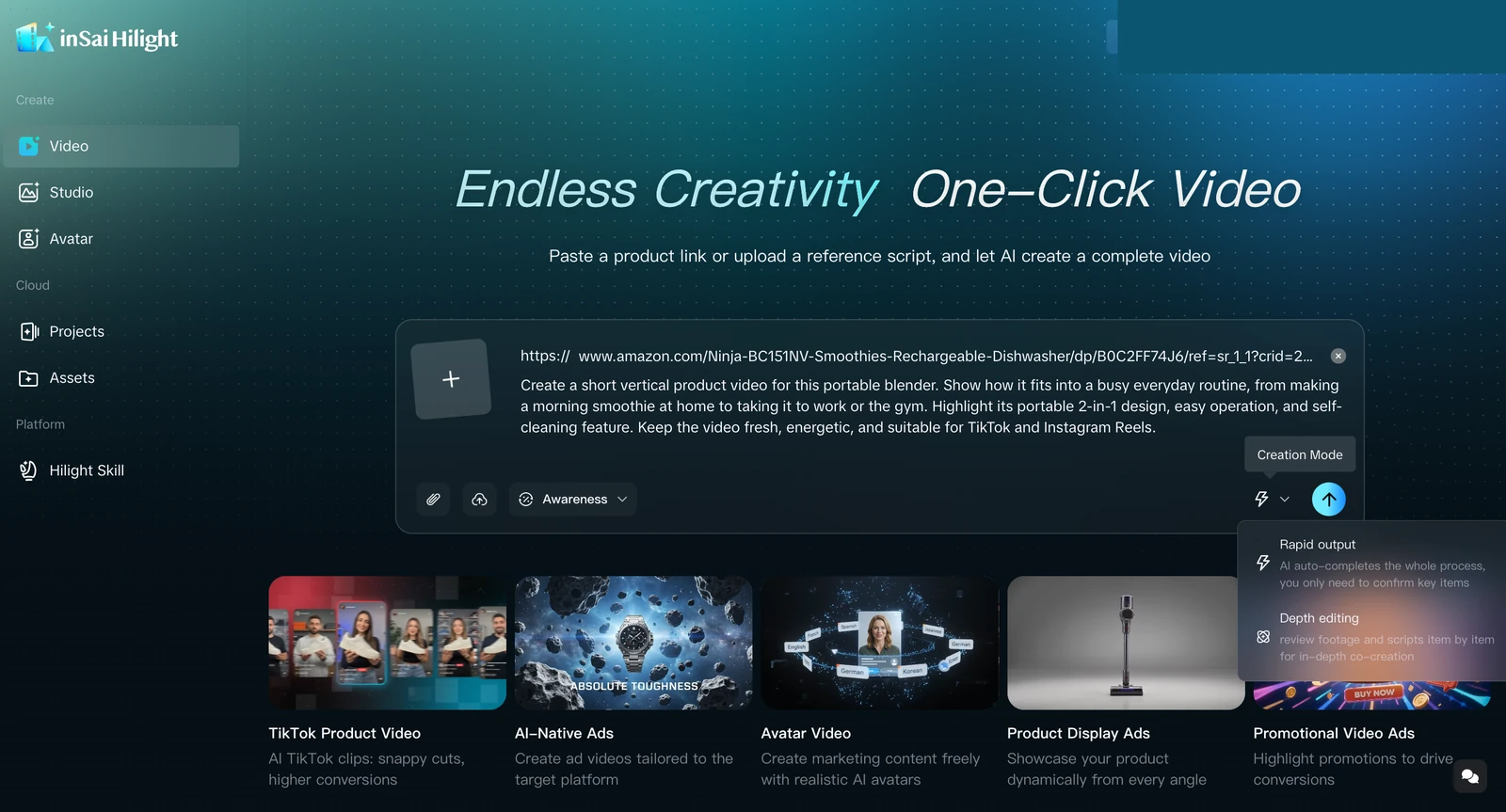
Open Hilight Smart Video. Paste one product-detail-page link into the input area, or use the attachment controls to add product images, clips, a reference script, or a requirement document.
Keep the task focused on one main product or SKU. If the page contains several variants or products, state which one the video should feature. When a link cannot be recognized, upload a clear hero image and add the product name, core selling points, and target audience in the request.
For a deeper look at product-page inputs, the product link to video guide explains how a product URL can support a complete video workflow.
Step 2: Choose Rapid Output
Open the creation-mode menu beside the submit control and select Rapid output. The interface describes this route as an automated workflow in which you mainly confirm key items when needed.
Select Depth editing instead when you want to review footage and scripts item by item. For this tutorial, keep Rapid output selected so the Agent can move through the main production sequence with fewer interruptions.
Step 3: Tell Smart Video What Kind of Video You Want
Describe the output in plain language. Include the destination platform, market, format, use case, selling points, and visual tone that matter to the result.
Example:
> Create a short vertical product video for this portable blender. Show how it fits into a busy everyday routine, from making a morning smoothie at home to taking it to work or the gym. Highlight its portable 2-in-1 design, easy operation, and self-cleaning feature. Keep the video fresh, energetic, and suitable for TikTok and Instagram Reels.
This brief gives the Agent a product, a sequence of everyday scenes, three feature priorities, a visual tone, and two target platforms. It leaves room for Hilight to build the script and storyboard instead of prescribing every shot.
Step 4: Follow the Product Analysis and Creative Direction
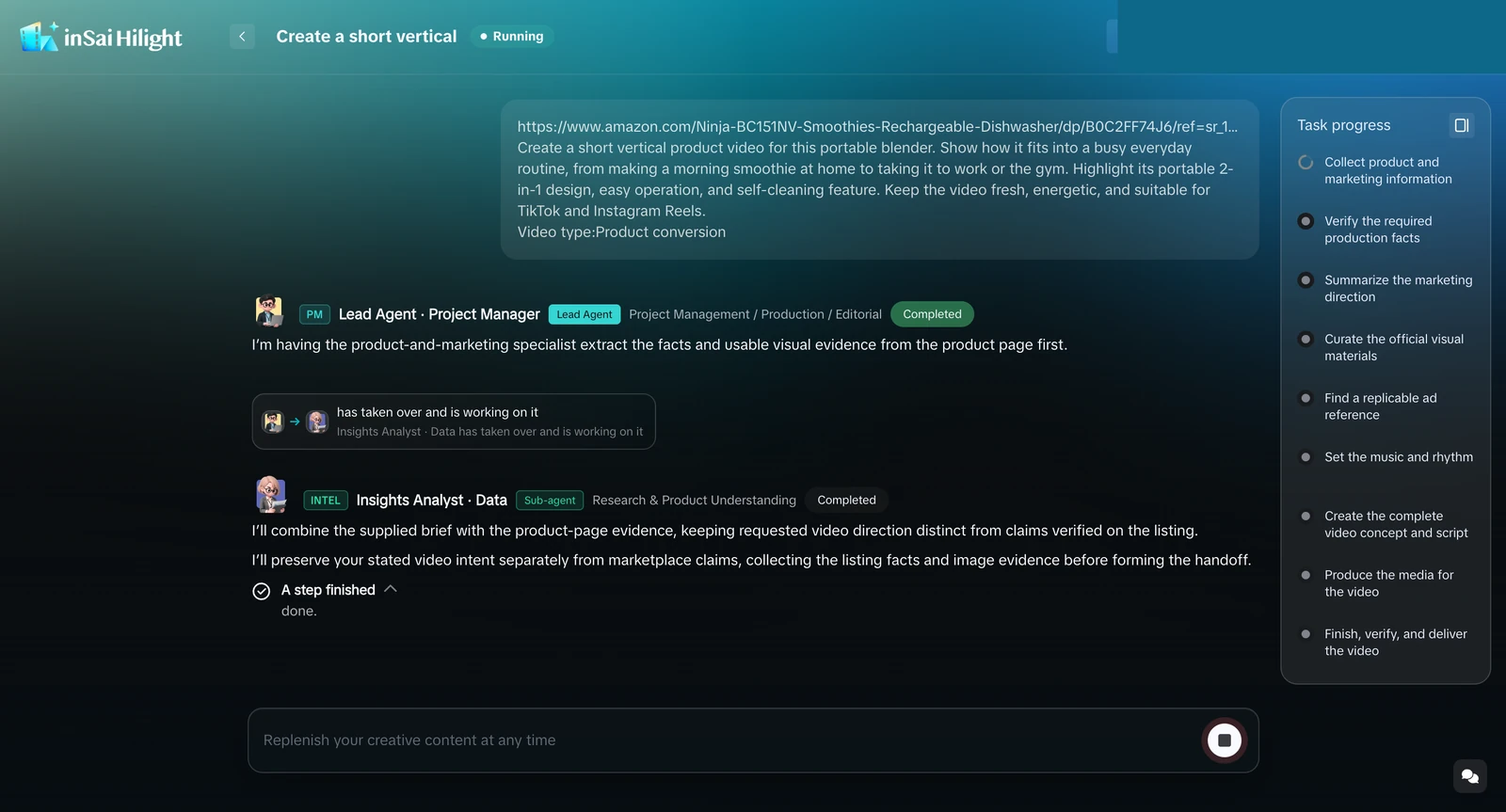
Submit the task and use the task-progress panel to follow the workflow, including the Agent progresses through product and marketing information collection, production-fact verification, marketing-direction planning, visual-material organization, reference research, music and rhythm decisions, concept and script creation, media production, and final delivery.
Rapid output does not require a separate user decision at every stage. Agent will ask for missing information, answer with the specific fact or constraint it needs. The task input remains available if you need to add a brand requirement, correct a product detail, or clarify the intended direction.
Treat product facts and creative direction as two different things. A marketplace listing supports factual details about the item; the brief supplies the desired scenes, tone, and marketing angle. Keeping that distinction clear reduces the risk of turning a creative idea into an unsupported product claim.
Step 5: Let Hilight Generate the Product Video
Once the required information is available, let the Agent continue through the production sequence. The progress panel shows which stage is active, so you can see whether Hilight is still analyzing the product, organizing the concept and script, producing media, or assembling the complete video.
Generation time can vary with the task and the materials involved. Use the progress state rather than assuming a fixed wait time. Avoid submitting the same task repeatedly while the current run is active.
Step 6: Review the First Version and Choose the Next Step
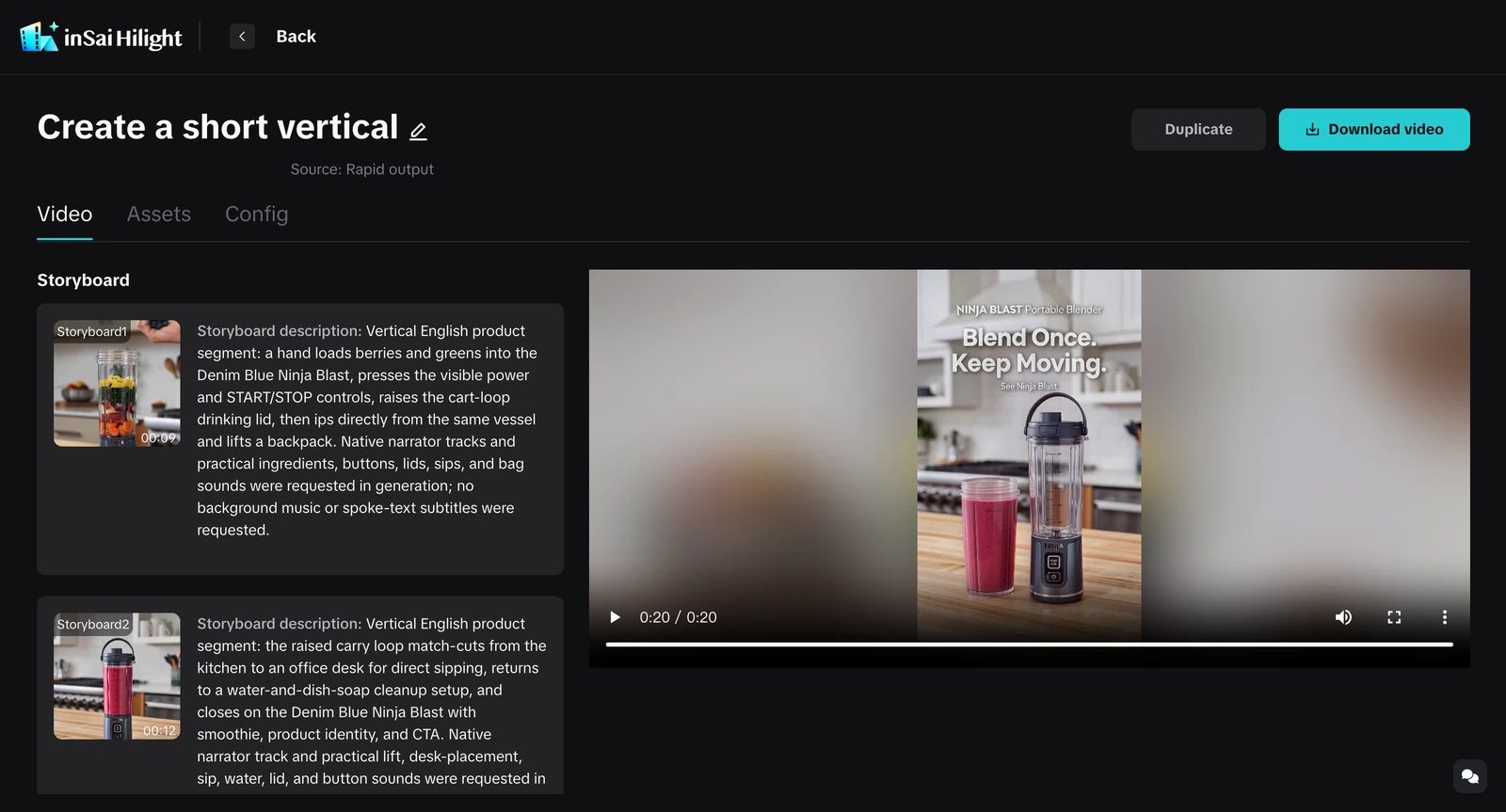
The result page brings the storyboard and video preview together. Watch the video from beginning to end, then check the parts that affect whether it is ready for use:
- Product accuracy: The featured item, color, visible controls, packaging, and claims match reliable product information.
- Message accuracy: The video emphasizes the selling points and use case requested in the brief.
- Visual continuity: The product stays recognizable as scenes, locations, or camera angles change.
- Channel fit: The aspect ratio, duration, opening, captions, and pacing fit the intended platform.
- Language and text: Voiceover, captions, on-screen words, spelling, and CTA match the target market.
- Publishing safety: Product claims and source materials are approved, and the video receives any review or disclosure required for its destination.
If the first version is ready, select Download video to export it. If the direction is useful but needs another version, revise the brief or use the available duplication workflow. If detailed control over footage, script, or scene choices is now necessary, continue with the deeper editing route rather than repeatedly regenerating without changing the cause of the problem.
Example: Creating a Product Marketing Video with Smart Video
After submission, Rapid output advances through the Agent-led workflow. The delivered file is a 1080 × 1920 English video with a running time of approximately 20.17 seconds.
These observations confirm that the requested format, language, use-case sequence, and product focus reached the first version. They do not establish advertising performance or prove every product claim. Before publishing, the operator should still check the source listing, the complete video, text legibility, product consistency, music and voice rights, and channel requirements.
When Should You Use Rapid Output Instead of Deep Co-Creation?
Both modes begin with product information and a creative goal. The difference is how much control you want during the production process.
Start with Rapid output when seeing a complete first version will make the next decision easier. Start with Deep Co-Creation when those decisions must be made before the complete version is assembled.
Tips for Better Results with Hilight Smart Video
- Use one primary product: A single product or SKU gives the Agent a clearer subject and reduces mixed product information.
- Choose a clear hero image: Use an image in which the full product is visible, unobstructed, and easy to distinguish from the background.
- Prioritize the message: One to three selling points usually create a clearer first direction than a long list of equal claims.
- State hard constraints early: Add the platform, aspect ratio, language, market, required wording, and prohibited content when they cannot change.
- Separate facts from ideas: Verify dimensions, materials, compatibility, and performance claims against reliable product information. Use the brief for scenes, tone, pacing, and the marketing angle.
- Fix the cause, not just the output: Correct the product source when the item is wrong, refine the brief when the message is wrong, add assets when the visuals are thin, and use the deeper workflow when detailed creative control is the real need.
FAQ
Can I create a video from a product link?
Yes. Add a supported product-detail-page link to give Hilight product context, then include a focused brief with the intended audience, use case, selling points, and format. Product images, clips, or a script can add stronger visual and creative direction. Not every webpage is a product page, so use a direct listing rather than a store homepage, category page, or search-results page.
Do I need to write a video script?
No. Smart Video can begin with a product link, assets, or a concise brief and advance through video direction, concept, and script creation. Upload a reference script when exact wording, sequence, or message structure matters.
Can I use my own product images and clips?
Yes. Add clear product images or existing video clips through the attachment controls. Use assets that accurately represent the product and that you have permission to use. Images and clips are especially useful when a product page does not contain enough reliable visual material.
How long does it take to create a product video?
Processing time depends on the task, available inputs, and production work required. Follow the live task-progress panel to see which stage is active. The Fresh Juice Portable Blender output is approximately 20.17 seconds long; that is the duration of the video, not the time required to generate it.
What is the difference between Rapid Output and Deep Co-Creation?
Both are Smart Video workflows. Rapid output advances the main workflow and asks for input when key information is missing. Deep Co-Creation corresponds to Depth editing and is better when you want closer involvement in footage, script, and other creative decisions.

