Quick Answer
Open Product close-up in Hilight’s AI Studio, upload a product photo, and choose a highlight and camera move to generate a close-up clip for your edit. When an AI avatar describes a bag’s suede finish, for example, cut to the flap so viewers can see the detail while the narration continues.
A presenter can introduce a bag’s style and show how it looks with an outfit. But when the narration turns to suede, stitching or the interior, a wide shot leaves those details hard to see. Existing product photos can become moving close-ups that fill those gaps in the video.
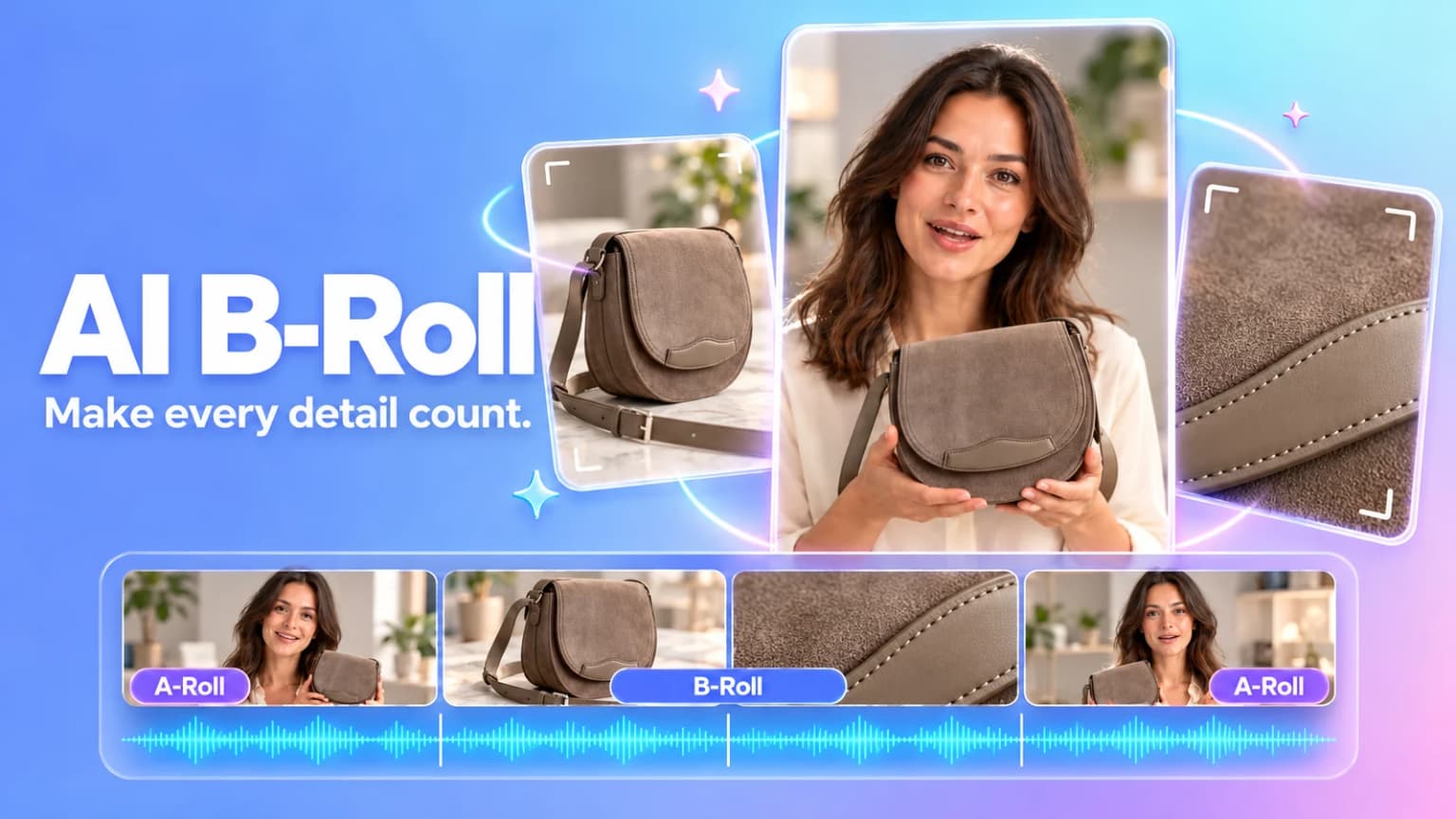
The presenter’s main footage can serve as A-roll; supporting detail shots are B-roll. Keep a wider view while introducing the bag’s shape, then cut to the flap as the narration describes the suede, giving viewers a close look at the feature being discussed.
What Product Photos Work Best for AI B-Roll?
Choose a photo that clearly shows the detail you want to feature. For a material shot, look for visible surface texture. To show the interior, use a photo of the bag already open. The image gives you a concrete starting point for the shot.
This taupe bag’s front photo shows the suede flap, curved leather trim and strap, making it a useful choice for a move from the whole bag toward the flap. Its simple background also keeps attention on the product.
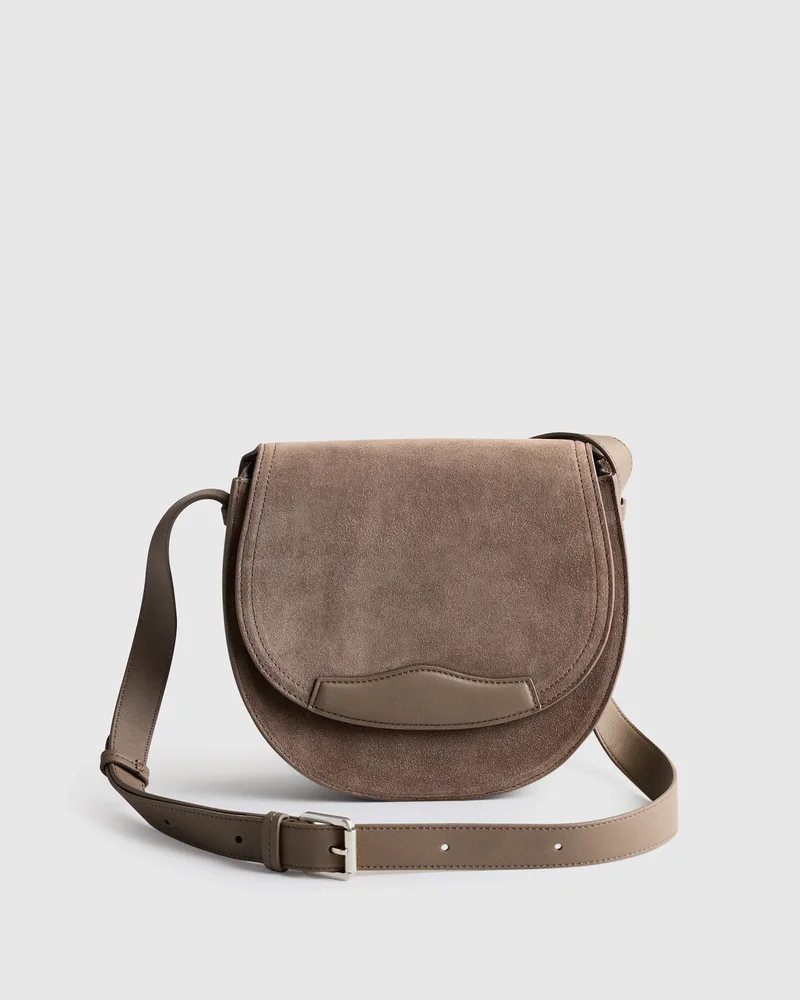
For side thickness or a rear pocket, use a photo of that view. To explore other ways to turn a product photo into video, see the image-to-video AI tutorial.
How Do You Generate Product Close-Up Clips in Hilight?
Hilight is an AI marketing agent, and AI Studio lets you prepare individual clips for a video. Here, the front photo becomes a slow push-in that draws attention to the bag’s suede and leather trim.
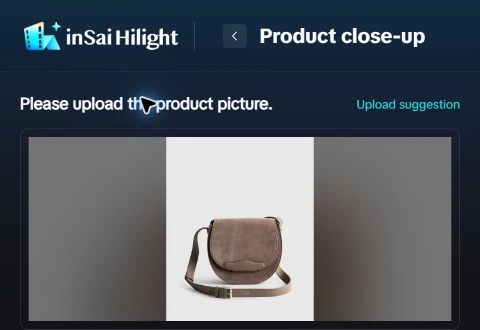
Upload the product photo
Open Product close-up and select your image in the upload area. Once it appears, continue with the highlight, background and camera settings on the same page.
Choose the highlight and background
Select Material texture for this front shot to emphasize the suede flap and leather trim.
Keep the original background to retain the photo’s simple, light setting. This keeps attention on the bag and gives additional angles a consistent visual starting point.
Select a camera move and describe the detail
Choose a slow push-in, labeled Advance slowly in the interface, to bring the viewer closer to the flap. The highlight determines what to show; the camera move determines how to approach it.
In the optional Supplementary demand field, name the detail, the direction and speed, and the features to preserve. For example:
Slow push-in on suede flap, curved trim and seams. Keep taupe color, shape, strap, hardware, holes, gray backdrop. Bag still; one take. No opening, rear, hands, people, text or extra accessories.
“Move closer to the suede flap” gives the shot a clearer destination than “make it look premium.” Describe one camera move at a time so the short clip has a clear purpose.
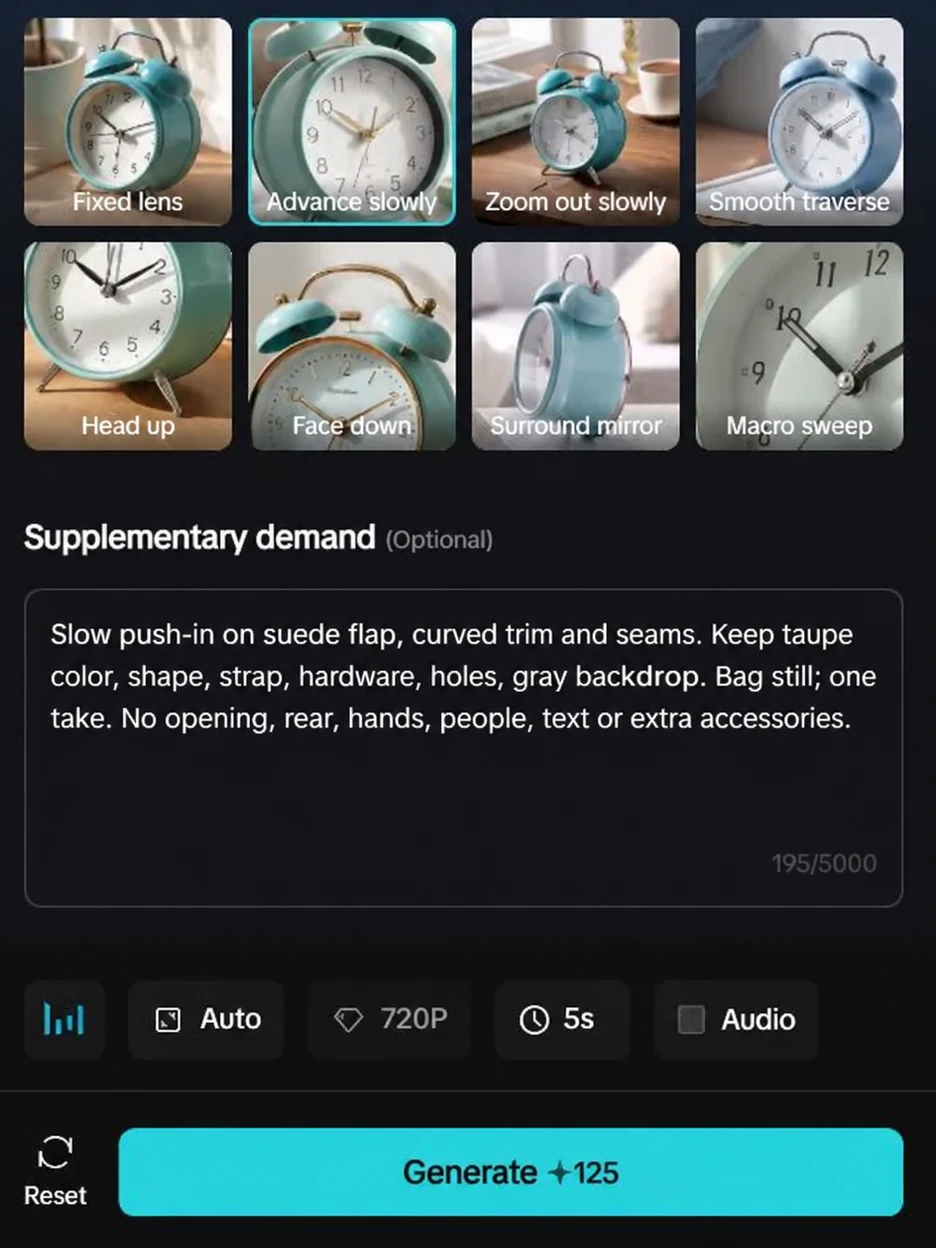
Set the format and generate the clip
The bag examples use Seedance-2.5, 720P and a five-second duration. For a vertical video, choose 9:16. Turn audio off when the close-up will sit under the main video’s narration or music.
Review the credits shown on the button, then select Generate. Hilight analyzes the product, extracts details and develops the camera plan before rendering the video. When the generated video appears, you have a product close-up clip ready for a later edit.
Which AI Camera Movements Suit Different Product Details?
For another angle, first choose a photo that clearly shows the feature, then select its highlight and camera move. These bag shots cover the surface, side, interior and rear.
Adapt the supplementary request accordingly: “Move slowly across the bag’s side and flap edge. Keep the bag still and preserve its color, stitching and strap structure.” Reuse that pattern and change the detail and movement instead of writing a long new description for every clip.
What Else Should You Know Before Making Product Close-Ups?
Yes. You can create a standalone close-up from a product photo without submitting a full script. Prepare the detail shots first and choose where they fit when editing the video.
How Does AI B-Roll Fit into Avatar, On-Body and Unboxing Videos?

Insert a close-up when the narration reaches that detail, so viewers can connect the description with what they see. In an avatar presentation or an unboxing, the narration can continue while the picture changes to the product.
- AI avatar presentation: Start with the presenter introducing the bag. Cut to the surface push-in during a line about “the suede and curved trim,” then use the side shot when discussing thickness. Return to the presenter while keeping the voiceover continuous across the detail shots.
- Unboxing: After revealing the bag, insert the zipper and lining close-up while describing the interior pocket. Then show the rear pocket before returning to the presenter. This is the pairing shown in the diagram’s unboxing row.
On-body footage can follow the same pattern: show the outfit, add a side or rear detail, then return to the person wearing the bag. If you also need clothing try-on footage, see the virtual try-on video tutorial. Use these close-ups as inserts in a later edit, giving each described detail a matching view.