
Quick Answer
MiniMax H3 Image is coming soon to Image Creation at the top of Hilight’s AI Studio. It combines text-to-image generation and editing in one model, with native output of about 16 megapixels, up to 16 reference images and support for detailed composition and editing instructions. Its appeal is the ability to create rich images while organizing several assets, text and spatial requirements in one composition.
A useful image often has several jobs. The product needs to retain its appearance, the setting needs to change, a headline belongs in a particular position, and the composition needs room for different crops. “Make a beautiful image” leaves much of that unspecified.
H3 Image is worth exploring for how it handles those concrete requirements. Official examples include rooms assembled from separate furniture references, product diagrams with structure and labels, and edits built on an existing scene. Those examples give you something specific to consider for your own creative work.
What Is MiniMax H3 Image?
MiniMax H3 Image is the image-generation and editing model in the MiniMax H3 family. It can start from text or use reference images to generate and modify a composition. It produces still images; our MiniMax H3 video introduction covers the video model separately.
The official announcement emphasizes resolution, speed, realistic detail and instruction following. The official model repository explains that it generates images of about 16 megapixels directly, without an extra upscaler, using six sampling steps. Sampling is the model’s gradual image-forming computation.
The model also has open weights, allowing developers to deploy it under its community license. For someone planning to create in Hilight, the more immediate capabilities are high-resolution output, multiple references and editing. You do not need to deploy the model yourself first.
What Do Native 4K and Faster Generation Change?
Native resolution leaves room for detail and different crops
A square 4K output is 4096 × 4096, approximately 16.8 megapixels. Compared with 1024 × 1024, that is four times the width and height, or about sixteen times the pixels. A larger canvas gives fine lines, material textures and small elements more room, while allowing additional cropping.
One product visual might be used in a banner, product card and social image. Leaving space around the subject makes it easier to adjust crops around a shared main image. Higher resolution supplies pixel room; subject placement and text still need to be considered in the composition.
The provider offers 1K, 2K and 4K output-area settings with different aspect ratios. “4K” therefore does not mean 4096 × 4096 at every ratio. The image-generation documentation explains the output options.
Generation around ten seconds makes high-resolution iteration more practical
MiniMax’s published latency comparison chart distinguishes Standard and Highspeed configurations, as well as generation and editing. Its 4K figures are:
P50 is the median: half of the measured tasks took no longer than that time.
Getting a high-resolution result sooner lets you judge composition, materials and detail earlier. You might compare a cool metal surface with a warm wooden one, choose the direction, then continue editing. That is more flexible than finishing the layout around a visual direction you still want to change.
How Can Separate References Become One Composition?
Support for up to 16 references lets different images contribute content, style and layout. Products, people or environments do not all need to exist in the same source photograph. Describe how they should appear together in the result.
MiniMax’s official multi-reference showcase combines an empty-room photograph and nine furniture references into a living room.
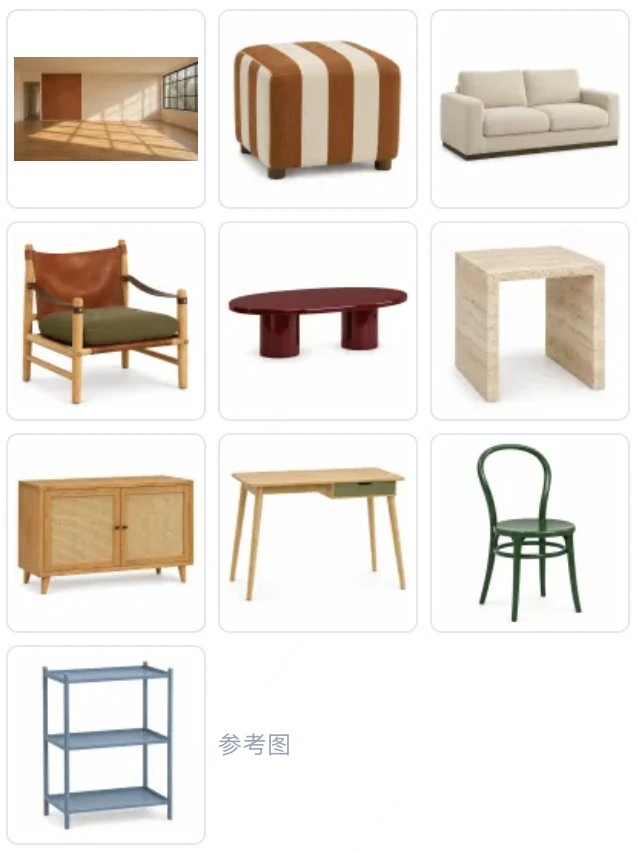
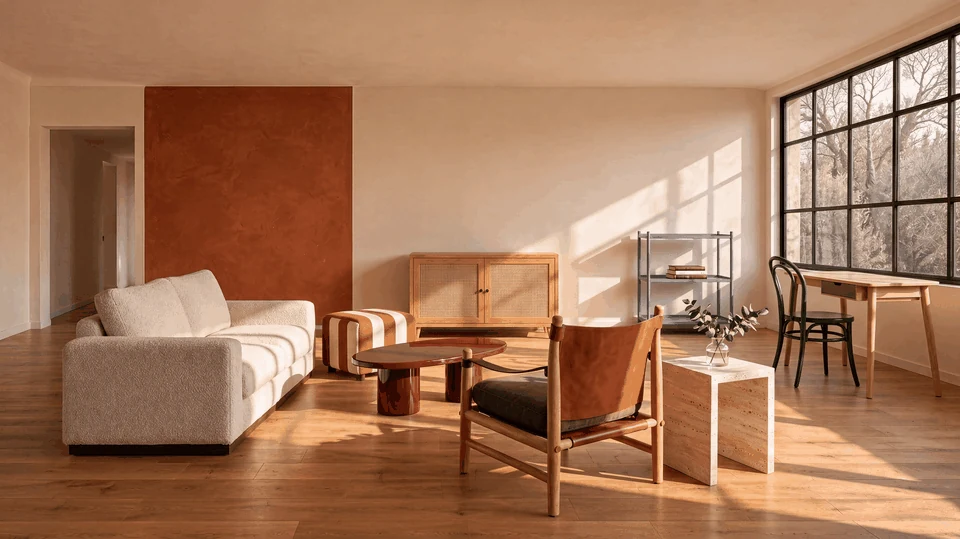
The inputs separately establish the room and the furniture. In the output, a cream sofa sits along the left wall, a wooden lounge chair faces into the room, and the desk is near the window. The task involves appearance, scale and placement together. Listing the pictures alone would leave the arrangement unresolved.
The official prompt also asks to retain the room’s structure, include each item once and leave usable space. That kind of spatial description is useful for product displays, furniture collections or compositions with several items. State what comes from each image and how those elements relate in the final scene.
A first attempt could use just a product photo, a scene reference and a layout sketch. Once their roles are clear, add other subjects if needed. That is easier to interpret than filling the full reference allowance immediately.
What Does Detailed Instruction Following Look Like?
Structure, labels and layout can be specified together
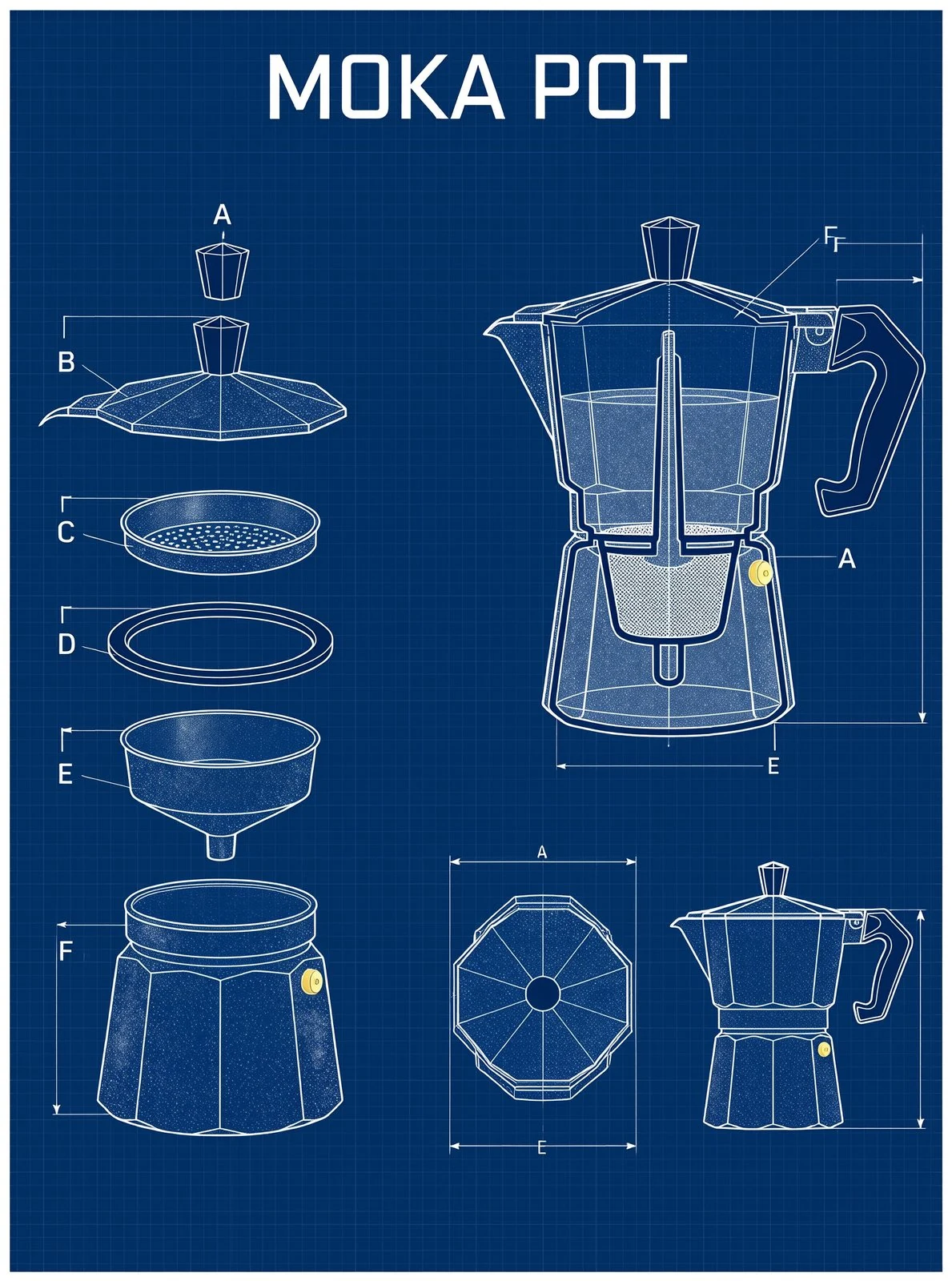
The official instruction-following showcase includes a moka-pot blueprint. An exploded component view occupies the left, a larger cross-section sits at the upper right, and top and side views appear below. The image includes a title, leader lines and letter labels.
Several requirements share one composition: component order, view placement, a blue-and-white drawing style and a hierarchy of annotations. For product structure illustrations, concept design or explanatory graphics, this gives a more directed starting point than simply requesting a picture of the object.
The displayed result also has details to review, including repeated letter labels. Images like this can support visual development and explanatory drafts. Real product structure, measurements and documentation still need to be checked against product information.
Lighting and spatial relationships can become explicit instructions
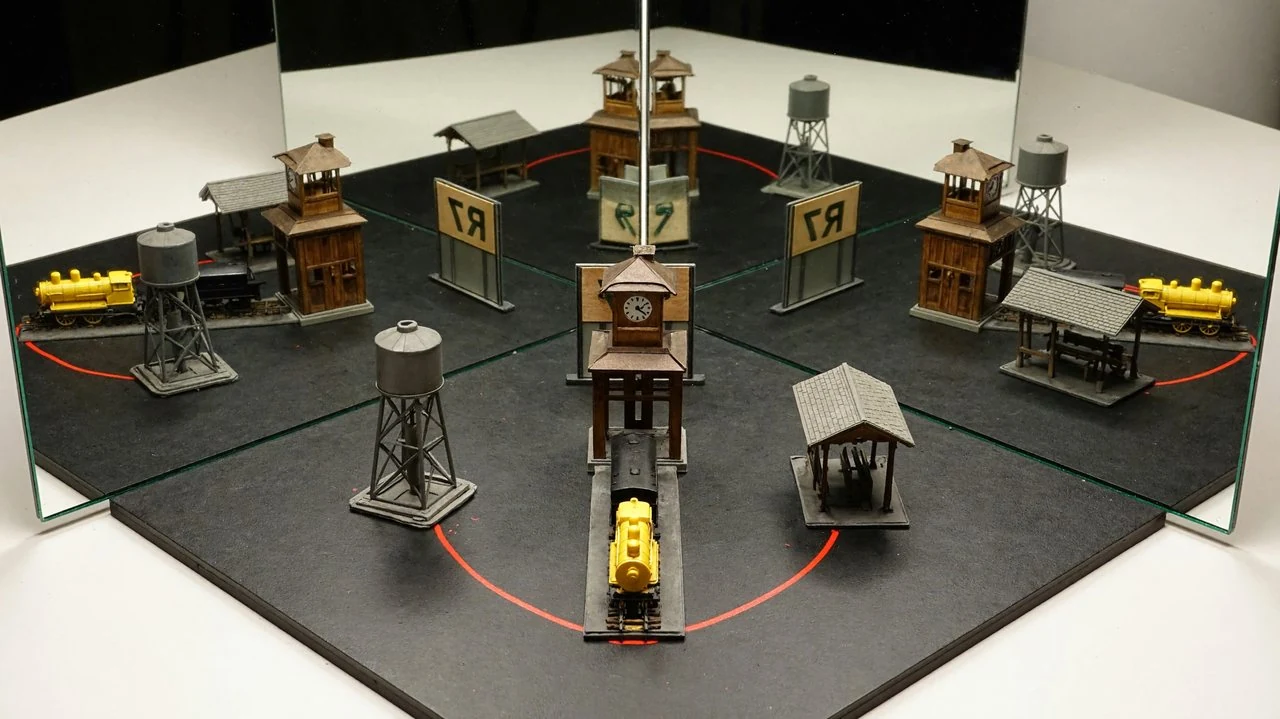
Another official spatial example places a miniature station between two mirrors meeting at a right angle. The scene includes physical objects and reflected versions of a clock tower, water tower, vehicle and sign.
That makes spatial relationships part of the generation task. Objects in front of the mirrors need to change orientation in the reflections while retaining their relative arrangement. For creative work involving reflections, occlusion or projected light, the useful idea is to describe the relationships directly. Product reflections, glass surfaces and complex interiors offer similar directions to explore.
How Can You Continue Editing an Image?

H3 Image also works from an existing picture, with instructions to change an action, object or setting while preserving specified content. MiniMax’s official editing example starts from a two-person podcast image. The original man wears headphones; edited results remove them and show the two hosts bumping fists.
The comparison retains the studio lighting, microphones and sign at the front of the desk while changing the action. The two processing paths also produce different poses. The example combines an object removal with an action edit. It is worth specifying preservation requirements and reviewing the people and setting afterward.
For an insulated-cup promotional image, a reference-based editing mode could use this request:
“Use the insulated cup in the reference as the subject. Preserve its body outline, lid structure, handle and color. Change the background to a light warm-gray wall and the surface to pale stone, with soft window light from the left. Keep the full cup visible slightly left of center, leaving space for a headline in the upper right. Use realistic studio photography. Add no flowers, other products or text. The image will introduce the product’s appearance and materials.”
This separates subject preservation, environmental changes and the intended use. A later request could change only the light direction or the subject’s size. For input and output options, see the official image-editing documentation.
Where Will H3 Image Fit in Hilight?
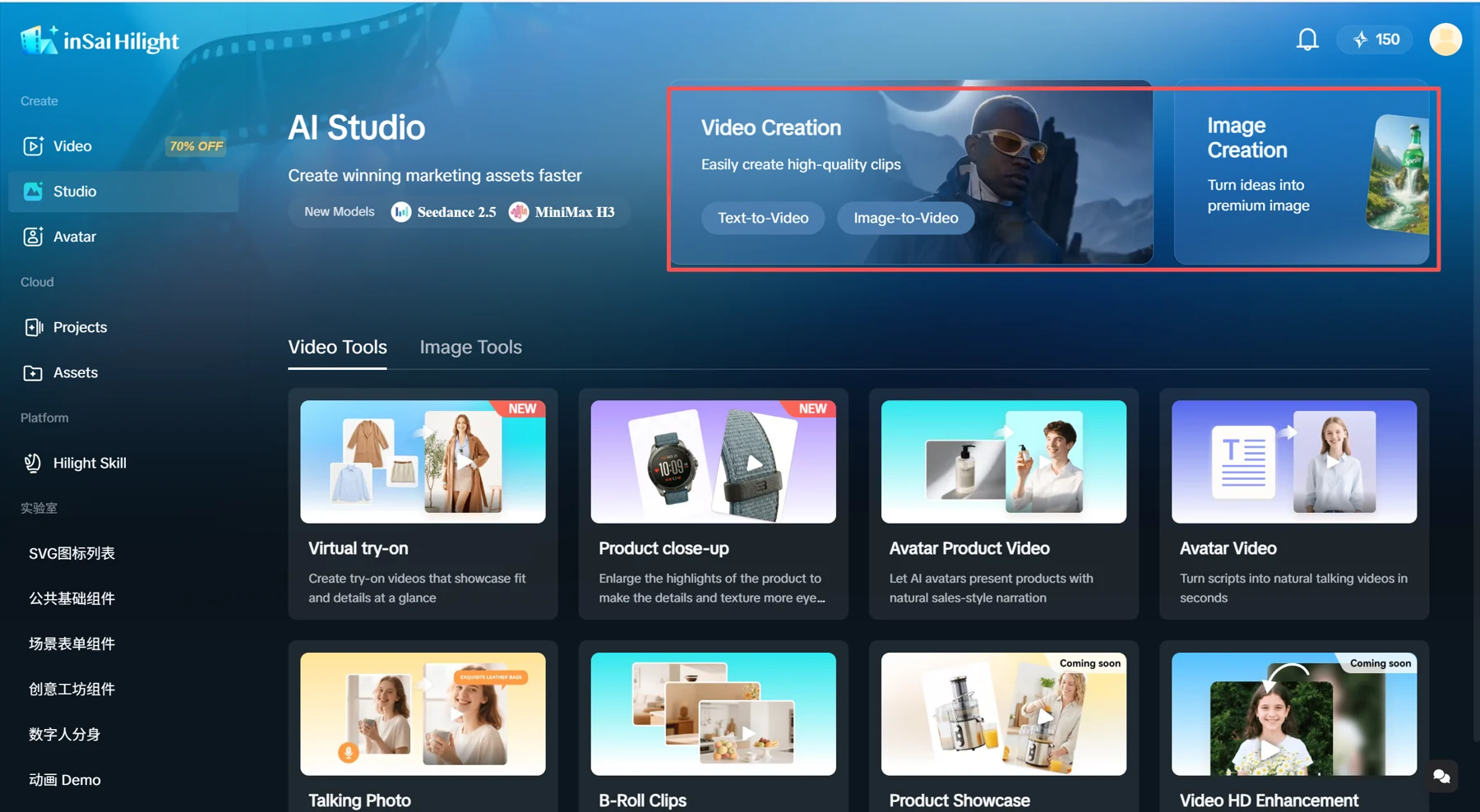
MiniMax H3 Image is coming soon to Image Creation at the top of AI Studio, labeled 图片快创 in Chinese. This entry is for directly exploring product visuals, scenes, posters or image edits. The AI Studio overview introduces the creation area.
Once available, open the top image entry, select H3 Image and begin with the modes shown in the interface. Hilight’s initial resolutions, reference allowance, editing options and credit cost will be confirmed at launch.
A useful first task could be placing an existing product image in a more suitable setting, or changing a composition’s materials and light. A real reference and a clear change to explore make multi-image understanding and editing easier to judge.
Frequently Asked Questions
MiniMax describes direct generation at about 16 megapixels without an extra upscaler. Enlarging a small image adds pixels to an existing result. Native resolution supplies more image space, while text, structure and product details still need review.

