Quick Answer
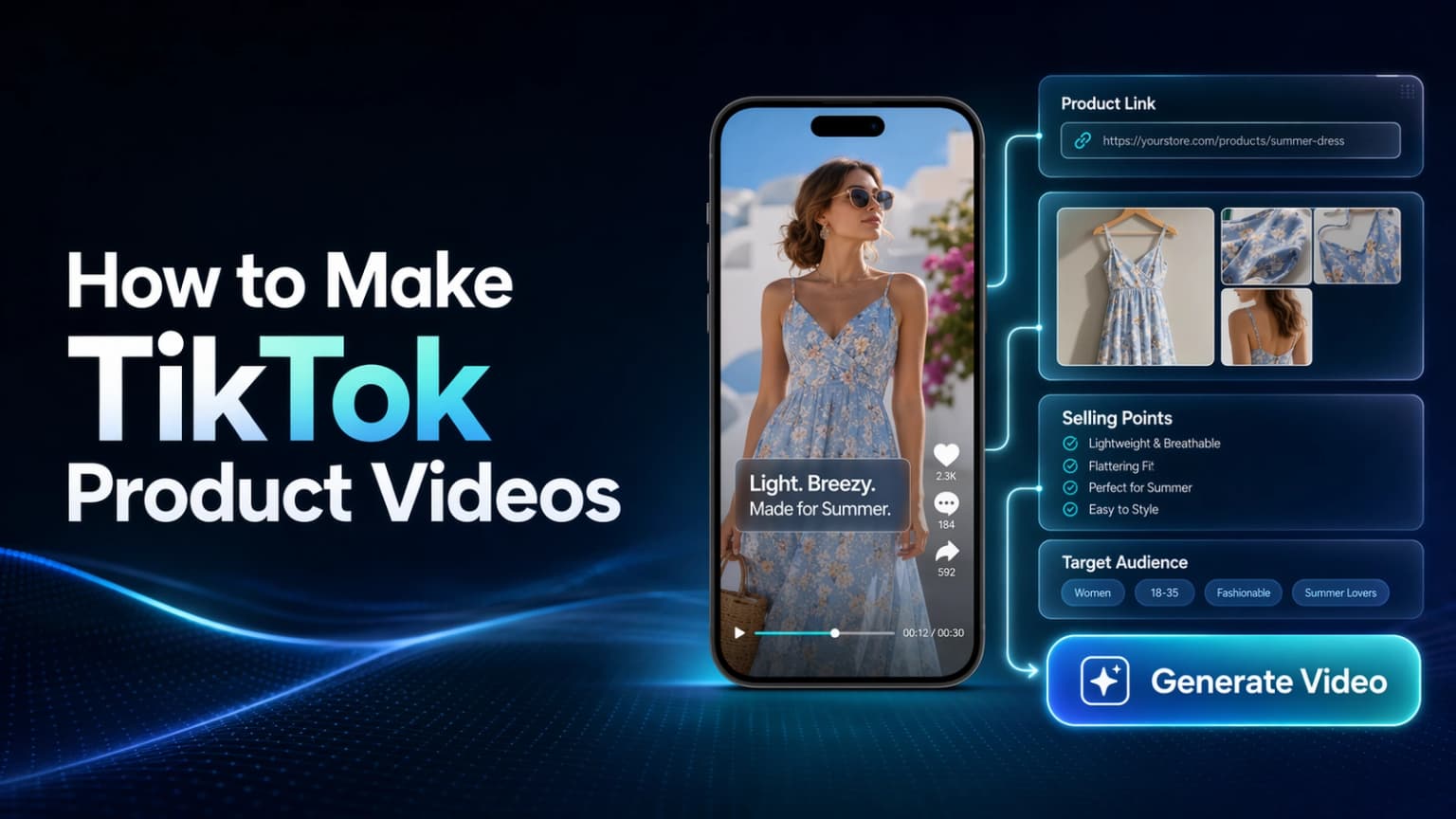
To make a TikTok product video in Hilight, open the TikTok product video scene from Smart Video, then start with either a product link or manual product information. Hilight can use the product link to recognize product information and images, recommend selling points and target audience notes, and then continue the generation task through product analysis, trend insight, script planning, asset matching, asset enhancement, editing, and final video creation.
The most important part is not filling every field perfectly on the first try. Start with accurate product information, clear product images, one focused selling point, and a target audience you can describe in plain language. After generation, review whether the video shows the product early, explains one buying reason clearly, and feels close enough to TikTok's short-video rhythm.
If you already know TikTok product videos are worth trying, the next question is much more practical: what do you actually put into the generator?
This tutorial walks through Hilight's TikTok product video workflow from the user's side. You will see where to start, what to prepare, how product-link parsing helps, what to check in the product information and assets, and how to review the first generated video.
The screenshots focus on the current Hilight workflow: product context first, video generation second, review before use.
Before You Start: What This Workflow Creates
This tutorial is for sellers who already have a product and want to create the first TikTok-style product video, but do not want to start from a blank editing timeline.
Hilight's TikTok product video scene helps turn product information, product images, selling points, audience notes, and creative requirements into a first product video direction. Think of it as a creation workflow: prepare the brief, generate the video, review the result, and then decide how you want to use or revise it.
If you want the broader marketing context first, read the TikTok product video ads article. If you are ready to build one, continue with this tutorial.
Step 1: Open the TikTok Product Video Scene from Smart Video
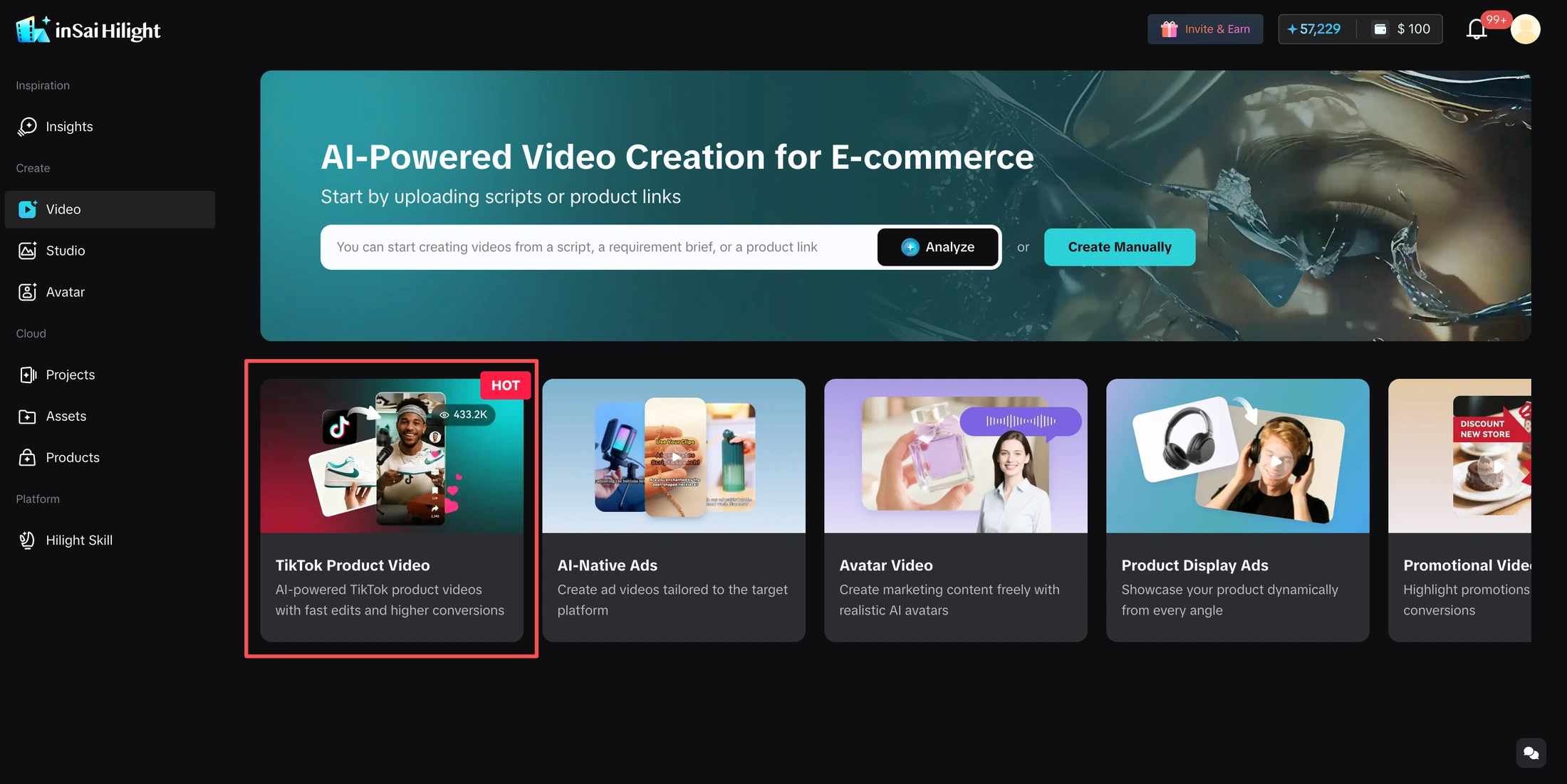
Open Smart Video in Hilight and choose the TikTok product video scene from the marketing scenarios. You can also start from the TikTok Product Video Generator feature page or directly open the TikTok product video workflow.
This scene is useful when the goal is to make a product-focused short video for TikTok-style discovery: quick product appearance, one clear buying reason, and a format that can be reviewed and revised before use.
Before moving on, prepare at least one of these:
- A product link, if the product page already has useful title, description, and images
- Product images, if the product page is incomplete or you want to control the visuals
- A short product brief, if you already know the exact product angle
Step 2: Start with a Product Link or Fill Product Information Manually
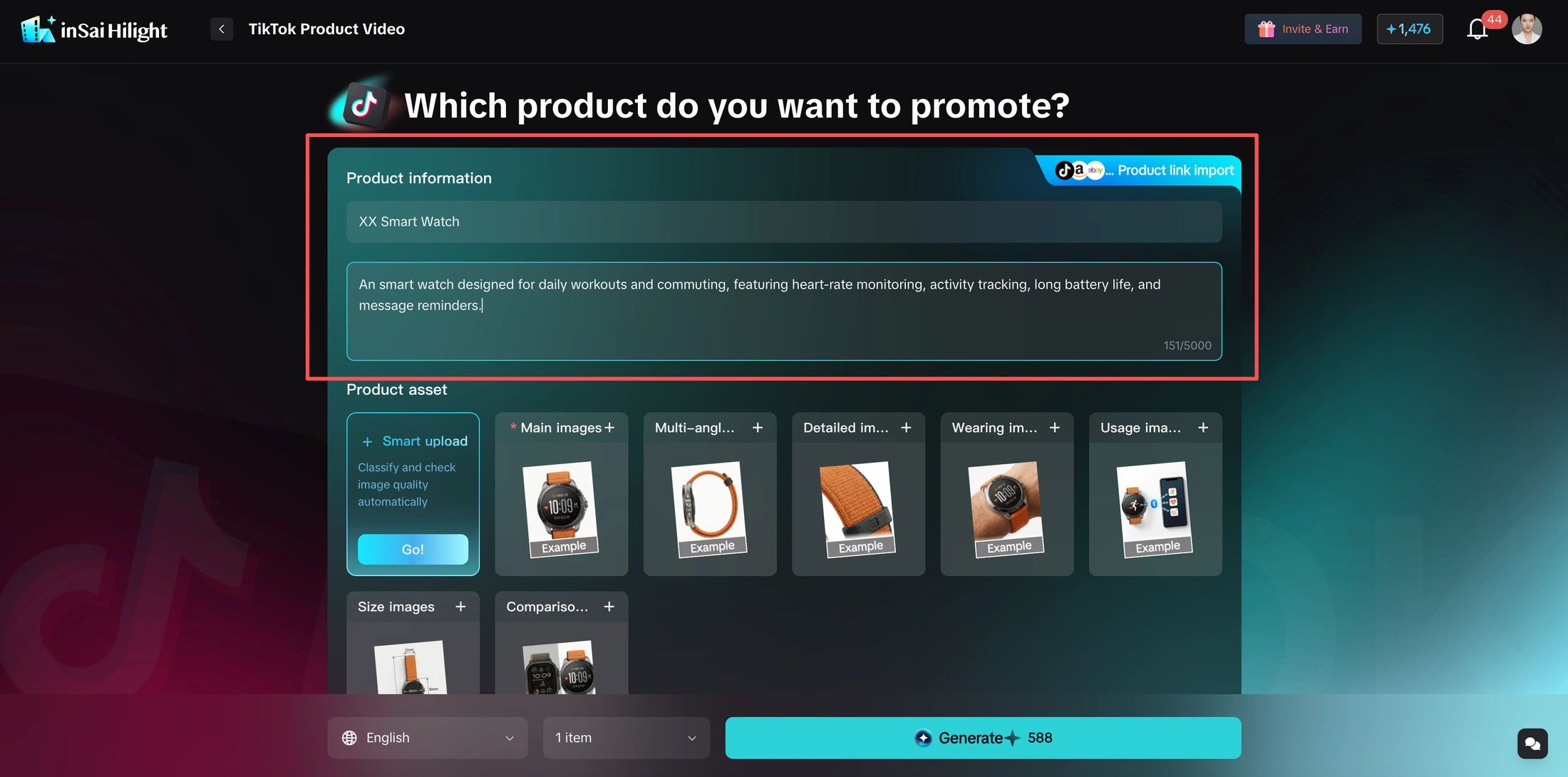
You have two ways to start.
Use a product link when the product page already contains useful information. Hilight can parse the link, recognize product information and product images, and use that information to build the first product brief.
Use manual input when you already know what you want the video to say, or when the product page is not clean enough. In that case, write the product name, product description, and important context yourself.
After product-link parsing, do not treat the fields as finished. Check the recognized product name, product description, images, selling points, and audience notes. Product-link parsing saves time, but the best brief still needs human judgment.
Step 3: Check the Product Assets by Role
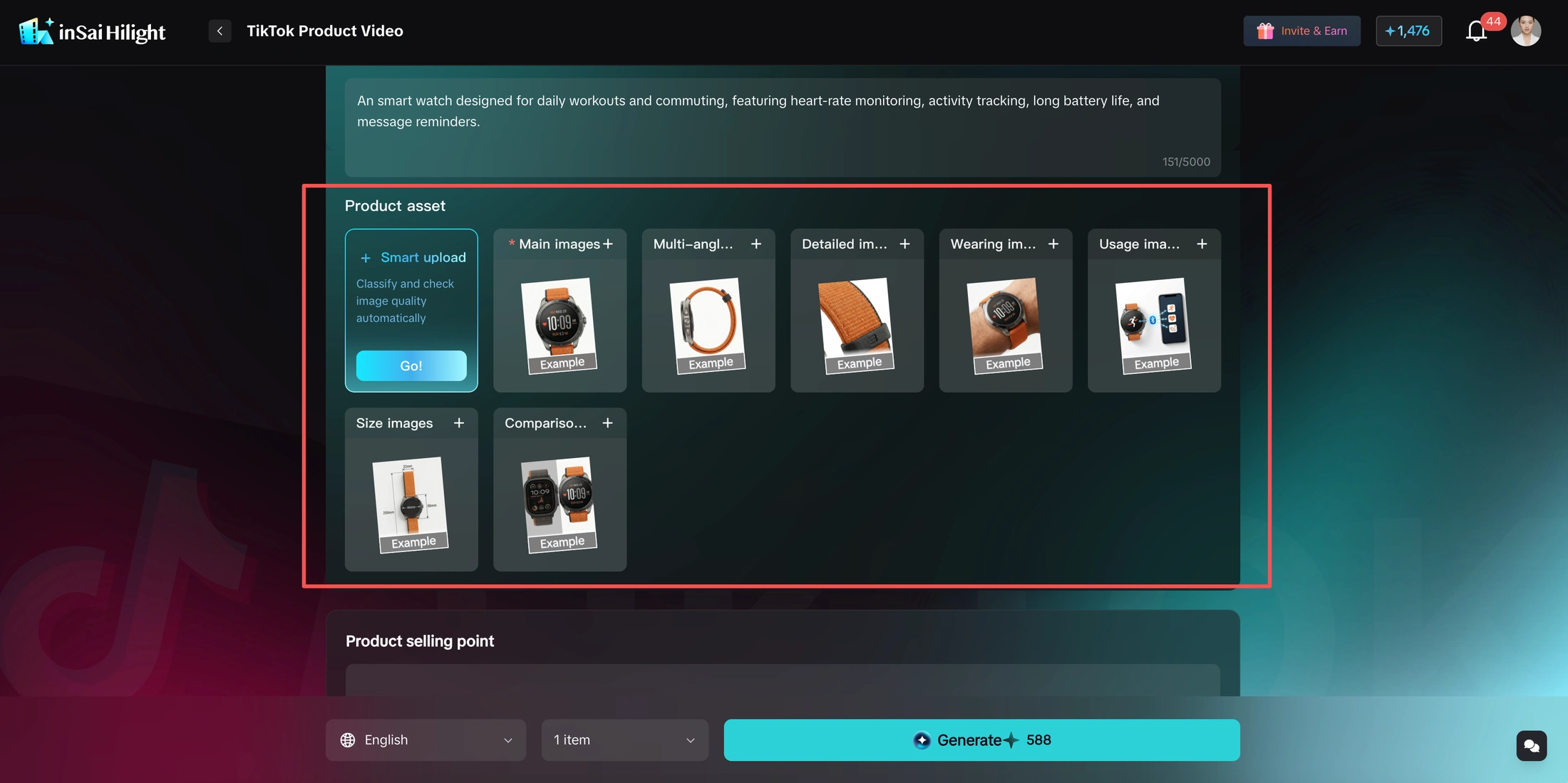
The TikTok product video scene separates product assets by role, so the system can understand how each image should be used.
Use these roles as a simple checklist:
- Product main image: the clearest product image, usually used to establish what is being sold
- Multi-angle image: side, back, detail, wearing, usage, or comparison views
- Detail close-up image: texture, material, button, package, accessory, or any detail that supports the selling point
- Scene or display image: lifestyle scene, package display, use case, or context image
If you only have a few product images, start anyway. Choose the cleanest image as the main image, then add additional images only when they help the video explain the product more clearly.
If you do not want to sort every image manually, use Smart Upload first. It can help parse product images and complete categorization and quality checks. Still, give the result a quick review: make sure the main image really shows the product clearly, and that detail or scene images are not placed in the wrong role.
Step 4: Review the Recommended Selling Points and Target Audience
After product-link parsing, Hilight may recommend product selling points and target audience notes. This is one of the most useful parts of the workflow, because many sellers get stuck before the script stage.
Review the suggestions like a marketer:
- Is the selling point specific enough?
- Does it describe a real reason someone would care?
- Is the target audience too broad?
- Does the audience match the product price, style, use case, and platform?
- Would a TikTok viewer understand this product angle in the first few seconds?
For example, "comfortable summer dress" is a start, but "lightweight vacation dress for commuting, weekend outings, and beach trips" gives the video more direction. You can keep the AI suggestion, rewrite it, or add your own creative idea.
Step 5: Add Other Creative Ideas, Language, and Quantity
The other creative ideas field is where you tell Hilight what kind of video you want, beyond basic product information.
You can use it to describe:
- The opening hook you want
- The user scene you want to emphasize
- The pacing, such as fast montage, before-and-after, or relaxed explanation
- The offer or call to action
- Any style you want to avoid
Then choose the video language and quantity. If you are unsure, generate one version first. Once the first result helps you see the direction, you can adjust the brief and create more versions.
Step 6: Click Generate and Let the Task Run
After you click the generate button, Hilight starts the creation task. You do not need to stay on the page and watch every stage. The task can continue running after you leave the page, and the progress view is mainly there to show what Hilight is working on.
If you do stay on the page, you may see stages such as information summary, trend insight, script planning, asset matching, asset enhancement, editing execution, and final video creation. These updates are meant to make the process easier to trust, not to give you another checklist to manage:
- Information summary checks product and material context.
- Trend insight looks for content direction and short-video patterns.
- Script planning turns the product angle into a video structure.
- Asset matching connects product images to script moments.
- Asset enhancement improves materials where needed.
- Editing execution assembles the video direction.
- Final video creation prepares the generated result.
This is why the workflow is more than a script box. The product information, selling point, audience, and assets all influence what the generated video becomes, while the task itself can continue in the background.
Step 7: Review the First Generated Video
When the video is ready, review it before using it in a campaign or social post.
Check these points first:
- Does the product appear early enough?
- Is the opening clear and specific?
- Does the video focus on one main buying reason?
- Are the product claims accurate?
- Do the visuals match the actual product?
- Does the pacing feel suitable for TikTok-style viewing?
- Is the next action clear enough for the viewer?
If the first version is not strong enough, change the input rather than only judging the output. A better selling point, narrower audience, clearer product image, or more specific creative idea can change the next generation.
What to Change If the First Result Is Not Strong Enough
Do not try to fix everything at once. Change one or two inputs, generate again, and compare the direction.
Related Hilight Reads
- Product Link to Video: useful when product-page parsing is the main workflow.
- Image to Video AI: useful when you already have product images and need motion clips.
FAQ
Do I need a product link to make a TikTok product video?
No. A product link can help Hilight recognize product information and images faster, but you can also fill product information manually and upload product assets yourself.
What images work best?
Use clear product images with minimal clutter. Start with one clean main image, then add multi-angle, detail, package, or scene images when they help explain the selling point.
Can I create more than one version?
Yes. You can choose the quantity before generation. For a first attempt, one version is usually enough; after you understand the direction, create more versions with different hooks, audiences, or selling points.
Do I need to keep the generation page open?
No. You can leave the page while the task continues. The progress page is mainly there to show that Hilight is still working and what stage it has reached.
Should I edit the brief after product-link parsing?
Yes. Product-link parsing is a starting point. Review the recognized product information, product images, selling points, and audience notes, then edit the brief so it matches your product and target customers.

