Quick Answer
inSai Hilight can create an AI product presenter video from one product image, a short explanation script, a video language, and either a system AI avatar or an uploaded portrait. The generated scene shows the presenter holding the product while speaking, with the background, pose, and product angle created by AI.
Use this workflow when the product itself needs to stay visible during the explanation. It is especially practical for beauty, personal care, food, daily-use products, small appliances, and other items that a presenter can naturally hold.
The product may be ready to launch, with clean images and clear selling points already prepared. But adding a presenter-led explanation often means finding talent, setting up another shoot, and recording again whenever the team wants to test a new message or language.
An AI spokesperson video offers a shorter route. Starting from an existing product image and script, the presenter can appear with the item and explain its value without arranging a separate shoot for every version.
This tutorial walks through inSai Hilight's Avatar Product Video workflow, called 手持商品讲解 in the Chinese interface. You will learn what to prepare, how to choose the presenter, language, and voice, and what to adjust when the first result is not ideal.
When Should You Use an AI Product Presenter Video?
Use Avatar Product Video when the visual relationship between the presenter and the product matters. The presenter and item appear together, so the viewer can see what is being recommended while hearing the selling point.
This format works well for:
- product selling-point explanations
- creator-style product recommendations
- ecommerce product page videos
- social media talking clips
- ad creative tests built around different benefits
- presenter clips that can be used in a longer edit
Products that are easy to hold usually fit the workflow best. Beauty products, personal care items, packaged food, daily-use goods, small home appliances, and compact electronics accessories are natural examples.
If the item is too large, difficult to hold, or depends on a detailed real-use demonstration, another product visual format may feel more natural.
If the product needs motion or a visual demonstration without an on-screen presenter, start with this image-to-video AI guide instead.
Avatar Product Video or Avatar Video?
A simple rule helps: choose Avatar Product Video when the product should be seen; choose Avatar Video when the message should lead.
What to Prepare Before You Start
Before opening the tool, make three decisions: which product image to use, what the presenter should say, and whether a system avatar or a specific portrait fits the video. The detailed requirements below help prevent avoidable rework after generation.
One Clear Product Image
Use an image with a clear subject, complete edges, a simple background, and visible color and material details. If the product includes a logo or text, Hilight recommends that the shortest side of the image be longer than 512 px.
Avoid blurry images, blocked products, complex backgrounds, several products with no clear subject, large watermarks, or an item that occupies only a small part of the frame.
A Short Spoken Script
The current script limits in the help documentation are:
- Chinese: up to 125 characters
- English: up to 250 characters
A useful script explains two to four points: what the product is, the main benefit, who it is for, the usage scene, or why it is worth considering. Keep it conversational. A short product recommendation usually sounds more natural than a compressed specification sheet.
A Presenter Direction
Decide whether to use a system AI avatar or upload a portrait.
- A system avatar is the simplest first test. Its voice is already connected to the avatar, and you can preview the voice before choosing.
- An uploaded portrait gives the video a specified appearance, but you must choose a separate voice.
For the first attempt, start with one clean product image, one system avatar, and one short script. Once the overall direction works, test other presenters, languages, or selling-point angles.
How to Create an AI Spokesperson Video in inSai Hilight
Once the materials are ready, you can move into generation. One part of the order matters: choose the video language before the avatar and voice, because the language affects which presenter and voice options are available. The complete workflow has seven steps.
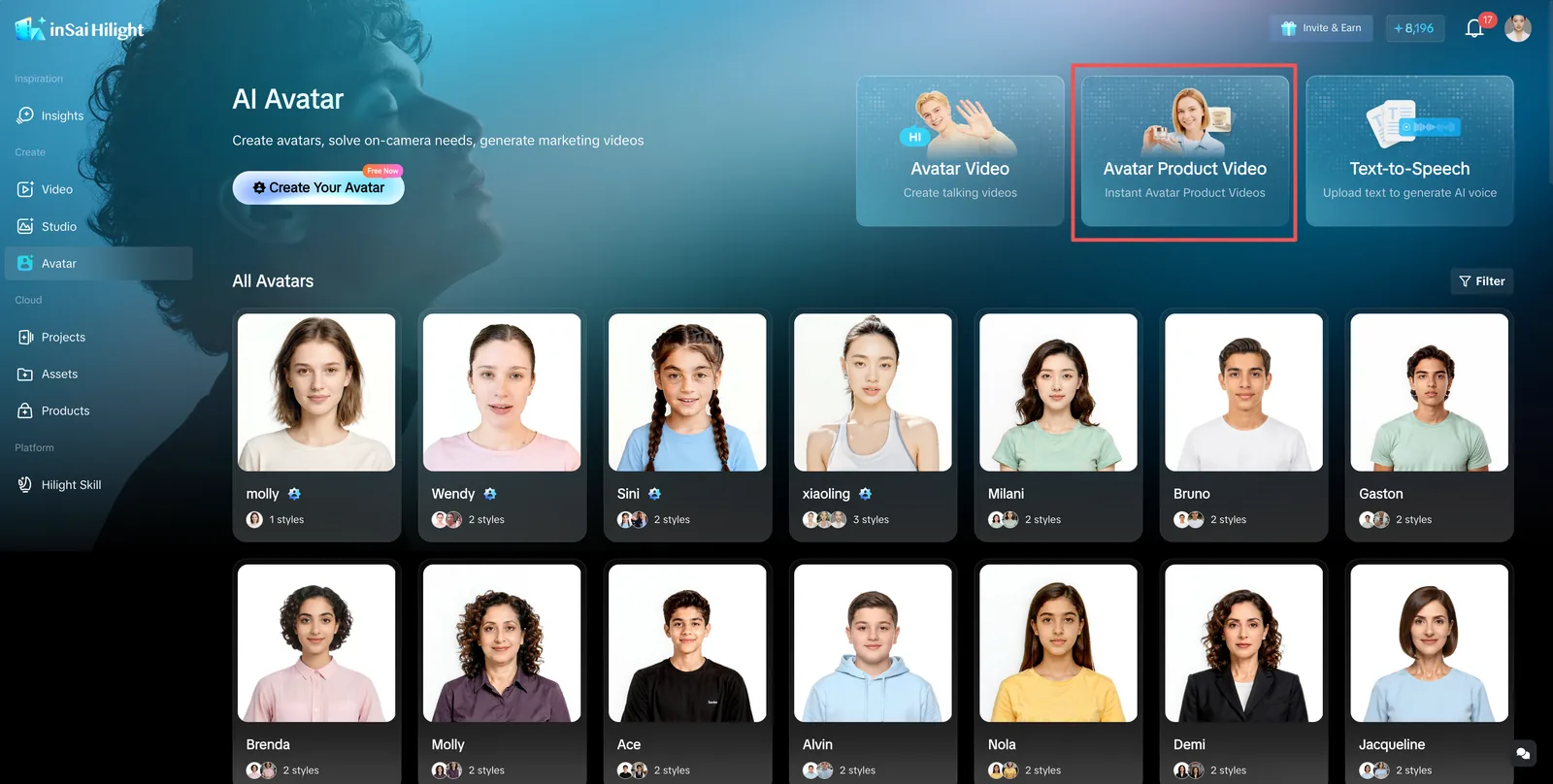
Step 1: Open Avatar Product Video
Enter the Digital Avatar area and choose Avatar Product Video. In the Chinese interface, the tool is called 手持商品讲解.
This workflow is designed for a presenter to hold and explain a product. Hilight creates the background, presenter pose, and product presentation angle with AI, so these elements do not need to be arranged manually.
Step 2: Upload the Product Image
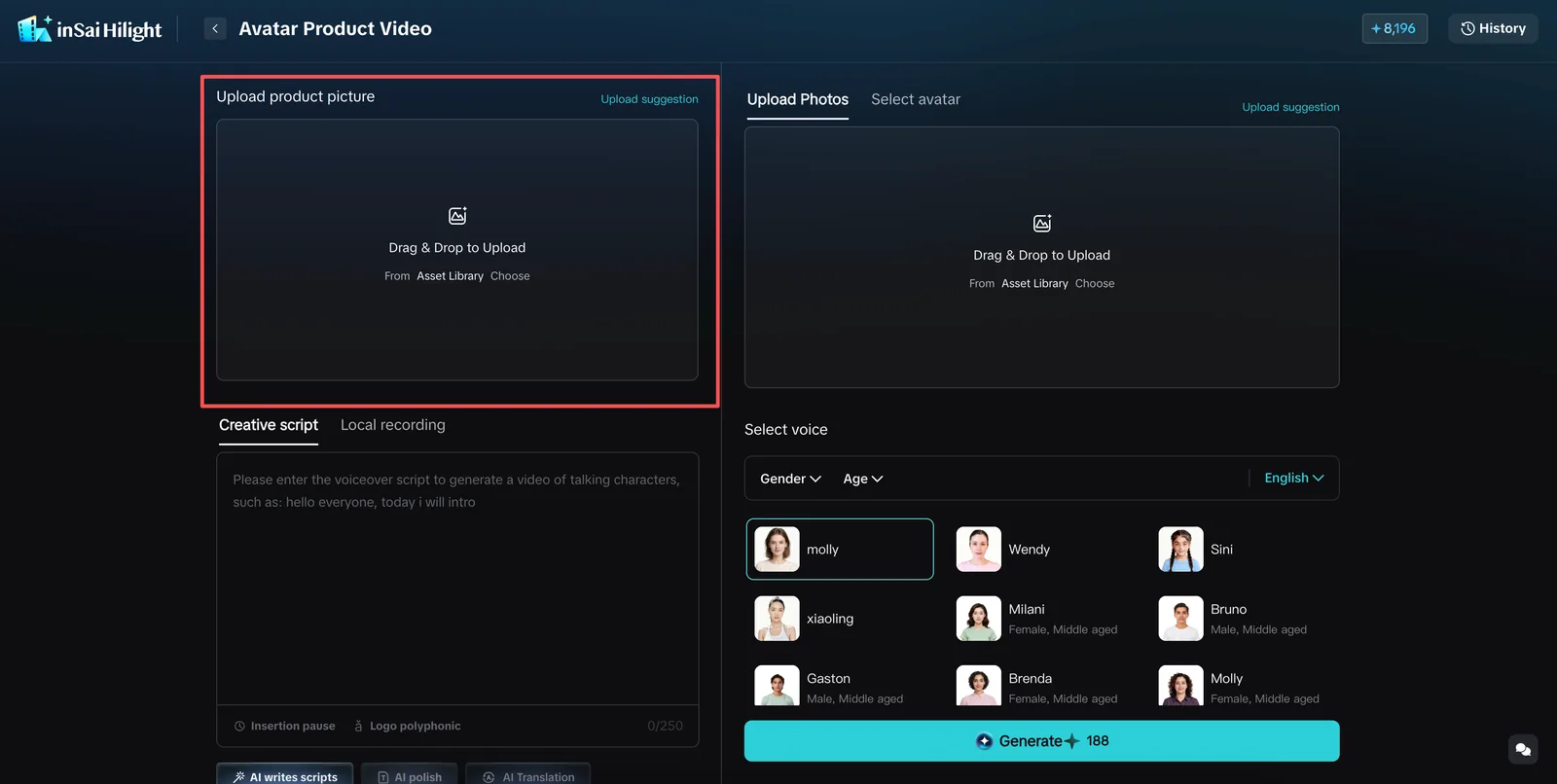
Upload the image by clicking the upload area, dragging and dropping a file, or selecting an existing image from Assets.
Before moving on, check that the product is complete, easy to identify, and large enough in the frame. Fine packaging text, logos, transparent materials, reflective surfaces, and small textures need a particularly clear source image.
Step 3: Write the Explanation Script
Enter what you want the presenter to say. Build the script around the product rather than a generic greeting.
A practical short script can follow this sequence:
- name the product or the problem it solves
- explain the strongest benefit
- connect the benefit to a real use case
- close with one recommendation or reason to act
If you do not have finished copy, the page provides AI Script Writing, AI Polishing, and AI Translation. After using them, check the character limit and read the script aloud once. Remove formal phrases or long lists that do not sound natural when spoken.
For example, a short script for a portable fan could name the situation first, then focus on two or three useful benefits such as airflow, portability, and where it can be used. This gives the presenter one clear angle instead of a dense list of specifications.
Step 4: Choose the Video Language First
Select the video language before choosing the avatar or voice. The language controls which avatars and voices are available, and it should match the language used in the script.
As of July 21, 2026, the avatar tools used in this tutorial support 10 languages: English, Chinese, Cantonese, Arabic, Russian, Spanish, French, Portuguese, German, and Japanese.
Step 5: Choose an AI Avatar or Upload a Portrait
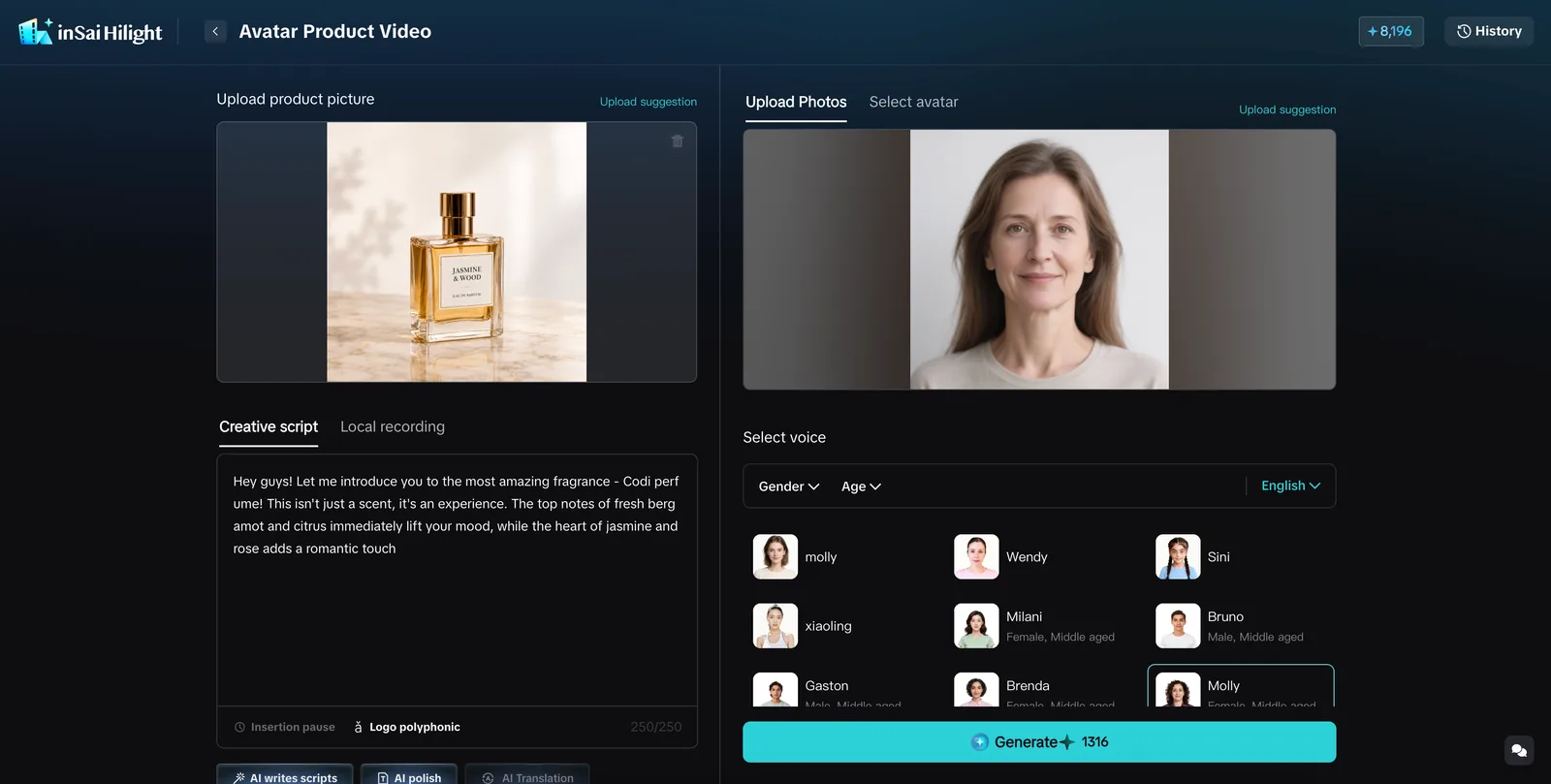
Choose a system avatar when you want to test quickly. Check whether the presenter's appearance, speaking style, and supported language fit the product and target audience. Hover over the avatar to preview its connected voice.
Upload a portrait when the video needs a specified presenter appearance. Use a clear single-person headshot with even lighting, a front-facing or nearly front-facing angle, a simple or solid-color background, and no obstruction over the face.
Do not use a full-body image, group photo, blurry portrait, heavily filtered image, strongly angled face, complex background, or a celebrity or public-figure photo.
If the same presenter will appear across several videos, the custom AI avatar tutorial explains how to create a reusable avatar from an authorized short video.
Step 6: Choose a Voice When Using an Uploaded Portrait
You only need a separate voice when you upload a portrait. Choose one that supports the selected video language and fits both the person and product category.
A natural, approachable voice may suit beauty, personal care, food, and daily-use products. A clear and steady voice may fit electronics or small appliances better. If you selected a system avatar, its voice is already connected and does not need to be selected again.
Step 7: Run a Final Match Check and Generate
Before clicking Generate Now, confirm that:
- the product image is clear and the item can be held naturally
- the script stays within the current character limit
- the script language matches the selected video language
- the avatar or voice supports that language
- the presenter style fits the product and audience
- the script focuses on two to four useful selling points
Generate the video, then preview the result before deciding whether to make another version.
How to Judge the First Generated Result
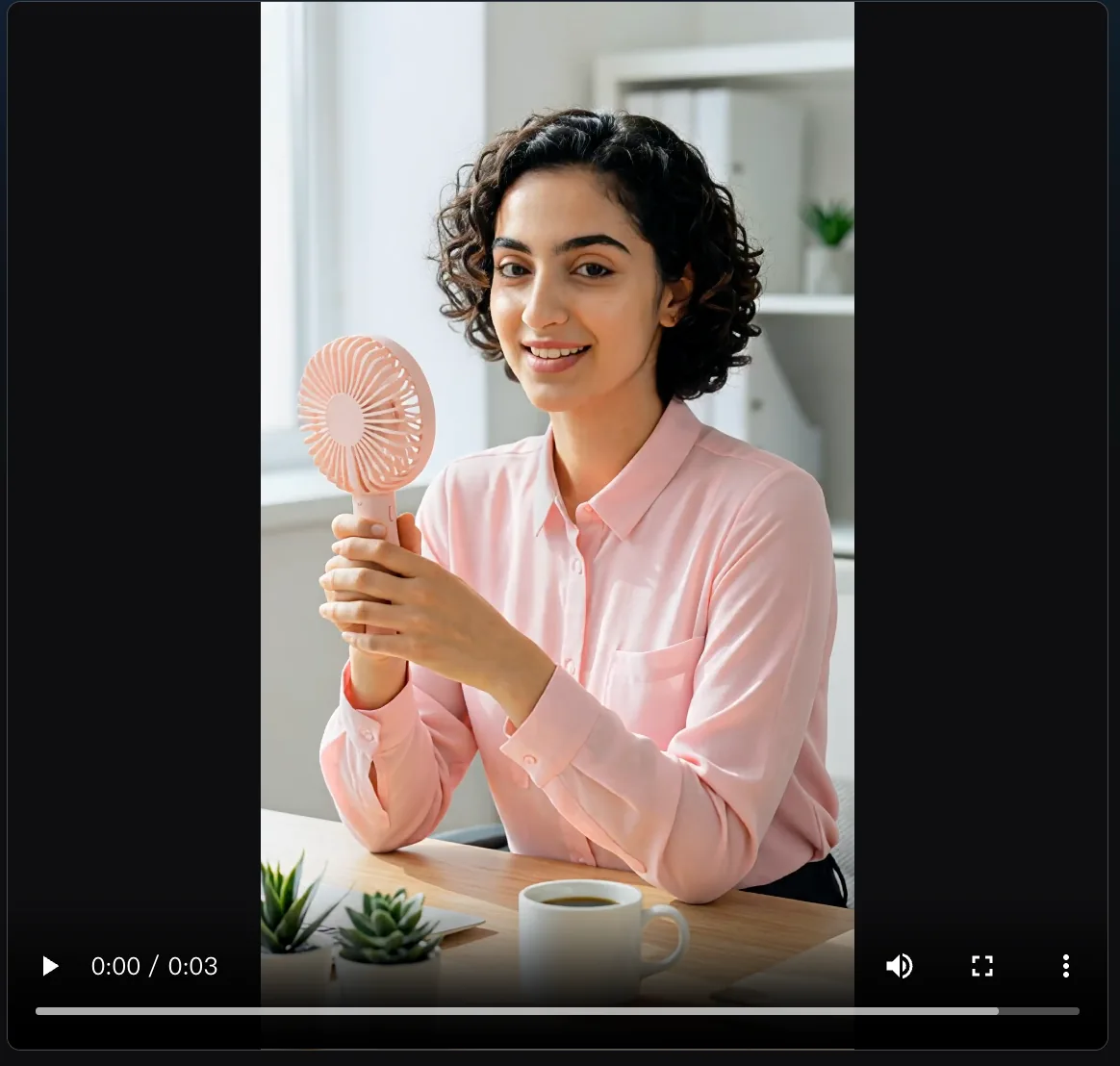
Do not evaluate only whether the presenter looks polished. A useful AI product demo avatar should help the viewer notice the product and understand the message at the same time.
Check these five areas:
- Handheld presentation: Does the product sit naturally in the presenter's hand?
- Product visibility: Are the shape, packaging, color, and important details clear?
- Speaking rhythm: Does the script sound smooth rather than compressed or overly formal?
- Presenter fit: Does the appearance and voice match the product category and target audience?
- Message focus: Can the viewer understand the main benefit without hearing a long list of specifications?
If the overall direction is right but one detail is weak, change only the input that caused the problem. Replace an unclear product image, shorten a stiff script, choose a better-matched avatar, or correct the language and voice pairing before generating again.
Common Problems and What to Change First
Use a cleaner, larger product image with complete edges. Avoid clutter, watermarks, several products, and tiny subjects. For important logos or packaging text, use a higher-resolution source and keep the product presentation relatively stable.
First decide whether the item is genuinely suitable for handheld presentation. Large or awkward products may need another display format. For suitable products, try a clearer front or three-quarter product image with less background interference.
Check the selected video language first. If you uploaded a portrait, choose a voice that supports that language and matches the presenter's appearance and the product tone. System avatars already have connected voices.
Reduce the number of claims and technical details. Keep one angle, two to four key points, and shorter spoken sentences. Write as if one person were recommending the product to another.
Confirm the video language before choosing the presenter. Available avatars and voices change with language support, so setting the wrong language can narrow the list unexpectedly.
FAQ
What is an AI spokesperson video?
An AI spokesperson video uses a digital presenter to deliver a spoken message on screen. In an ecommerce workflow, the presenter may introduce a product, explain a selling point, or appear with the product in an AI avatar product demo.
Can I create an AI spokesperson video from one product image?
Yes. In Hilight's Avatar Product Video workflow, one clear product image can be combined with a script, language, and presenter. AI generates the presenter scene, including the background, pose, and product presentation angle.
Do I need to create a custom avatar first?
No. You can begin with a system AI avatar. Upload a portrait only when the video needs a specific presenter appearance. A custom portrait requires a separate voice selection.
Which products work best for an AI product presenter?
Products that can be held naturally tend to work best, including beauty products, personal care items, food, daily-use products, small appliances, and compact accessories. Very large products or products that need a detailed physical demonstration may suit another visual format better.
Can I try an AI spokesperson video for free?
As of July 21, 2026, Hilight gives new users 1,200 Starlight credits at registration. Completing six onboarding tasks can add 300 credits per task, for up to 3,000 total credits. The generation page shows the credits needed for the current task before you submit it, so check the displayed amount when testing a version.
Final Thoughts
After the first generation, avoid changing the image, script, and presenter all at once. Trace the weakest part back to its input: replace the image if the product is unclear, tighten the script if the delivery feels stiff, or change the avatar if the presenter does not fit the category. Once the first combination works, it becomes much easier to create other language versions or test new selling-point angles without arranging another presenter shoot.

